Versions Compared

Key

  • This line was added.
  • This line was removed.
  • Formatting was changed.

The You can configure the Stopped vehicle detection  program module is configured on the settings panel of the Stopped vehicle detection object , that is created on the basis of the Camera object on the Hardware tab of the System settings dialog window.

The To configure the Stopped vehicle detection module is configured as follows program module, do the following:

  1. Go to the settings panel of the Stopped vehicle detection object.
    Image Modified
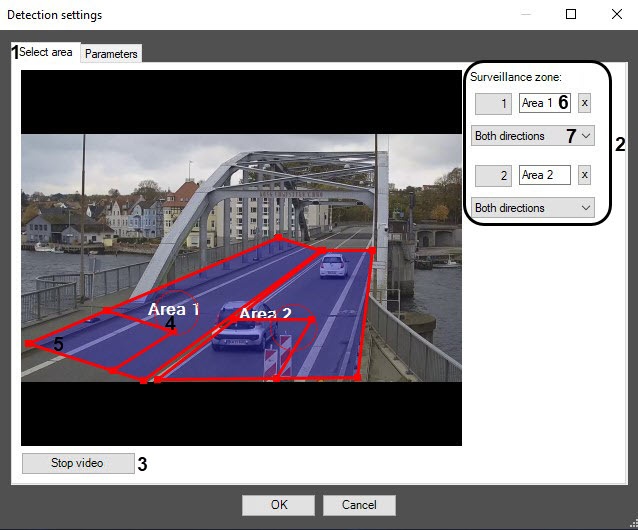
  2. Click the Settings
  3. (1)
  4. button. The Detection settings window
  5. will open
  6. opens.
  7. Set the surveillance zones on the
  8. On the Select area tab (1)

  9. . Several zones can be added. Detection tool triggering in each zone produces a separate event
  10. , set the surveillance zones. You can set several surveillance zones (2). Detector generates a separate event in each surveillance zone.

    Info
    titleNote

    Both the vehicle stop and the stopped vehicle that leaves the boundaries of the zone are detected in each surveillance zone.

    Image Modified

    To

  11. add a
  12. set the surveillance zone, do the following:

    1. Click the Stop video button (

  13. 2
    1. 3) to capture the frame of the video image.

    2. To add a zone, click

  14. any mouse button on the video image. Several zones can be added (3). Detection tool triggering in each zone produces a separate event.
    Image Removed Info
    titleNote
    For each surveillance zone, both vehicle stop and vehicle leaving the zone are detected
    1. the left and right mouse buttons on the frame of the video image.

    2. Set the required size, shape, and position of
  15. the surveillance zone
    1. the surveillance zones:
    2. to
        • To change the surveillance zone size, use the anchor points of the zone;
    3. to
        • To rotate the zone, drag it, while holding the mouse pointer close to the inner perimeter of the zone;
    4. to
        • To move the zone around the frame of the video image, use
    5. a
        • the dotted-line circle (4).
      1. Specify the approximate size of the vehicle in each surveillance zone by changing the size of the internal

    6. areas
      1. area in the bottom left corner of the zone (5). This

    7. field
      1. area (5) is called the detection area.

        Info
        titleNote

        Each surveillance zone over its entire area is proportionally covered by detection areas of the specified size.

    8. It is necessary to
      1. You must set the approximate dimensions of the vehicle so that each surveillance zone includes no more than 256 detection areas.

        • To control the coverage of the zone with detection areas, use the debug window (see Appendix 1. Debug window).
        • The stopped vehicles can be detected only in those parts of the surveillance zone
    9. , which
        • that are covered with detection areas.
      1. Enter
    10. zone name
      1. the names of the zones (6).
      2. Select the direction of

    11. the vehicles
      1. vehicle movement relative to the camera for

    12. each
      1. the surveillance zone (7).

    13. Info
      titleNote

      To remove the area, click the Image Removed button next to the Area of interest button.

    14. Go to the Parameters tab
    15. (1)
    16. .
       
    17. Image Removed
    18. Image Added
    19. Set the Traffic jam detection 
    20. checkbox (2), if you want to
    21. checkbox to receive events about the traffic jams.
    22. In
    23. the
    24. the Stop duration
    25. ,
    26. (s) field
    27. (3), set
    28. , enter the minimal time of the vehicle
    29. minimal
    30. stop
    31. duration
    32. in seconds.
    33. Number of
    34. In the

    35.  
    36. Frames processed

    37. frames
    38. per second

    39. (
    40. [0.016

    41. -
    42. , 100

    43. )
    44. ] field

    45. (4)
    46. ,

    47. specify
    48. enter the number of frames

    49. the detection tool will process
    50. that the detector processes per second. The higher the value, the more

    51. accurate
    52. accurately the

    53. detection tool
    54. detector operates

    55. .
    56. , but the higher the load on the CPU

    57. is higher as well
    58. . The default value is 25 frames.

      Info
      titleNote
    59. All
    60. You can find all events received from

    61. the 
    62. the Stopped vehicle detection object

    63. can be observed
    64. in the Event viewer interface window

    65. (
    66. . For more details, seeOperating the Stopped vehicle detection module

    67. )
    68. .

    69. Click the OK
    70.  (5)
    71. button to save the changes and return to the settings panel of the Stopped vehicle detection object.
    72. Click the
    73. Image Removed button
    74. Apply button on the settings panel of the Stopped vehicle detection object.

    Configuring the Stopped vehicle detection program module is completedcomplete.