
Go to documentation repository


Page History
...
- Select the system object the position of which should be changed in the objects tree.

Select a new parent object in the drop-down list on the settings panel of the object. The name of the drop-down list is the same as the type of the parent object.

Info title Note If the object is moved to another computer, Axxon PSIM should be restarted on both computers – —on the one the object is moved to and on another the object is moved from. As a result, the object is displayed in the objects tree of the selected parent object.

...
The copy function enables cloning the objects created in Axxon PSIM objects tree (for copying objects using a template, see also The Save function).
| Info | ||
|---|---|---|
| ||
The copy function is guaranteed for the Video capture device object and its child objects: Camera, Sensor, Relay, Embedded detection tool, Face detection tool, Detection zone, Tracker, VMDA detection tool and Captioner. For other objects this function is not guaranteed. |
...
- Select the object that should be copied in the objects tree.
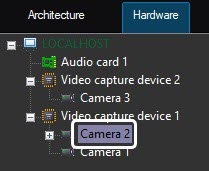
- To copy the object, press the Ctrl+C key combination.
- Select the parent object on the basis of which the copy of the selected object should be created or one of the objects created on the basis of the parent object.
If the copy should be created on the basis of the same parent object as the source object, then this step can be skipped. - Paste the object using one of the following key combinations:
- Ctrl+V – V—paste only the copied object.
- Ctrl+Shift+V – —paste the copied object with all child objects.
...
- Select an object or a folder that should be deleted (1) and right-click to display the context menu (2).

Select the Delete object item in the menu.

Info title Note You can also select the object that should be deleted and press the Ctrl+Del key combination instead of using the context menu.
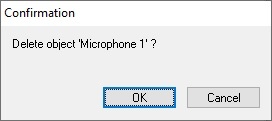
As a result, a dialog box requesting confirmation of the object deletion will appear on the monitor.
Click the OK button.
The figure below displays the result of an object deletion (objects tree contents after the object was deleted). The deleted object (the Microphone object in the example) is no longer displayed in the objects tree.

| Info | ||
|---|---|---|
| ||
The object settings are applied after switching to another fragment, regardless of clicking the Apply button. |
| Tip |
|---|
Overview
Content Tools