


Page History
...
- Have access to the internet.
- Open ports 80 and 443.
- Allow access of incoming and outgoing traffic to the website of the cloud service if the server has limited internet access.
- Click the
 button in the upper right corner on the Domains tab.
 - Click the Create button.
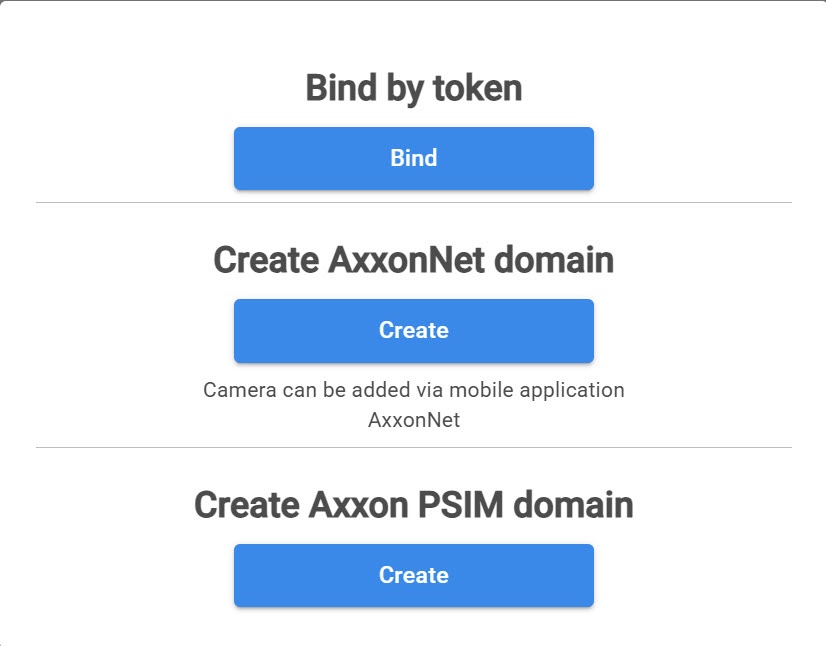
- Enter the Name of the Axxon PSIM domain.

- Click the Yes button. The created Axxon PSIM domain is displayed on the Domains tab.
- On the Domains tab, click the
 button next to the Axxon PSIM domain and select Generate domain token.
- Copy the token to bind to the Axxon PSIM domain.

- In Axxon PSIM (see Cloud authorization for sending Axxon PSIM push notifications):
- On the Hardware tab of the system settings window, create the Cloud authorization object.
- In the Cloud server URL field, enter the address of the cloud solution.
- In the Token field, paste the copied token to bind to Axxon Datacenter.
- Click the Apply button.
...
- Go to the Domains tab.
- Click the button next to the domain permissions to which you want to share.
- Select Users and Groups.

- In the window that opens, click the button:

Add user Create user If the user already exists in the system and you need to give them access to the selected domain If you need to create a new user who doesn't exists in the system yet - In the window that opens, click the Users and Groups field.

- A window opens in which you can set the checkboxes next to the users or group of users you want to add to the domain. To view all users, turn on the Show all users toggle.

- Click the Apply button.
- From the Role drop-down list, select the domain role that you want to assign to the user. You can assign the same role or any other role of a lower rank to the user.
- If you select a domain connected via a token, the VMS role field is available. From the VMS role drop-down list, select a role that exists in Axxon One to assign to the user.
- Click the Assign
 button
- In the window that opens, click the New user field.

- A window opens. In this window:

- In the Email field, enter the user's email address.
- From the Cloud permissions drop-down list, select a cloud permission for the new user.
- Click the Apply button.
- From the Role drop-down list, select the domain role that you want to assign to the user. You can assign the same role or any other role of a lower rank to the user.
- If you select a domain connected via a token, the VMS role field is available. From the VMS role drop-down list, select a role that exists in Axxon One to assign to the user.
- Click the Assign button
- In the window that opens, click the Users and Groups field.
As a result, the permissions to the selected domain are assigned to the specified user or group of users.
...
- Create a list of faces or a list of license plates in Axxon Datacenter (see Creating, editing and deleting lists of faces in Axxon Datacenter, CreatingCreate, edit, editing and deleting delete a list of LPs license plates in Axxon Datacenter).
- The created lists must be synchronized to the corresponding domain (see Synchronizing Synchronization of a list of faces with the domain in Axxon Datacenter, Synchronizing a list of LPs with the domain and exporting in Axxon Datacenter Synchronization and export of lists of license plates).
- In Axxon One, configure a macro using the specified lists of faces or license plates (see Configuring macros when working with lists of faces, Configuring macros when working with lists of license plates).
- Additionally, you must configure in Axxon One:
- Email notifier to generate notifications (see Email notifier).
- Export agent to transfer data to the cloud solution (see Configuring Export agent).
...
Overview
Content Tools