
Go to documentation repository


Page History
| Tip |
|---|
Video stream and scene requirements for the Barcode detector and its sub-detectors Image requirements for the Barcode detector and its sub-detectors |
To create configure the Barcode detector, do the following:
- Go to the Detection ToolsDetectors tab.
Below the required camera, click Create… → Category: Retail → Barcode detector.
...
If necessary, you can change the settings parameters of the detector parameters given in the table:
| Parameter | Value | Description |
|---|---|---|
| Object features | ||
| Record objects tracking | Yes | The metadata of the video stream is recorded to the database by default. To disable the parameter, select the No value |
| No | ||
| Video stream | Main stream | If the camera supports multistreaming, select the stream for which detection is needed |
| Other | ||
| Enable | Yes | The detector is enabled by default. To disable the detector, select the No value |
| No | ||
| Name | Barcode detector | Enter the detector name or leave the default name |
| Track lifespan (starting with Detector Pack 3.14) | Yes | By default, the parameter is disabled. If you want to display the track lifespan for an object in seconds, select the Yes value |
| No | ||
| Barcode type | Aztec | Select the type of barcode that will generate events from the detector when detected |
| DataMatrix | ||
| PDF417 | ||
| QR code | ||
| Linear | ||
| Decoder mode | Auto | Select a processing resource for decoding video streams. When you select a GPU, a stand-alone graphics card takes priority (when decoding with NVIDIA NVDEC chips). If there is no appropriate GPU, the decoding will use the Intel Quick Sync Video technology. Otherwise, CPU resources |
| are used for decoding | |||||||
| CPU | |||||||
| GPU | |||||||
| HuaweiNPU | |||||||
| Detector mode | CPU | Select a processor for the neural network operation (see Selecting Nvidia GPU when configuring detectors)
| |||||
| Nvidia GPU 0 | |||||||
| Nvidia GPU 1 | |||||||
| Nvidia GPU 2 | |||||||
| Nvidia GPU 3 | |||||||
| Intel NCS (not supported) | |||||||
| Intel |
| HDDL (not supported) | |||||||
| Intel Multi-GPU | |||||||
| Intel GPU 0 | |||||||
| Intel GPU 1 | |||||||
| Intel GPU 2 | |||||||
| Intel GPU 3 | |||||||
| Huawei NPU | |||||||
| Neural network file | If you use a custom neural network, select the corresponding file.
|
|
|
|
|
| ||
| Number of frames processed per second | 10 | Specify the number of frames for the detector to process per second. The value must be in the range [0.016, 100] |
| Type | Barcode detector | Name of the detector type (non-editable field) |
By default, the entire frame is a detection area.If necessary, in the preview window, set:
- one or more detection areas (see Configuring a detection area),
- one or more skip ignore areas (see Configuring a skip the ignore area).
To save the parameters of the detector, click the Apply 
 button. To cancel the changes, click the Cancel
  button.
The Configuring the Barcode Detection is configured.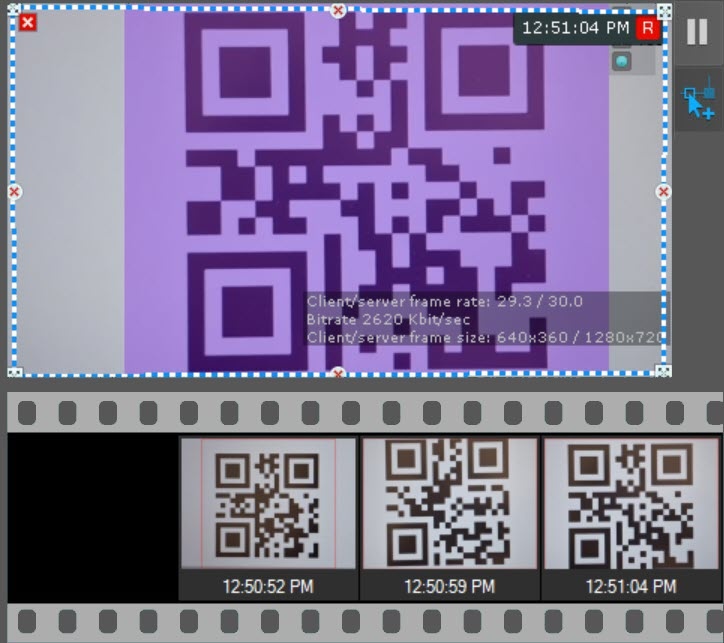 detector is complete. If necessary, you can create and configure the necessary sub-detectors on the basis of the Barcode detector (see Standard sub-detectors).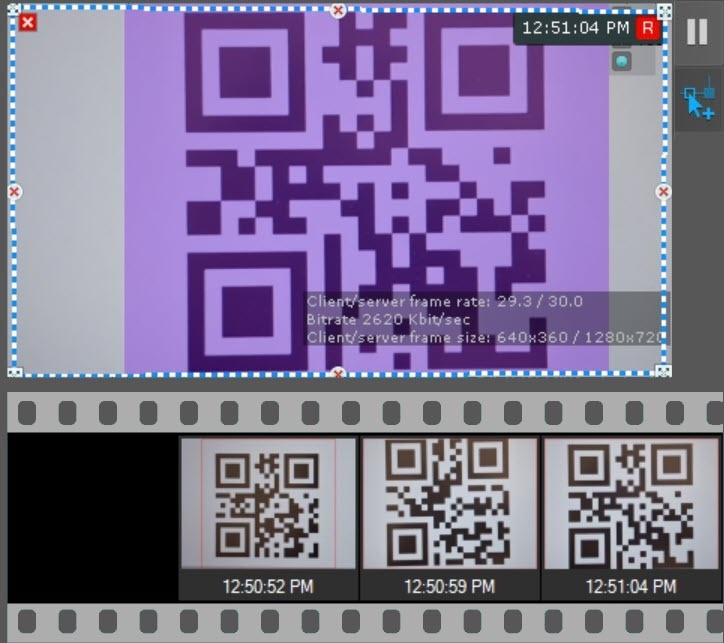
If necessary, you can search for a barcode in the archive. You can search by the text that was is recognized during barcode detection (Search by barcode).
Overview
Content Tools