


Page History
| Section | |||||||||||||||||||||
|---|---|---|---|---|---|---|---|---|---|---|---|---|---|---|---|---|---|---|---|---|---|
|
Registration
To register with AxxonNet, do the following Axxon Datacenter:
- On the main
- home page of AxxonNet https://axxonnet.com/
- Axxon Datacenter, click the Sign up button.
- Enter your Email and Password twice.

- Click the SIGN UP
- Sign up button.
A confirmation email will be sent to the specified Email - email address.
Info title Note If you try to register the user who already exists in the system, the warning message Invalid login
will be is displayed.
- Confirm registration.
The registration Registration is complete.
Authorization
To authorize in AxxonNet, it is necessary to Axxon Datacenter, you must register. On the main home page of AxxonNet https://axxonnet.com/ Axxon Datacenter, enter your Username or email and Password, and click the SIGN IN button Sign in button.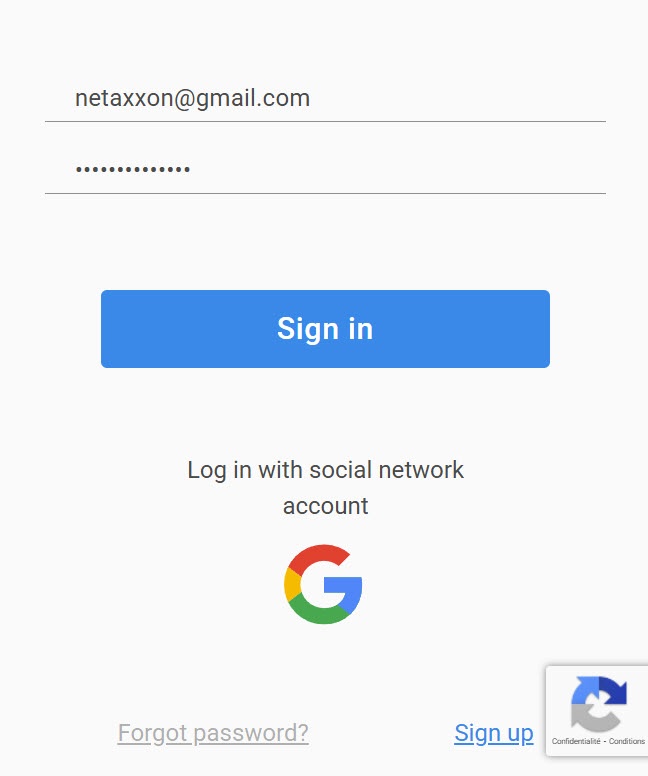
| Info | ||
|---|---|---|
| ||
If you enter incorrect Username or email or Password, the warning message Invalid login or password will be is displayed. |
If you configured two-factor authentication in the account (see Two-factor authentication of the Axxon Datacenter user account):
- receive an email with a confirmation code
- OTP code via email: a confirmation code will be
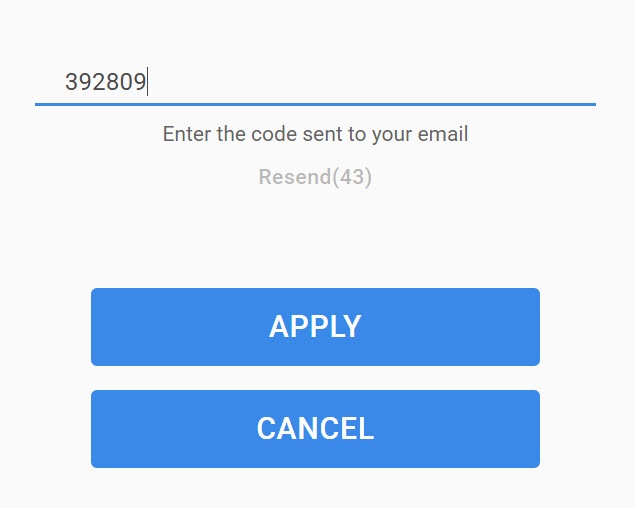
- is sent to the registered email. In the Confirmation code field, enter the confirmation code within 60 seconds and click the APPLY button. Click the RESEND link
- Resend link to resend the confirmation code.
- receive a confirmation
- OTP code via the
- Microsoft Authentificator
- Authenticator app: in the
- the Confirmation code field, enter the one-time password from the Microsoft Authentificator mobile
- Authenticator app and click the
- the APPLY button.

| Info | ||
|---|---|---|
| ||
|
When you authorize with your Google account, you'll be automatically redirected to AxxonNet and prompted to set a password.

Use it next time you sign in.
Password recovery
To recover your password, click the Forgot password? link and do the following:
- Enter your Email and click the RESTORE
- Restore button.
An email with further instructions
will be is sent to the specified Email.
- In the received email letter, click the Change password button.
- Enter your new password twice and click the UPDATE PASSWORD button
- the Update password button.
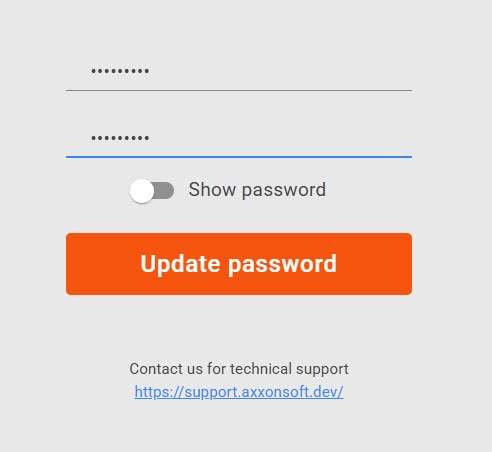


Password updated successfully. Use it next time you sign in.
Password change
To change your password, do the following:
- Register and sign in to AxxonNet https://axxonnet.com/.
- in to Axxon Datacenter.
- On the Domains tab in the upper right corner, click the
-
 button.
 - In the window that opens, click the
 button.
  Click the
 - In the window that opens, click the Change password link.
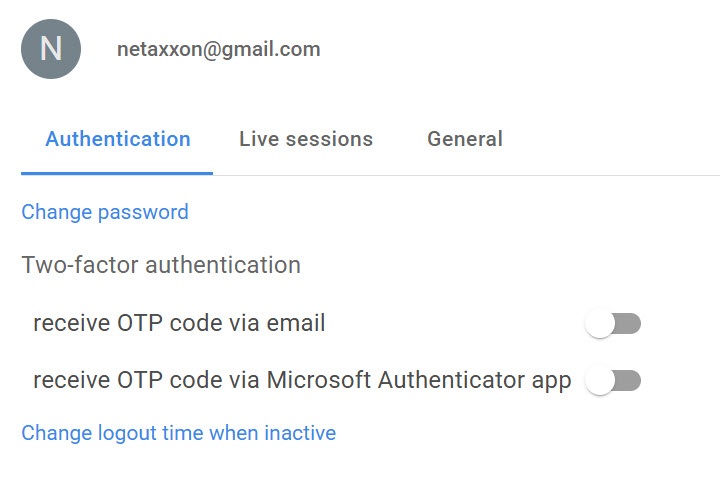
Enter Current password, and New password twice.
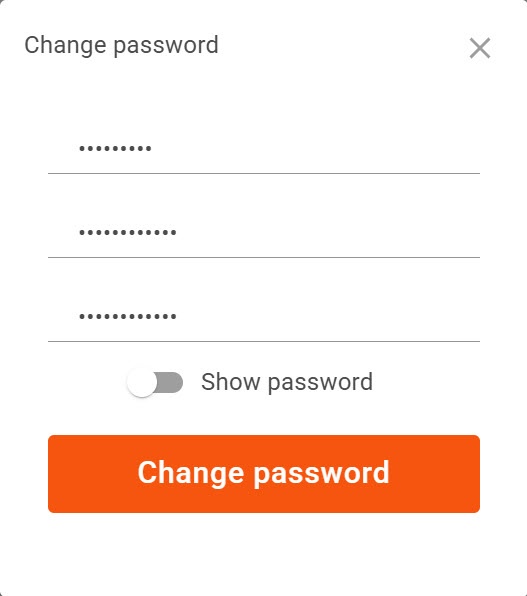
- Click the CHANGE PASSWORD
- Change password button.
Info title Note - If you enter your current password incorrectly, the warning message Current password is incorrect
will be - is displayed.
- If you enter your current password correctly and your new password twice, the message Password has been updated
will be - is displayed.
 Click the
Password changed successfully. Use it next time you sign in.