
Go to documentation repository


Page History
...
It is also possible to export video after fisheye conversion or rotation (see Select export mode).
| Info | ||
|---|---|---|
| ||
| While converting video and audio records created synchronously, the output file will be with sound. |
...
- Clicking the
 button on the control panel. The control panel is to be enabled in the Monitor – see Setting the parameters of the Monitor interface box section of Administrator's Guide.
 - In the Created bookmarks window (see List of bookmarks).
- Using the Export -> Background export item of the Viewing tile feature menu in the archive mode.

The button and Export -> Background export menu item are not displayed if the disk for recording (see Selecting the disks for video archive storage section of Administrator's Guide). They can also be not displayed if the export is forbidden in the user rights.
| Info | ||
|---|---|---|
| ||
| The button is not displayed if disk for record is not selected (see Administrator's Guide, Selecting the disks for video archive storage). |
...
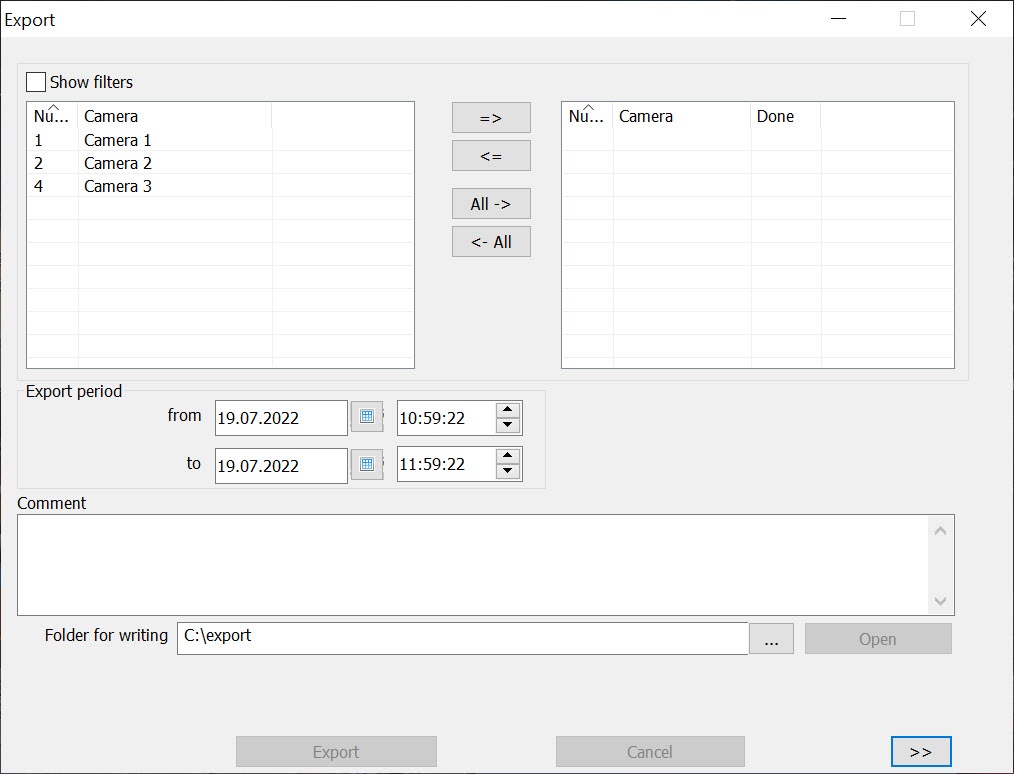
Interface of the AviExport utility is presented in the figure.

Click << in the bottom right corner to hide advanced settings leaving cameras selection and basic export settings only. At the next starts, the utility is launched in the expanded or basic mode depending on the mode it was shut down in.
| Info | ||
|---|---|---|
| ||
The button to switch between expanded and basic settings may not be available when the SimpleDlgModeLock registry key is set to 1 (see Registry keys reference guide). |
| Info | ||
|---|---|---|
| ||
A vertical scroll bar may appear in the AviExport Utility window at low screen resolutions. |
...
Overview
Content Tools