


Page History
...
As a result, a a viewing tile for the camera opens. You can switch to a neighboring camera by clicking on the arrows  and
and  . The cameras are scrolled on a loop, taking into account their current sorting and filtering (see Displaying and searching for cameras in AxxonNet client on Android OS).

Live video playback settings
...
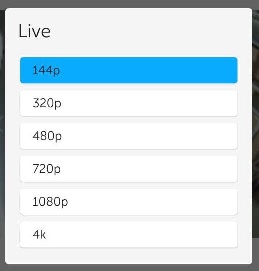
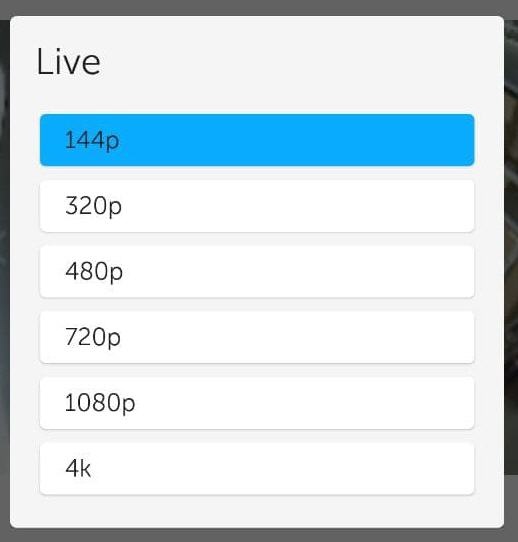
To select the video resolution, click the  button and select the required resolution in the window that appears:
If the camera is multithreaded, then in the window that appears, select the required stream:
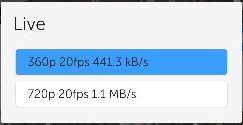
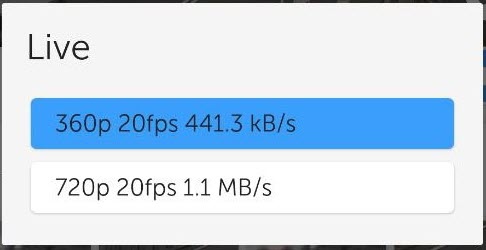
If the camera is multithreaded and the stream in mjpeg format is displayed, then the resolution options will be displayed for it. To display the streams in the settings window, select a different value of the Live video priority parameter in the mobile client settings (see Configuring video in AxxonNet client on Android OS).
...
To view the video in picture-in-picture mode, click  button in the upper right corner and select Picture - in - picture in the menu that opens. To return to viewing the video in normal mode, click on the floating window with the video.
...
To rotate the camera image, click button in the upper right corner and select Image rotation in the menu that opens. Select the rotation angle in the window that opens:

Select the required rotation angle, and click OK.
...
In horizontal display, controls hide automatically with a small delay and reappear when you tap on the screen.
...
Subtitles display settings
If the mjpeg playback format is selected and the captioner is configured for a camera in Intellect (see The Captioner object setup), then the captions will subtitles will be displayed over the video image on the screen. The captions subtitles can be scrolled if there are many of them and they all do not fit on the screen.
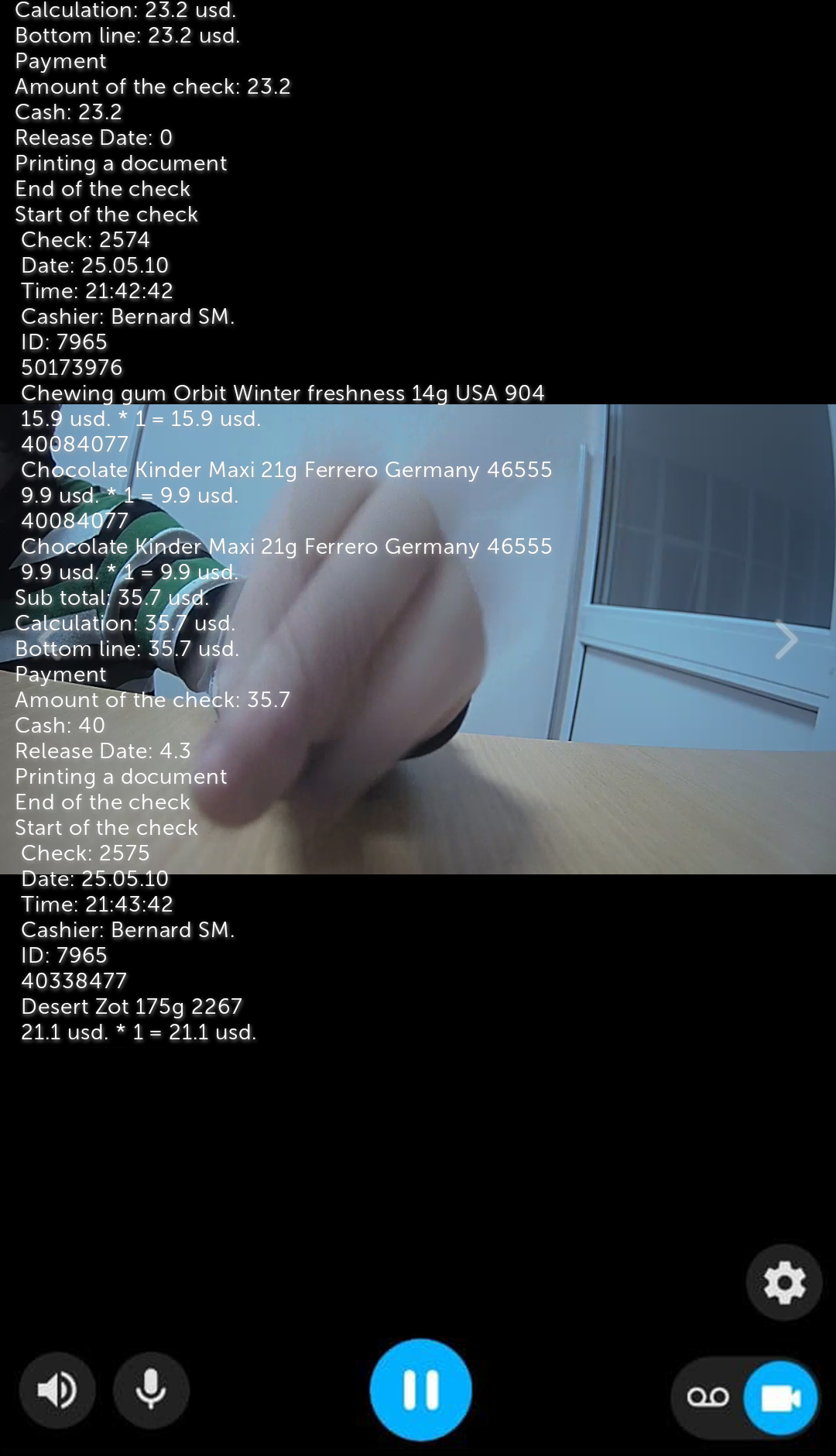

To hide the captionssubtitles, click button in the upper right corner and and in the menu that opens, uncheck the Captions Subtitles checkbox. To display the captions subtitles — set the checkbox.