
Go to documentation repository


Page History
...
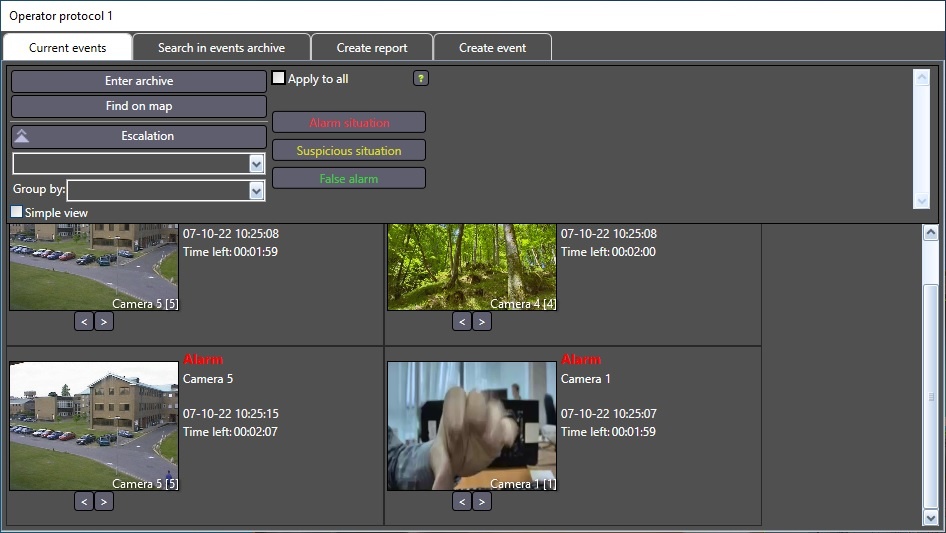
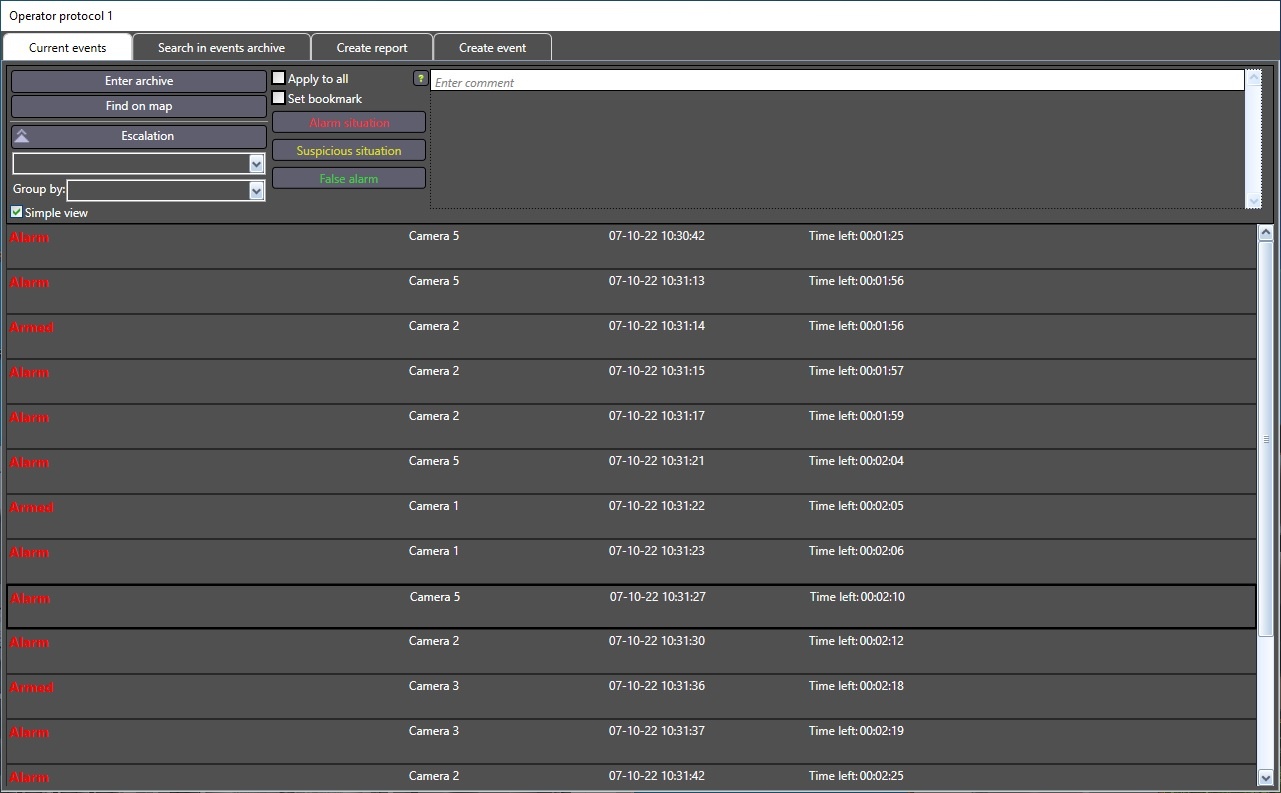
Events are processed in the Current events tab of the operator protocol window. The examples of the tab display:
| Note | ||
|---|---|---|
| ||
When you process events, the buttons used to interact with them Buttons are active only when you interact with the selected event. If you click in any other place, they become inactive. |
Current events
Events registered by alarm objects with no type assigned and events escalated from a lower level are displayed in the Current events tab. The event control panel is at the top of the tab, and the information on events is at the bottom of the tab.
...
| Info | ||
|---|---|---|
| ||
Temporary images (event screenshots) are stored in the C:\Users\<User name>\AppData\Local\Temp\OperatorProtocol folder. They are automatically deleted at normal Axxon PSIM shutdown or restart. |
Checklist
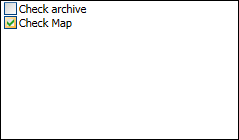
On the right, there is a checklist of actions that must be performed during the event processing. This list is set up by the administrator during the operator protocol configuration. After you perform the required action, set the checkbox next to it, and the information about the task completion will be added to the comment field along with the date and time indication.
Assigning a type to the event
To assign a type to the event, select one or several event cells or lines using the left mouse button (hold down the Ctrl key to select several events if this feature is enabled in the system settings) and then click one of the buttons on the event control panel. The buttons for event processing can be unavailable until a comment is entered if the corresponding setting is enabled. If the help guides were specified during the system configuration, the operator can click the  button and open the help guide about the event processing.
...
| Info | ||
|---|---|---|
| ||
If the time of waiting for the response from the operator specified in the settings of the Operator protocol object (see Administrator's Guide) is exceeded, then the event is escalated, and if the chief interface isn't assigned to the operator protocol, then it is removed from the Current events tab and the Non-processed type is assigned. When Axxon PSIM is restarted, the non-processed events are saved. |
Frames, archive and the map
If you want to create a bookmark for the selected event in the archive, set the Set the bookmark checkbox before processing the event. The comment will be used as the bookmark name. See List of bookmarks.
...
| Info | ||
|---|---|---|
| ||
Enlarging the frame of the alarm moment can be unavailable if the corresponding value of the hide_image_preview registry key is set (see Registry keys reference guide). |
A frame on the Current events tab is blurred until the end of the archive fragment recording to which this frame belongs.
If the the Equipment detection (PPE) object is created and configured for the camera, borders around detected objects can appear on the frame. The border color and thickness are determined by the RectColor and RectLineWidth registry keys (see Registry keys reference guide).
...
If the ActiveX video display method was selected during the system configurationsystem configuration, the window for the video viewing and exporting will open. The ActiveX window interface is the same as the Video video surveillance monitor interface.
When you open ActiveX by an alarm object, the ActiveX windows of all cameras linked with this object are opened.
This window can be moved around the screen by dragging the title bar with the left mouse button; in this case, the position of the window will be saved for each type of event and window of the operator protocol. To close this window, click the X button in the upper right corner or press Esc on the keyboard.
...
Overview
Content Tools