
Go to documentation repository
The settings panel of the the LPR channel object object includes the following interface elements:
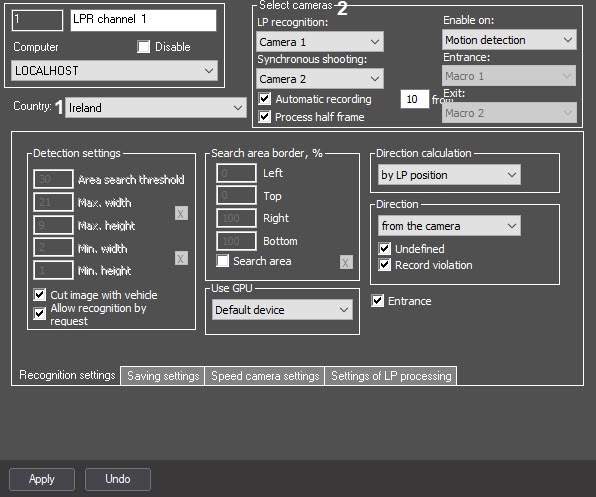
№ | Parameter name | Method of setting the parameter value | Description | Representation | Default value | Value range | ||||
| 1 | Country | Select the value from the drop-down list | For For AUTO-Uragan, VITVT, RoadARRR, LPR IntelliVisionIV software modules | |||||||
| Selection of the country which numbers it is necessary to recognize | List of available national license plate templates | Depending on the recognition module | Depending on the number of available national license plate templates | |||||||
| Module | Select the value from the drop-down list | For CARMEN AR-Auto, ARHAR-Railway software software modules | ||||||||
| Selection of the license license plate recognition SDK | List of license plate recognition SDK | Depending on the recognition module | Depending on the number of installed license plate recognition SDK | |||||||
2 | The Select cameras cameras group | |||||||||
LP recognition | Select the value from the drop-down list | Main video camera for license plate recognition | List of available Camera objects | Camera 1 | Depending on the number of available Camera objects | |||||
Synchronous shooting | Select the value from the drop-down list | Additional video camera operating together with the main camera | List of available Camera objects | None | Depending on the number of available Camera objects | |||||
Automatic recording | Set the checkbox | Enabling the automatic recording on the LP number recognition | Boolean | NoClear | Yes—automatic Set—automatic recording enabled, No—automatic Clear—automatic recording disabled | |||||
Automatic recording, s | Enter the value in the text field | Setting the auto recording duration (in seconds) | Seconds | 10 | 0-86400 | |||||
Process half frame | Set the checkbox | Specifying the frame processing setting | BooleanYes | Set | Yes—smaller Set—smaller frame is stretched, larger frame is cropped No—smaller Clear—smaller frame is stretched, larger frame is processed unchanged | |||||
| Enable on | Select the value from the drop-down list | Enabling and disabling LP recognition by main motion detection or by macros | List | Disabled | Disabled—LPR channel continuously scans the video image. By macros—enables LP recognition by on macros. When you select this option, the Entrance and Exit drop-down lists become available. Motion detection—enables LP recognition by on motion detection. Used to reduce the load on the server. It works differently depending on the selected recognizer mode. For normal mode: Yes—if the camera is armed, the LPR channel scans all video images until the basic motion detection of Axxon PSIM is in the Alarm mode. If the camera is not armed, the LPR doesn't work, but manual start using scripts is available (see item 6 in in Scripts used in the Auto PSIM software package). Recognition will process frames until the stop command will be given. For Parking mode: If the camera is armed, the LPR channel scans all video images, until the plate will be recognized, after it recognition stops even if the Alarm mode is still in process and procedure repeats when the new trigger of alarm is activated; if the camera is not armed, the LPR doesn't work, but manual start using scripts is available (see item 6 in in Scripts used in the Auto PSIM software package). Recognition will process frames until the plate will be recognized and then will stop before new manual start | |||||
| Entrance | Select the value from the drop-down list | Enabling LP recogniton | List | <no> | Depending on the number of created macros | |||||
| Exit | Select the value from the drop-down list | Enabling LP recogniton | List | <no> | Depending on the number of created macros | |||||
The Recognition settings tab:

№ | Parameter name | Method of setting the parameter value | Description | Representation | Default value | Value range |
|---|---|---|---|---|---|---|
| 1 | The Detection settings group | |||||
Area search threshold Available for:
| ||||||
| Enter the value in the text field | Detecting zone sensitivity | Number | 60 | 0-100 |
Max. width Available for:
|
|
| Enter the value in the text field | Maximum available width of license plate | Percentage of frame width | 21 | 0-100 |
Max. height Available for:
|
| Enter the value in the text field | Maximum available height of license plate | Percentage of frame height | 9 | 0-100 |
Button X Available for:
|
| Click the button | Access to the interactive interface of setting the area width and height | - | - | - |
Min. width Available for:
|
|
| Enter the value in the text field | Minimum available width of license plate | Percentage of frame width | - | 0-100 |
Min. height Available for:
|
| Enter the value in the text field | Minimum available height of license plate | Percentage of frame width | - | 0-100 |
Button X Available for:
|
| Click the button | Access to the interactive interface of setting the area width and height | - | - | - |
Cut image with vehicle Available for:
|
|
|
|
|
| Set the checkbox | Set up the detection settings to the image with a |
vehicle | Boolean |
| Clear |
Set—frame with a vehicle is cut |
Clear—frame with a vehicle is not cut |
Allow recognition by request Available for: |
|
|
|
| Set the checkbox | Enable the image recognition on demand | Boolean |
| Clear |
Set—on-demand image recognition is enabled |
Clear—on-demand image recognition is disabled | ||||||
| 2 | The Search area border, % group | |||||
| Left | Enter the value in the text field | Left edge of the LP number search area (%) | % relative to the width of the surveillance window | 0 | 0-100 | |
| Top | Enter the value in the text field | Top edge of the LP number search area (%) | % relative to the width of the surveillance window | 0 | 0-100 | |
| Right | Enter the value in the text field | Right edge of the LP number search area (%) | % relative to the width of the surveillance window | 100 | 0-100 | |
| Bottom | Enter the value in the text field | Bottom edge of the LP number search area (%) | % relative to the width of the surveillance window | 100 | 0-100 | |
| Search area | Set the checkbox | Enabling the | ||||
function of |
setting borders in the frame to search for a license plate | Boolean |
| Clear |
Set—function of |
setting borders in the frame to search for a license plate is enabled |
Clear—function of |
setting borders in the frame to search for a license plate is disabled | ||
| The X button | Click the button | Sets the search area using the mouse |
| NA |
| NA |
| NA | ||||||
| 3 | The Use GPU group | |||||
| Use GPU | Select the value from the drop-down list | Determines the device that will be used for LP recognition | List | Do not use | Depending on the number of available graphics cards. Do not use—possibility of using a graphics card is disabled. The default value Default device—all available graphics cards will be used during recognition Intel GPU—NVIDIA GPU integrated graphics card will be used during recognition | |
| 4 | ||||||
| The Direction group | |||||
| Direction calculation | Select the value from the drop-down list | ||||
| Sets the mode of determining |
| the vehicle's movement direction | List | by LP position | by LP position—the direction is determined by the position of the upper part of the LP number. If the upper part of the LP number at the start of tracking is lower than the upper part of the LP number at the end of tracking, then the direction is defined as From the camera, otherwise — To the camera. by LP area—the direction is determined by the license plate area. If the LP area at the start of tracking is larger than the LP area at the end of tracking, then the direction is defined as From the camera, otherwise—To the camera. by SDK—the direction is determined by the SDK. Currently, the following LP recognition modules support this mode: |
RR, |
VT, AUTO-Uragan, |
IV |
Direction Available for:
|
|
|
|
|
| Select the value from the drop-down list | Sets the traffic direction to detect the LP numbers | List | any | Any—the direction of movement from the video camera or towards the video camera From the camera—the direction of movement from the video camera To the camera—the direction of movement towards the video camera For |
the RIDR |
IV and CIDR |
IV modules, the direction |
of carriage movement in the camera view is selected from left to right or from right to left |
Undefined Available for:
|
|
|
|
|
|
| Set the checkbox | Enables to display the direction |
| as Undefined |
| in the Vehicle Tracer |
| module, if it is impossible to determine the vehicle direction | Boolean |
| Set |
Set—if it is impossible to determine the direction of vehicle movement, the direction is displayed as Undefined |
Clear—if it is impossible to determine the direction of vehicle movement, the direction is not determined | |||
Record violation Only used when direction is selected in the Direction list (To the camera/From the camera) | Set the checkbox | Enables event generating in case of vehicle entering an oncoming lane | Boolean |
Set |
Set—in case |
the direction of vehicle moving |
doesn't coincide with the direction specified in |
the Direction list, the Entered the oncoming lane alarm event |
is generated Clear—the |
Entered the oncoming lane alarm event |
isn't generated | |||
Entrance | Set the checkbox | Enables the recording of the vehicle movement direction as Entrance to the territory | Boolean |
| Clear |
Set—LPR channel for the recognized license plates records the direction of vehicle movement as Entrance to the territory |
Clear—LPR channel for the recognized license plates doesn't record the direction of vehicle movement as Entrance to the territory Note. This setting is taken into account in the WEB Report System PSIM when working with the AUTO reports (see WEB Report System PSIM. User Guide) |
The Saving settings tab

№ | Parameter name | Method of setting the parameter value | Description | Representation | Default value | Value range |
|---|---|---|---|---|---|---|
| 1 | Record frames to SQL DB | Set the checkbox | Saves video frames of vehicle's recognized |
license plate into SQL DB | Boolean |
Set |
Set—the frame with a vehicle is saved into the database |
Clear—the frame with a vehicle is not saved into the database | ||
Show captions | Set the checkbox | Enables the |
license plate overlay as titles on the video image while making report about the recognized |
license plate | Boolean |
Set |
Set—captions overlay enabled. |
Clear—captions overlay disabled | |||
Deinterlace | Set the checkbox | Enables de-interlacing of video frame with a vehicle when the image is received in full resolution | Boolean |
| Clear |
Set—de-interlacing of video frame with a vehicle is implemented |
Clear—de-interlacing of video frame with a vehicle is not implemented | ||
Ratio 4:3 | Set the checkbox | Sets the ratio 4:3 of video frame's width and height while making report about the recognized |
license plate | Boolean |
| Set |
Set—video frame with a vehicle is displayed in ratio 4:3 |
Clear—initial ratio of the frame while making report about the recognized |
license plate is not changed | ||||||
| 2 | The Results filtering settings group | |||||
| Min. number of characters in LP | Enter the value in the text field | Minimum number of characters in the license plate | ||||
| Number |
| NA | >0 | |
| Min. recognition quality, % | Enter the value in the text field | Minimum |
| recognition accuracy, which is determined by the SDK internal logic and allows you to distinguish a license plate from an unrelated caption on a vehicle. In the online monitor, all results with an accuracy level lower than the specified one are discarded | % | NA |
| 0-100% | |||
| Min. time of LP repetition, s | Enter the value in the text field | Minimum time of repetition of the license plate on video | Seconds |
| NA | 0-3600 | |
| 3 | Archive size, days | Enter the value in the text |
Database archive depth
Days
30
field | Database archive depth | Days | 30 | 0-5000 | ||
| 4 | The Notification settings group | |||||
Notification port | Enter the value in the text field | Specifies the number of the port for license plate recognition events | Natural number series | 55555 | Any valid unused port numbers. The number of ports is determined by the system administrator | |
Xml notification port | Enter the value in the text field | Specifies the number of the port for license plate recognition events in xml format | Natural number series | 35555 | Any valid unused port numbers. The number of ports is determined by the system administrator | |
The Speed camera settings tab
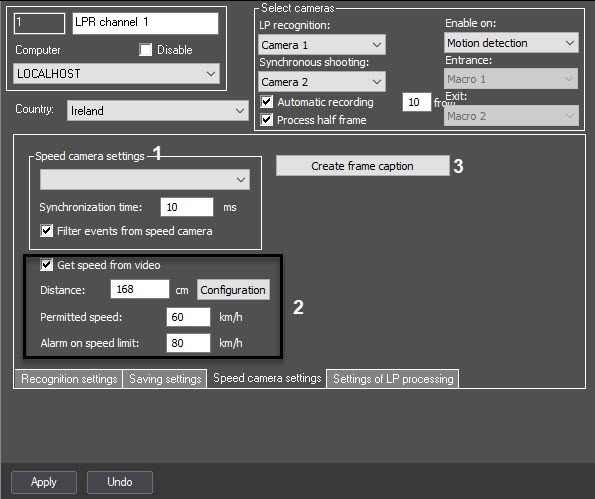
№ | Parameter name | Method of setting the parameter value | Description | Representation | Default value | Value range |
|---|---|---|---|---|---|---|
| 1 | The Speed camera settings group | |||||
Speed camera settings | Select the value from the drop-down list | Selects the speed camera to work together with the LPR channel | List of available Speed traps objects | Not specified | Depending on the number of available Speed traps objects | |
Synchronization time...ms | Enter the value in the text field | The time it takes the car to move from the point of speed detection by the Speed traps server module to the viewing zone of the camera | Milliseconds | Not specified | 0-20000 | |
Filter events from speed camera | Set the checkbox | Enables saving the first speed detected only | Boolean | |||
| Clear |
Set—only the first detected speed value is used, others are ignored until the delay expires or the number is recognized |
Clear—all speed values are used | |
| 2 | Get speed from video Available for:
|
|
|
| Set the checkbox | Enables estimation of speed by video via the Auto PSIM algorithm | Boolean |
| Clear |
Set—vehicle speed is estimated by video, the results are displayed over video image as captions |
Clear—vehicle speed is not estimated by video | ||
| Configuration | Click the button | Opens a |
| window to set a line segment |
| NA |
| NA |
| NA | ||
| Distance | Enter the value in the text field | Sets length of the line segment in the Get speed from video dialog box, in centimeters |
| Natural number series |
| NA | >0 | |
| Permitted speed...km/h | Enter the value in the text field | Sets permitted vehicle speed on the observed lane |
| Natural number series | 60 | >0 |
| Alarm on speed limit...km/h | Enter the value in the text field | Sets maximum vehicle speed. If this speed is exceed, an alarm event is generated |
| Natural number series | 80 | >0 |
| 3 | Create frame caption Unavailable for:
|
|
|
| Click the button | Access to frame caption settings |
| NA |
| NA |
| NA |
The Settings of LP processing tab
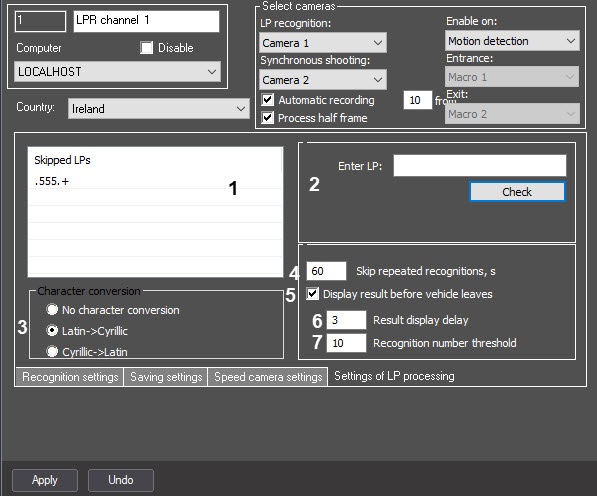
№ | Parameter name | Method of setting the parameter value | Description | Representation | Default value | Value range |
|---|---|---|---|---|---|---|
| 1 | Skipped LPs | Use function menu | Contains the |
| license plate templates by which the recognized |
| license plates are ignored if they match the created list by some criterion. For example, |
| license plates of a specific region can be ignored | String |
| NA |
| NA | |||
| 2 | Enter LP | Enter the value in the text field | Specifies |
| a license plate to check if it is contained in an existing template or not |
| Natural number series |
| NA | >0 | |
| Check | Click the button | Activates the check of the specified |
| license plate against the existing template |
| NA |
| NA |
| NA | |||
| 3 | Character conversion | Set the switch | Enables the automatic conversion of Latin characters into Cyrillic characters, if the license plate recognition module returns the recognized |
license plate in Latin characters. Enables the automatic conversion of Cyrillic characters into Latin characters, if the license plate recognition module returns the recognized |
license plate in Cyrillic characters | Position of the switch | No character conversion | No character conversion—automatic conversion is disabled Latin- |
>Cyrillic— automatic conversion of Latin characters into Cyrillic characters is enabled Cyrillic- |
>Latin—automatic conversion of Cyrillic characters into Latin characters is enabled | ||||||
| 4 | Skip repeated recognitions, s | Enter the value in the text field | Specifies the time period in seconds during which the repeated recognition of one captured license plate will be ignored by the system | Seconds | 0 | >=0 |
| 5 | Display result before vehicle |
leaves Available for:
|
|
| Set the checkbox | Enables the results to be displayed before the car leaves the viewing area | Boolean |
| Set |
Set—the result is displayed before the vehicle leaves the frame (the license plate of the given vehicle is out of the license plate search boundaries) |
Clear—the result is displayed only after the vehicle leaves the frame | |||
| 6 | Result display delay | Enter the value in the text field | The time delay between the first recognition of |
a license plate and displaying the results | Seconds | 3 | 0-100 |
| 7 | Recognition number threshold | Enter the value in the text field | The number of reliable license plate recognitions, after which the recognition result is displayed |
Natural number series | 2 | 0-1000 |

