| Section |
|---|
| Column |
|---|
|
| Panel |
|---|
| borderColor | #CCCCCC |
|---|
| bgColor | #FFFFFF |
|---|
| titleBGColor | #F0F0F0 |
|---|
| borderStyle | solid |
|---|
| title | On the page: |
|---|
| |
|
|
| Note |
|---|
|
The Neurotracker program module works only in Axxon PSIM of version 1.0.1 and higher. |
The Neurotracker program module The Neurotracker moduleregisters object tracks in the camera FOV during recording using a the neural network and saves them to the VMDA metadata storage (see see Creating and configuring VMDA metadata storage).
Configuration The configuration of the Neurotracker program module includes: main and additional settings of the detection tooldetector, selection of the area the area of interest, configuration of the neurofilter configuration.
You can configure the Neurotracker program module on the settings panel of the the Neurotracker object that is created on the basis of the Camera object on the Hardware tab of the System settings dialog window.
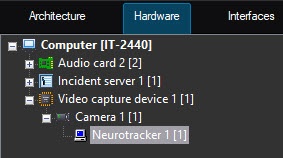
Main settings of the
...
detector
You can configure the main settings of the detection tool detector on the Main settings tab on the settings panel of the Neurotracker object.

Set the Generate event on appearance/disappearance of the track checkbox to generate an event when an object (track) appears in the frame and disappears from the frame.
| Info |
|---|
|
The track appearance/disappearance events are generated only in the debug window (see Start the debug window). They are not aren't displayed in the Event viewer. |
- Set the the Show objects on image checkbox to checkbox to highlight the detected object with a frame when viewing live video.
Set the Save tracks to show in archive checkbox to to highlight the detected object with a frame when viewing the archive.
| Info |
|---|
|
This parameter does not doesn't affect the VMDA search and is used just for the visualization. For this parameter, the the titles database is used. |
- Set the Model quantization checkbox to enable model quantization. By default, the checkbox is clearcleared. This parameter allows you to reduce the consumption of the GPU processing power.
| Info |
|---|
|
- AxxonSoft conducted a study in which a neural network model was trained to identify the characteristics of the detected object. The following results of the study were obtained: model quantization can lead to both an increase in the percentage of recognition and a decrease. This is due to the generalization of the mathematical model. The difference in detection ranges within ±1.5%, and the difference in object identification ranges within ±2%.
- Model quantization is only applicable for NVIDIA GPUs.
- The first launch of a detection tool the detector with quantization enabled may can take longer than a the standard launch.
- If GPU caching is used, the next time a detection tool the detector with quantization will run without delay.
|
- From the Object type drop-down list, select the object type for analysis:
- Human—the —camera is directed pointed at a the person at the angle of 100-160°;
- Human (top-down view)—the —camera is directed pointed at a the person from above at a slight angle;
- Vehicle—the —camera is directed pointed at a the vehicle at the angle of 100-160°160°;
- Person and vehicle (Nano)—detects person and vehicle, small network size;
- Person and vehicle (Medium)—detects person and vehicle, average network size;
- Person and vehicle (Large)—detects person and vehicle, large network size.
| Info |
|---|
|
Neural networks are named taking into account the objects they detect. The names can include the size of the neural network (Nano, Medium, Large), which indicates the amount of consumed resources. The larger the neural network, the higher the accuracy of the object recognition. |
- By default, the standard (default) neural network is initialized according to the selected object selected in the Object type drop-down list and the device selected in the Device drop-down list. The standard neural networks for different processor types are selected automatically. If you use a custom neural network, click the
 Image Removed button to the right of the Tracking model field and type on step 5 and device on step 7. You must not select manually standard networks for different processor types since it is performed automatically. If you have the unique neural network for use, click the
  Image Added button to the right of the Tracking model field and specify its file in the standard Windows Explorer window , specify the path to the filethat opens.
| Note |
|---|
|
To train a the neural network, contact the AxxonSoft technical support (see Data collection requirements for neural network training). A The use of the trained neural network trained for a specific particular scene allows you to detect only objects of a certain type only (for example, a person, a cyclist, a motorcyclist, and so on). |
- From the Device drop-down list, select the device one on which the neural the neural network will operate: the CPU, one of the NVIDIA GPUs, or one of the Intel GPUs. Auto (default value)—the device —device is selected automatically: The NVIDIA GPU gets takes the highest priority, followed by then goes the Intel GPU, and then the CPU.
- From the Process drop-down list, select which objects must be processed by the neural network:
- All objects—moving and stationary objects;
- Only moving objects—an —an object is considered to be moving if, during the entire lifetime of its track, it has shifted by more than 10% of its width or height. Using If you use this parameter, you can reduce the number of false positives;
- Only stationary objects—an —an object is considered stationary if, during the entire lifetime of its track, it has shifted by no more than 10% of its width or height. If a the stationary object starts moving, the detection tool triggers detector generates an event, and the object is no longer considered stationary.
| Info |
|---|
|
The selection of only moving objects and only stationary objects isn't mutually exclusive, as some tracks cannot be determined as either moving or stationary. First, the neural network detects all objects, and after that, the detector filters out unnecessary tracks in accordance with the selected value of the Process setting. |
- From the Camera position drop-down list, select:
- Wall—objects are detected only if their lower part gets into the area of interest specified in the detection tool detector settings.
- Ceiling—objects are detected even if their lower part doesn't get into the area of interest specified in the detection tool detector settings.
Selecting the area of interest
- Click the Settings button. The Detection As a result, the detector settings window opens.
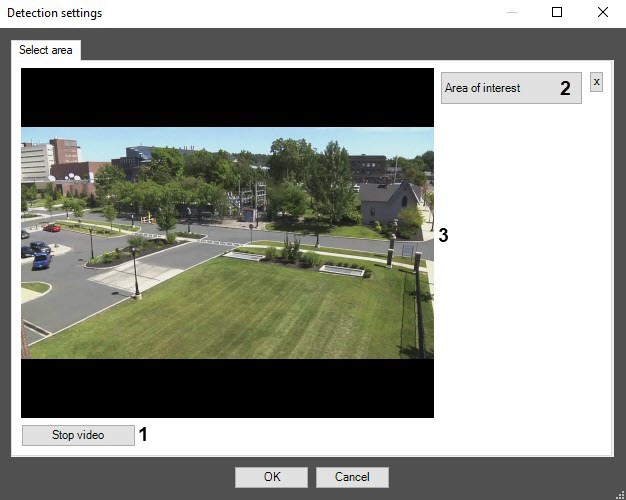
- Click In the Detection settings window, click the Stop video button (1) to pause the playback and capture the frame of the video image.
- Click the Area of interest button (2) button to specify the area of interest. The button will be is highlighted in blue.

- On the captured frame , sequentially of the video image, use the mouse to sequentially set the anchor points of the area (1), area in which the objects will be are detected. The rest of the frame will be is faded. You There can add be only one area of interest. To delete an area, click the the
 Image Modified button button. If you don't specify the area of interest, the entire frame is analyzed.
 - Click the OK button (2) to close the Detection settings window and windowand return to the settings panel of the Neurotracker objectdetector.
Additional settings
- Go to the Additional settings tab on the settings panel of the Neurotracker objectthe neurotracker.
 Image Modified
In the Recognition threshold [0, 100] field, specify the neurocounter sensitivity—an integer value number in the range from 0 to 100.
| Info |
|---|
|
The neurotracker sensitivity is determined experimentally. The lower the sensitivity, the higher the probability of false alarms. The higher the sensitivity, the lower the probability of false alarms, however, some useful tracks can be skipped (, see Examples of configuring neural tracker for solving typical tasks). |
- In the the Frames processed per second [0.016, 100] field, specify the number of frames processed per second by the neural network in the range from 0.016 to 100. For all other frames interpolation will be performed—finding the interpolation is performed—finding intermediate values by the available discrete set of its known values. The greater the value of the parameter, the more accurate the detection tool operationtracking, but the higher the load on the processor.
- In the the Minimum number of triggering field[2, 100] field, specify the minimum number of the neurotracker triggers required triggerings to display the object track. The higher the value of this parameter, the longer it takes from the object detection moment to the display of its track. A The low value of this parameter can lead to false positives. The default value is is 6. The value range is from 2 -to 100. The entered value number that is greater than the maximum value or less than the minimum value from the specified range , is automatically adjusted to the maximum /or minimum value, respectively.
In the Track hold time (s) field, specify the time in seconds after which the object track is considered lost in the range from 0.3 to 1000. This parameter is useful in situations where when one object in the frame temporarily overlaps another. For example, when a large vehicle completely overlaps a small one.
| Info |
|---|
|
If an object (track) is close to the frame boundary, then approximately half of the time specified in the the Track hold time (s) field must elapse from the moment the object disappears from the frame until its track is deleted. |
- Set the the Scanning mode checkbox to detect small objects. If you enable this mode, the load on the system increases. So That is why, on step 3, we recommend specifying a small number of frames processed per second in the Frames processed per second [0.016, 100] field. By default, the checkbox is clearcleared. For more information on the scanning mode, see see Configuring the Scanning mode.
- If necessary, specify the class of the detected object in the the Target classes field field. If you want to display tracks of several classes, specify them separated by a comma with a space. For example, 1, 10.
The numerical values of classes for the embedded neural networks: 1—Human/Human (top view), 10—Vehicle.
| Info |
|---|
|
- If you leave the field blank, the tracks of all available classes from the neural network will be are displayed (Object type, Neural network file).
- If you specify a class/classes from the neural network, the tracks of the specified class/classes will be are displayed (Object type, Neural network file).
- If you specify a class/classes from the neural network and a class/classes missing from the neural network, the tracks of a class/classes from the neural network will be are displayed (Object type, Neural network file).
If you specify a class/classes missing from the neural network, the tracks of all available classes from the neural network will be are displayed (Object type, Neural network file).
|
Neurofilter
You can use the neurofilter to sort out some of the tracks. For example, the neurotracker detects all freight trucks, and the neurofilter leaves only those tracks that correspond to trucks with cargo door doors open. To configure a the neurofilter, do the following:
- Go to the Neurofilter tab on the settings panel of the Neurotracker objectthe neurotracker.

- Set the Enable filtering checkbox to enable the neurofilter. By default, the checkbox is clearcleared.
- By default, the standard (default) neural network is initialized according to the device selected in the Device drop-down list. The standard neural the selected device on step 4 is initialized. You must not select manually standard networks for different processor types are selected types since it is performed automatically. If you use a custom have the unique neural network for use, click the Image Removed button the Image Added button to the right of the the Tracking model field and specify its file in the standard Windows Explorer window , specify the path to the filethat opens.
| Note |
|---|
|
To train a the neural network, contact the AxxonSoft technical support (see Data collection requirements for neural network training). A The use of the trained neural network trained for a specific particular scene allows you to detect only objects of a certain type only (for example, a person, a cyclist, a motorcyclist, and so on). |
- From the Device drop-down list, select the device one on which the neural the neural network will operate: the CPU, one of the NVIDIA GPUs, or one of the Intel GPUs. Auto (default value)—the device is selected automatically: NVIDIA GPU gets the highest priority, followed by Intel GPU, then CPU.
.
| Infonote |
|---|
|
- The device for the neurofilter must match the device specified for the neurotracker in
the Device drop-down - step 7 of the main settings.
If you select Auto, the neurofilter will run on the same processor as the neurotracker, according to the priority.- It
may - can take several minutes to launch the algorithm on the NVIDIA GPU after you apply the settings.
|
Click the Apply button to save the changes.
| Info |
|---|
|
If necessary, create and configure the Neurotracker VMDA |
...
detectors on the basis of the Neurotracker object. The procedure of creating and configuring the Neurotracker VMDA |
...
detectors is similar to creating and configuring the VMDA |
...
...
the regular tracker. The only difference is that |
...
you must create the Neurotracker VMDA |
...
detectors on the basis of |
...
...
and not on the basis of the Tracker object ( |
...
...
when you select the Staying in the area for more than 10 sec detector type, the time the object stays in the zone, after which the |
...
NeuroTracker VMDA detectors generate an event, is configured using the LongInZoneTimeout2 registry key, not the LongInZoneTimeout. The |
...
alarm generation mode is set for any type of VMDA |
...
detector similar to the VMDA |
...
...
the regular tracker using the VMDA.oneAlarmPerTrack registry |
...
...
 Image Added Image Added
|
Configuring the Neurotracker program Configuration of the Neurotracker module is complete.
| Tip |
|---|
If events are periodically received from several objects, then for convenience, you can create and configure we recommend creating and configuring the neurotracker track counters (see see Configuring the neurotracker track counter). |
...


