


Page History
Each Any user, regardless of any role, can share the domain rights permissions with other users. To do this:
- Go to the Domains tab.

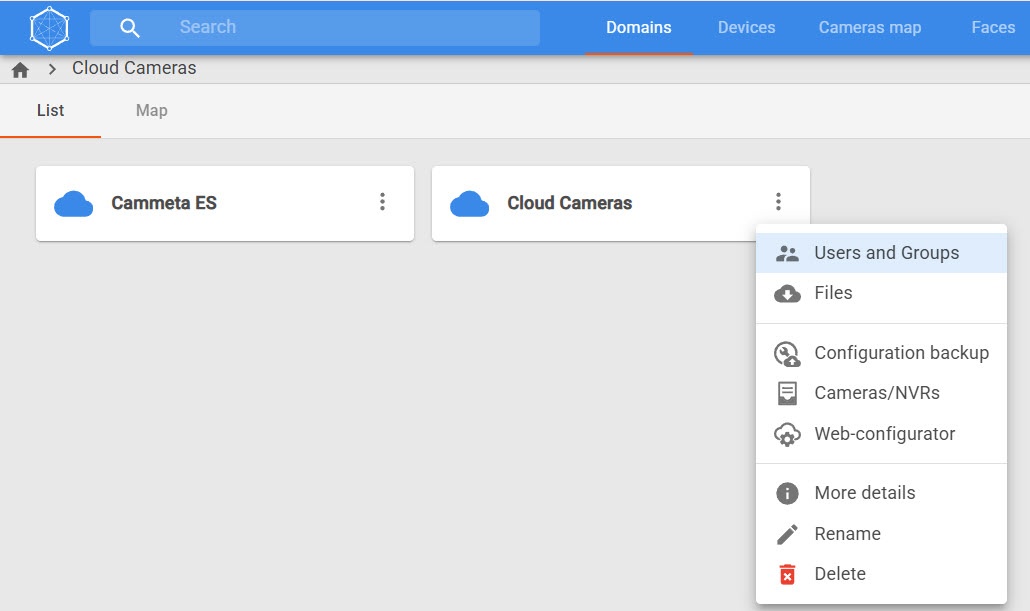
- Click the
 button
  button in the domain, the rights permissions to which you want to share.
 - Select Users and Groups.
- In the window that opens, click the Add user button to add an existing user.
- Click the
 button.
 - Enter the e-mail of the user with whom you want to share the domain rights.
 Select the role of the required user. A selected user can only be assigned the same role as yours or any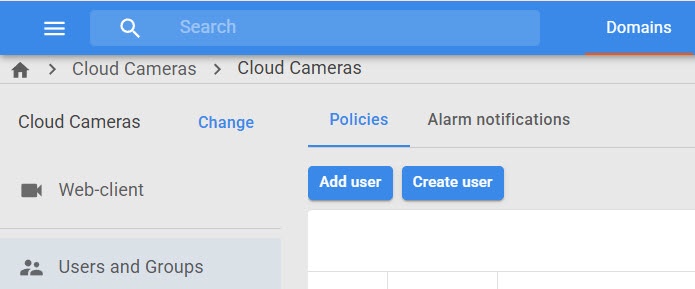
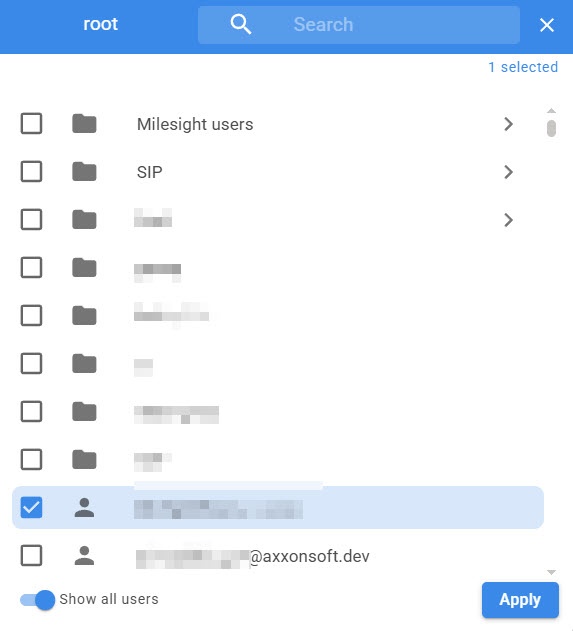
- In the window that opens, click the Users and Groups field.
- In the window that opens, set the checkboxes next to the users or user groups that you want to add to the domain. To show all users, turn on the Show all users toggle.
- Click the Apply button.
- In the Role field, select the domain role that you want to assign to the user from the drop-down list. You can assign the same role to the user or any other role of a lower rank.
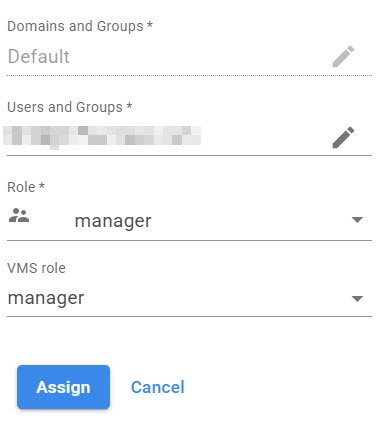
- When you select a domain connected via a token, the VMS role field is available. In this field, select an existing role in Axxon One to assign to the user.
- Click the Assign button.
As a result, a the permissions to the selected domain rights will be shared with are assigned to the selected user or user group.
Overview
Content Tools