
Go to documentation repository


Page History
...
| Info | ||
|---|---|---|
| ||
You can configure recording options for a camera in the corresponding tab (see Configuring Archivesarchives). |
When you have added a camera via the IP Device Discovery Wizard (see Adding and removing IP devices), you can edit the camera's parameters. The camera parameters are grouped as follows.
In the Object identification group, you can see the camera ID, and, if nesessary, you can enter a camera name/short name and text comments.

| Info | ||
|---|---|---|
| ||
You may use camera's short name in hotkeys (see Notes regarding hot key actions). |
...
The IP address (assigned automatically and can be changed if necessary).
Info title Note The port used to transmit data between the camera and the Axxon One VMS (this value is set to 80 by default but can be changed if necessary).
- At first the port number is set through the camera's Web interface.
Camera positioning coordinates (latitude, longitude, azimuth).
- The MAC address.
- Manufacturer, model, firmware.
- The number of the video channel (for an IP Server).
Device serial number (for Axis devices only, see Axis IP Devices).

You can also customize a number of options shared by all video cameras in this group:
...
In the Authentication group, you can set the username and password to connect to the camera.

If the username and/or password for connecting to the camera are different from the factory settings, select No in the Default field and enter the current credentials.
...
To enable video buffering on Clients, set the buffer length in milliseconds in the Video buffering group.

This value should be between 50 and 1000 milliseconds. If the value 0 is selected, video buffering is disabled.
In the Camera settings group you can see video image parameters (contrast, brightness, color saturation, etc.). When configuring these, you can look up short parameters' descriptions in Axxon One GUI. For more detailed information, please refer to the camera manual.

| Info | ||
|---|---|---|
| ||
If you set up a camera via its web page, you cannot edit the parameters in the VMS (see Adding and removing IP devices). To configure the camera in the VMS, select the Send settings to device checkbox. |
You can configure fisheye cameras in the Panomorph group.

Select a standby / substitute camera from the current Axxon domain in the Alternative view list. The sub camera shows in the layout when the main camera is offline.
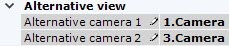
Then you can configure them to show the nearest cameras to the alerted one (see Configuring Alarmed cameras layout).
...
To configure video streams, you should make sure that the Send settings to device checkbox is selected.

| Info | ||
|---|---|---|
| ||
In most cases, the following parameters are set for video streams: bit rate, compression rate, frame rate, and resolution. Detailed information on configurable parameters can be found in the official reference documentation for the video camera. |
...
Image from the camera will be displayed in the preview window.

| Info | ||
|---|---|---|
| ||
The indicator in the upper right corner displays the current time and recording status (see Time Display). |
...
Overview
Content Tools