
Go to documentation repository


Page History
| Section | ||||||||||||||||||||||||
|---|---|---|---|---|---|---|---|---|---|---|---|---|---|---|---|---|---|---|---|---|---|---|---|---|
| borderStyle
| solid
| ||||||||||||||||||||||
| ||||||||||||||||||||||||
General information
Client is a PC,where computer on which Axxon PSIM system with the Remote Monitoring Work Station configuration is installed.
Starting the Client
is installed with the Workplace for monitoring (remote client) installation type.
Start the client
You can start the client The Clent can be started in one of the following ways:
- Automatically: the program is started . The program starts automatically as soon as the operating system is downloaded.
- Manually: to . To start the program manually, select select Client workstation in in the Start menu of Windows (Start /All → All Programs/→ Axxon PSIM/ → Client workstation) or use an appropriate shortcut on the Desktopdesktop.
...
Connect to the
...
server
As soon as the Client client is started, the system automatically starts a search for an active kernel of the server program.

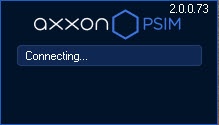
| Info | ||
|---|---|---|
| ||
When you start the Client is started client for the first time, it searches for the search uses IP - address 127.0.0.1 (localhost). In all following cases the search will use the latest , it searches the last entered IP - address. |
If the program kernel is not found, the Operator will be operator is suggested to manually enter the IP - address or DNS - name of the PC, where computer on which the server program is operated, or quit part of the program functions or exit the program.

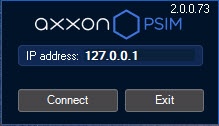
To complete the operationsoperation, press the click the Exit button.
To start a search using another IP - address or DNS - name, type in enter the required address or name in the the IP - address field and click the Register button Connect button. As soon as the Register button is clickedyou click the Connect button, the system will start starts searching for the active program kernel at the specified address.
You can use the allow_alter_core_ip_address parameter of the registry HKEY_LOCAL_MACHINE\SOFTWARE\AxxonSoft\PSIM\ (see Configuring remote client) to configure the display of a drop-down list of previously used IP addresses to select the required option.
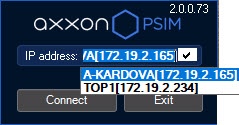
If the active program kernel is found at the given IP - address or DNS - name, the system will automatically connect connects to the established found program kernel. If required, an access password to a login and password are requested to access the server part of the program will be requested.
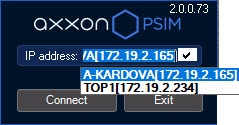
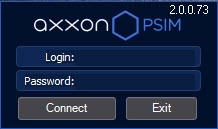
After you enter the login and Having entered the password, click the Register button Connect button. If a connection is established successfully, the user interface of the Client will start downloadingclient is displayed. Otherwise, the system will request requests the password credentials again.
Overview
Content Tools