
Go to documentation repository


Page History
The settings panel of the Charts interface object is shown in the figure.
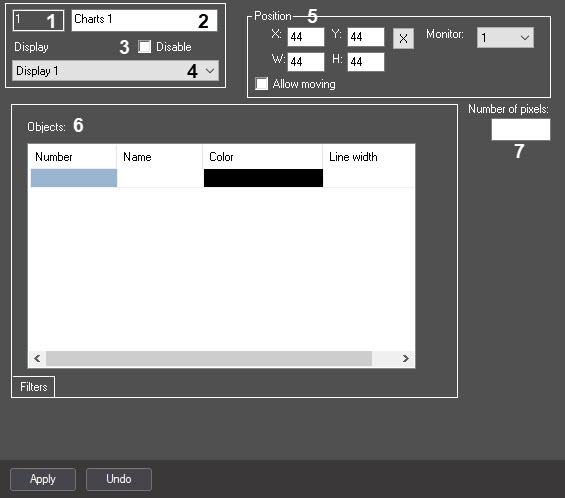
The description of the table describes the setting parameters of the Chartsinterface object settings is shown in the table.
| № | Parameter | Method for |
| setting the parameter value | Parameter description |
| Representation | Default value |
| Value range | ||
1 | The Identification number* | Automatically |
Displays the identification number of the Charts object in the system |
Positive integer
Digits, letters, periods, hyphen, dash, and underscore | NA |
Depends on the number of the Charts objects in the system | |
2 | The Name* |
Enter the value in the field |
Sets the name |
of the Charts object in the system | Latin alphabet, Cyrillic, digits, and service characters |
Charts | A line containing a sequence of any |
characters (letters, digits, service |
characters |
except > and < |
characters), |
case- |
insensitive. Number of |
characters—from 1 to 60 | ||
3 | The Disable | Set the checkbox |
Disables the Charts object in the system | Boolean type |
| Clear |
Set—the Charts object is disabled and |
isn't used Clear—the Charts |
object is enabled and |
used |
4 |
The Display | Select the value from the list |
Sets the Display parent |
object |
for the given Charts |
object |
Names of the Display objects registered in the system | Name of the Display parent |
object | Depends on the number of the Display objects in the system | |||||
| The Position group | ||||||
5 | The X | |||||
field | Enter |
the value in the field | Sets the X coordinate in the |
horizontal axis for the upper left corner of the |
Charts window | % of the screen width |
44 | From 0 to M*100, where M is the number of the installed monitors |
The Y field |
| Enter the value in the field | Sets the Y coordinate in the |
vertical axis for the upper left corner of the |
Charts window | % of the screen height |
44 | From 0 to M*100, where M is the number of the installed monitors |
6
The W |
field | Enter |
| the value in the field | Sets the |
width of the Charts |
window | % of the screen width |
44 | From 0 to M*100, where M is the number of the installed monitors |
The H field |
| Enter the value in the field | Sets the |
height of the Charts |
window | % of the screen |
width |
44 | From 0 to M*100, where M is the number of the installed monitors |
8
The Allow moving checkbox
Checkbox is set
Allows manual moving of the Charts interface box
Boolean type
No
Yes – manual moving is allowed.
No – manual moving is prohibited.
The Allow moving | Set the checkbox | Allows moving the Charts window using the mouse | Boolean type | Clear | Set—allow moving the Charts window using the mouse Clear—disable moving the Charts window using the mouse |
The | Click the button | Opens the window for setting the position and size of the Charts window | NA | NA | NA |
| The Monitor drop-down list | Select the value from the list | Determines the number of the monitor in the system for which the coordinates are specified | Numbers of the monitors in |

| OS | 1 | From 1 to 16 |
| The Objects table | ||||||
| 6 | The Number | |||||
| drop-down list | Select |
| the value from the list | Sets the identifier of the Analog sensor object |
, the data from which |
must be displayed |
in the chart |
| Names of the Analog sensor objects | NA |
Depends on the Analog sensor objects in the system |
| The Name drop-down list | Select the value from the list |
| Sets the name of |
| the Analog sensor |
| object, the data from which |
| must be displayed |
| in the chart | Names of the Analog sensor objects |
| NA | Depends on the |
| Analog sensor objects in the system |
| The Color drop |
| -down list | Select |
| the value from the list | Sets the display color |
of the corresponding analog sensor |
in the |
chart in |
the Charts |
window | Color palette | Black | RGB color |
| The Line width field |
| Enter the value in the field | Sets the |
width of the line in the chart | Sequence of numbers |
| 5 | >0 |
Out of the group | ||||||
| 7 | The Number of pixels | |||||
field | Enter |
| the value in the field | Sets the number of pixels to be displayed |
| in the |
| chart |
| Integer numbers | 0 | >=0 |
*Name of the element isn't displayed in the settings panel of the given object
Overview
Content Tools