
Go to documentation repository


Page History
To provide the effective and steady stable performance of the of Axxon PSIM system, take into account the following recommendations on using the database use below:
- Store the Configuration database on the MS SQL server. If the MS Access is used to store the database, it is strongly recommended to install the MS SQL server and to convert the database from MS Access to MS SQL format
You must synchronize the databases of servers and Remote Administrator Workstations with the administration server database to provide the ability of the centralized administering of the video surveillance and audio control system.
Info title Note It is recommended to configure We recommend configuring the automatic backup of the Axxon PSIM database in MS SQL Server, for example, once a week (by default, the automatic backup
is not isn't configured).
- The Servers and Remote Admin Workstation databases should be synced with the Administration server database. If long-term centralized storage is necessary for registered system events, then it is recommended to apply Axxon PSIM software configuration on the Servers and the Remote Admin Workstations in order to store the events in the
- If you want to store the registered events in the system in a centralized way during the long-term period, we recommend configuring Axxon PSIM on servers and Remote Administrator Workstations to store events in the Events log database separately from the Configuration database.In case the Dynamic Host Configuration Protocol
- database (see Extracting event protocol into an individual database).
If you use the protocol of the dynamic host configuration (DHCP)
is used, make sure that the TCP/IP protocol priority for local databases is the highest. Otherwise,
when if you disconnect the network cable
is disconnected, the communication
between the between Axxon PSIM and its local database located on the same computer where Axxon PSIM
is is installed can be lost. To view and prioritize
the network protocols, use
the the SQL Server Configuration Manager utility:
Run the SQL Server Configuration Manager utility (Start
-> All Programs -> → Microsoft SQL Server Express
2014 -> 2019 → Configuration Tools).
In the
right left part of the utility's interface window, click the
header title of the SQL Native Client Configuration list, and then select the Client Protocols
item item in the drop-down list. In the
left right part of the window, right-click any protocol in the list and select
the the Order item in the context menu that appears.
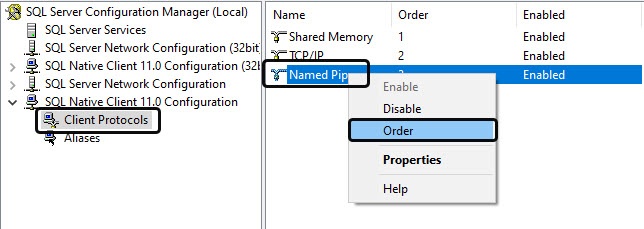
- In the Client Protocols Properties
dialog box - window that
appears- opens, the list of client protocols for the local SQL databases in descending priority order is displayed in the Enabled Protocols field.
Make sure that the - The TCP/IP
item is - line must be located at the very top of the Enabled Protocols list. Also
make sure that - , you must set the Enable Shared Memory Protocol checkbox
is set- .
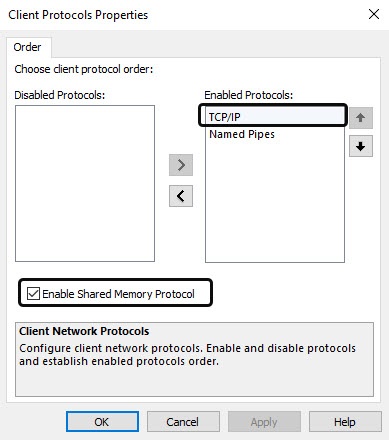
- If the TCP/IP
item is not - .
- line isn't located at the very top of
the - the Enabled Protocols list, use the Up button to move it
to the top of the list- .
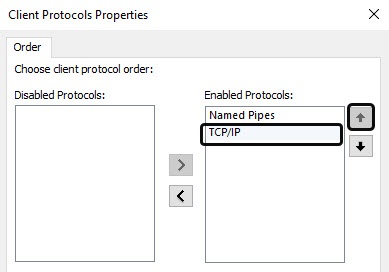
- .
Overview
Content Tools