
Go to documentation repository


Page History
| Section | |||||||||||||||||||||
|---|---|---|---|---|---|---|---|---|---|---|---|---|---|---|---|---|---|---|---|---|---|
|
To create and run scripts in JScript, create the Script object. Then, in the Editor-Debugger utility, enter the script, check it, and debug it.
You can create JScript scripts in Axxon PSIM using the built-in To create a JScript script in Axxon PSIM, the Editor-Debugger utility is used.
To start the Editor-Debugger utility, click the Editor-Debugger button in on the settings panel of the Script object settings panel.
Creating the Script object
To create a scriptthe Script object in Axxon PSIM, do the following:
- In the Programming tab (1) of the System Settings windowsettings window, create a the Script object (2).
- Enter the identification number and the name for the script.
Select the time limits for running the script in the Time Zone field (for example, the Always zone).
the Script object (3). - Click the Apply button (4).
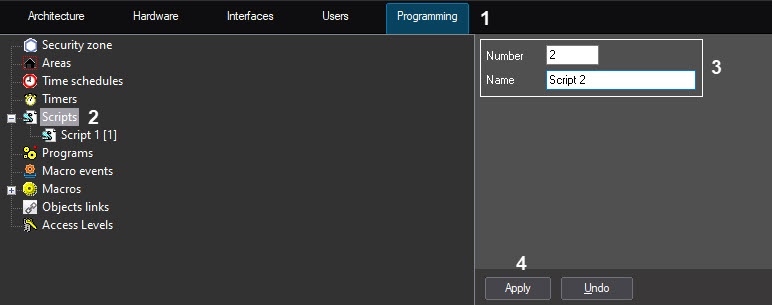
The settings panel of the Script object opens.
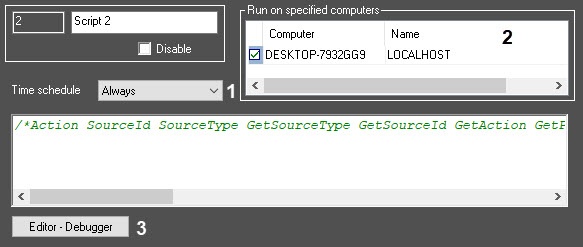
To configure the Script object, set the values of the following parameters:
In the Time schedule field (1), specify the time schedule of the script execution: Always, Never,or one of the schedules created earlier (1, see Creating and configuring Time schedules). The default value is Never.
Info title Note In the Computers field (2), select the computers (kernels) where on which the script should must run.
Info title Note By default, the script will run on all computers (kernels). The list shows displays only the computers registered in the Hardware tab of the System Settings windowsettings window. You can group check or clear all checkboxes by right-clicking.

- Click the Apply button.
Creating and editing a script
To create a script in JScript in Axxon PSIM, do the following:
- Click the
Click the
Editor-Debugger button
in(3) at the bottom of the Script
settingsobject panel to open the Editor-Debuggerutility.
Info title Note Use the Editor-Debugger utility to create, edit, and save scripts in JScript. The settings panel of the Script object displays the text of the saved script available to that can also be edited is saved on the setting panel of the Script object..
- In the Editor-Debugger utility window, open the Script Debug/Edit-edit script list and select the Script object you want to be edited edit (for example, Script 2the Script 1 object, as in the figure below).

In the Script field, enter
Enterthe text of the script in the JScript programming language
into the Script field.Info title Note. - Run the script using a test event. To create a test event, select theselect Debug and edit → Edit test event in the Debug and edit menu.
The Test message window will open allowing to set the test opens containing the fields for setting the event parameters.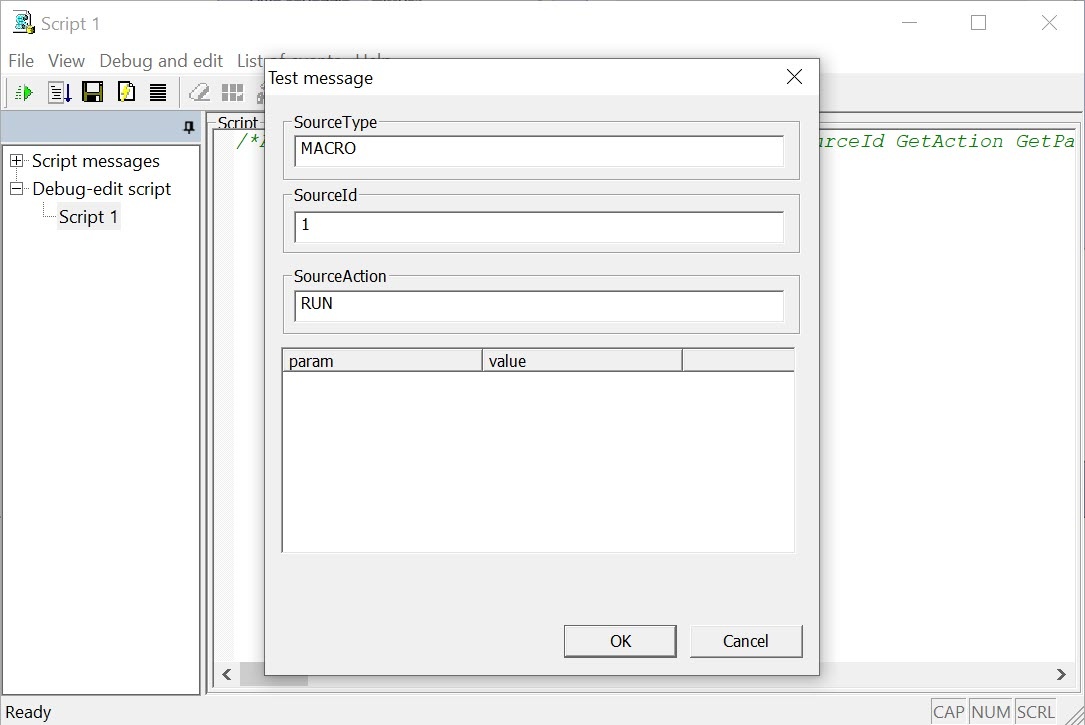
To run the script using the test event,
...
select Debug and Edit
...
→ Test run.
| Info | ||
|---|---|---|
|
...
Also, use Ctrl+T hotkey to test-run the script by test event.
...
You can also run the script using the test event using the Ctrl+T key combination. |
Features of working with a script
When working with a script in the Editor-Debugger utility, you can undo the last action or return the last action. To undo the last action, press the Ctrl+Z key combination. To return the last action, press the Ctrl+Y key combination.
| Info | ||
|---|---|---|
| ||
For your convenience, when you edit the script, the cursor position is saved when you save the script or when you switch between the scripts in the Editor-Debugger utility window during a session, which means until you restart Axxon PSIM. When you go to the Script messages list when you edit a script, and then go back to the corresponding script in the Debug-edit script list, you cannot undo or return the last action. |
Debugging a script
You can check if the script syntax is correct using the interpreter, which is built in to the Editor-Debugger utility. The result of the check with the information about the content and location of the error is displayed in the Debugger window corresponding to the script in the Script messages list.
...
If there are errors, you need to edit the script
...
syntax and check it again.
| Info | ||
|---|---|---|
| ||
See the detailed information about using test events for script debugging in |
...
...
After debugging the script using the Editor-Debugger utility, run it with a real system event. Check the result of the script execution. If the result is incorrect,
...
make the necessary changes and run the script again.
Script creation is considered complete if it runs correctly.
Overview
Content Tools