Go to documentation repository
To set up configure the LPR channel detector parameters, do the following:
Go to the settings panel of the LPR channel object corresponding to the activated software module (see Activating the software module used for identifying the plates).
| Info | ||
|---|---|---|
| ||
Parameters The availability of the parameters depends on the activated software modules (for details, see The settings panel of the LPR channel object settings panel). |
Set the Max. width and Max. height parameters:
Click the 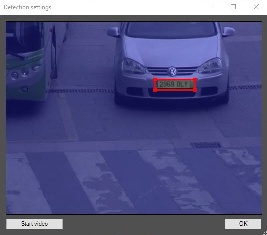 the
the  (2) button next to the parameters. Interactive interface of for setting up the zone parameters showing the , representing an image from the corresponding camera will be , is displayed.

At the appropriate moment, click the Stop video button and , then hold the mouse while dragging it across the required area and click select the required zone area using the left mouse button and click the OK button.

| Info | ||
|---|---|---|
| ||
You can select the required zone area in the same way in the Real Time Video mode as well. |
Results of setting the zone parameters will be are automatically entered in the the Max. width and Max. height fields.
| Info | ||
|---|---|---|
| ||
It is not recommended to set We don't recommend setting maximum sizes greater than required, as this slows down the processing , but does not doesn't improve the recognition quality of recognition. |
the button (3).If necessary, set the Cut image with vehicle checkbox (4).
| Info | ||
|---|---|---|
| ||
The Cut cut image with vehicle option option is used only when working you work with megapixel video surveillance cameras. |
| Info | ||
|---|---|---|
| ||
Image recognition by request works only for the RR(seeSearching for a license plate by image)and VT (see Search for a license plate by image for the VT recognition module) modules. For this, use the POST http://IP address:port/lprserver/FindNumbersByImage query.
|
The Configuring the LPR channel settings are now completeddetector is complete.