
Go to documentation repository


Page History
...
| Tip |
|---|
To configure the Queue detectiondetector, do the following:
- Go to the Detection Tools tab.
Below the required camera, click Create… → Category: Retail →Queue detectiondetector.
By default, the
...
detector is enabled and set to count the number of people in a queue.
If necessary, you can change the settings of the
...
detector parameters given in the table:
| Parameter | Value | Description |
|---|---|---|
| Object features | ||
| Record mask to archive | Yes | By default, the recording of the mask to the archive is disabled. To record the sensitivity scale of the |
| detector to the archive (see Displaying information from a |
| detector (mask)), select the Yes value | ||
| No | ||
| Video stream | Main stream | If the camera supports multistreaming, select the stream for which detection is needed |
| Other | ||
| Enable | Yes | By default, the |
| detector is enabled. To disable, select the No value | |
| No | |
| Name | Queue |
| detector | Enter the |
| detector name or leave the default name | ||
| Decoder mode | Auto | Select a processing resource for decoding video. When you select a GPU, a stand-alone graphics card takes priority (when decoding with Nvidia NVDEC chips). If there is no appropriate GPU, the decoding will use the Intel Quick Sync Video technology. Otherwise, CPU resources will be used for decoding |
| CPU | ||
| GPU | ||
| HuaweiNPU | ||
| Number of frames processed per second | 1 | Specify the number of frames for the |
| detector to process per second. The larger the value, the greater the load on the CPU. The value must be in the range [0.016; 100] | |
| Type | Queue |
| detector | Name of the |
| detector type (non-editable field) | |||||||
| Advanced settings | |||||||
| Current queue size report interval | 0 | The default value is 0 (no events are sent). To send events to AxxonData (see Queue length report), specify the interval of events transmission in seconds. The value must be in the range [0, 600] | |||||
| Frame size change | 1920 | The analyzed frames are scaled down to a specified resolution (1920 pixels on the longer side) by default. The following algorithm is used:
| |||||
| Basic settings | |||||||
| Person size | 10 |
Click the
| |||||
| Queue size | 5 | Specify the number of objects in a queue. When the number is exceeded, an event is generated. The value must be in the range [2, 20] | |||||
| Sensitivity | 0.5 | Specify the sensitivity of the | |||||

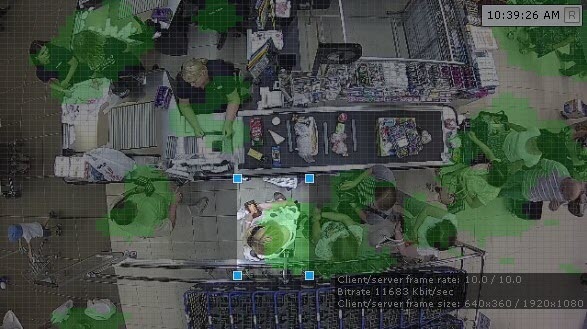
| detector. The higher the sensitivity, the better the algorithm reacts to minor motion. If you specify the minimum sensitivity value, only significant scene changes can be analyzed by the Queue |
| detector. You must specify the sensitivity value empirically based on the data from the motion mask (see Displaying information from a |
| detector (mask)) in the preview window |
In the preview window, you can specify the detection area by moving the anchor points  where objects are detected (see Configuring a detection area) . and, if necessary, specify one ignore area (see Configuring the ignore area). You can specify the areas by moving the anchor points .
| Info | ||
|---|---|---|
| ||
|


To save the parameters of the detection tooldetector, click the Apply  button. To cancel the changes, click the Cancel
  button.
Configuration of the Queue detection detector is complete. The detection tool detector will generate events of the following type:
| Code Block |
|---|
Camera. Detection "Queue detectiondetector" triggered, queue (min.: 10, max.: 10) |
where min. and max. is are estimated queue lengthlengths.
Overview
Content Tools