
Go to documentation repository


Page History
General information
This action switches a output to a pre-an output to the selected state.
Configuring an action
To configure this action, do as followsthe following:
- Go to the Programming tab.
- In the Event rules or Cycle rules list, click Create... (see Configuring macros).
- If necessary, select a start condition that triggers Configure the conditions to start
- a macro (see Configuring filters for event-driven macros
- start conditions).
- Click the
 button.
 - From the drop-down list, select Camera: Switch on/off output.
- In the Switching output parameter, select an output that you want to switch when a macro triggers ).Select a output to switch by the macro (1)
- . You can select any active output within your
- output in the system, including outputs linked to another Server
- server.
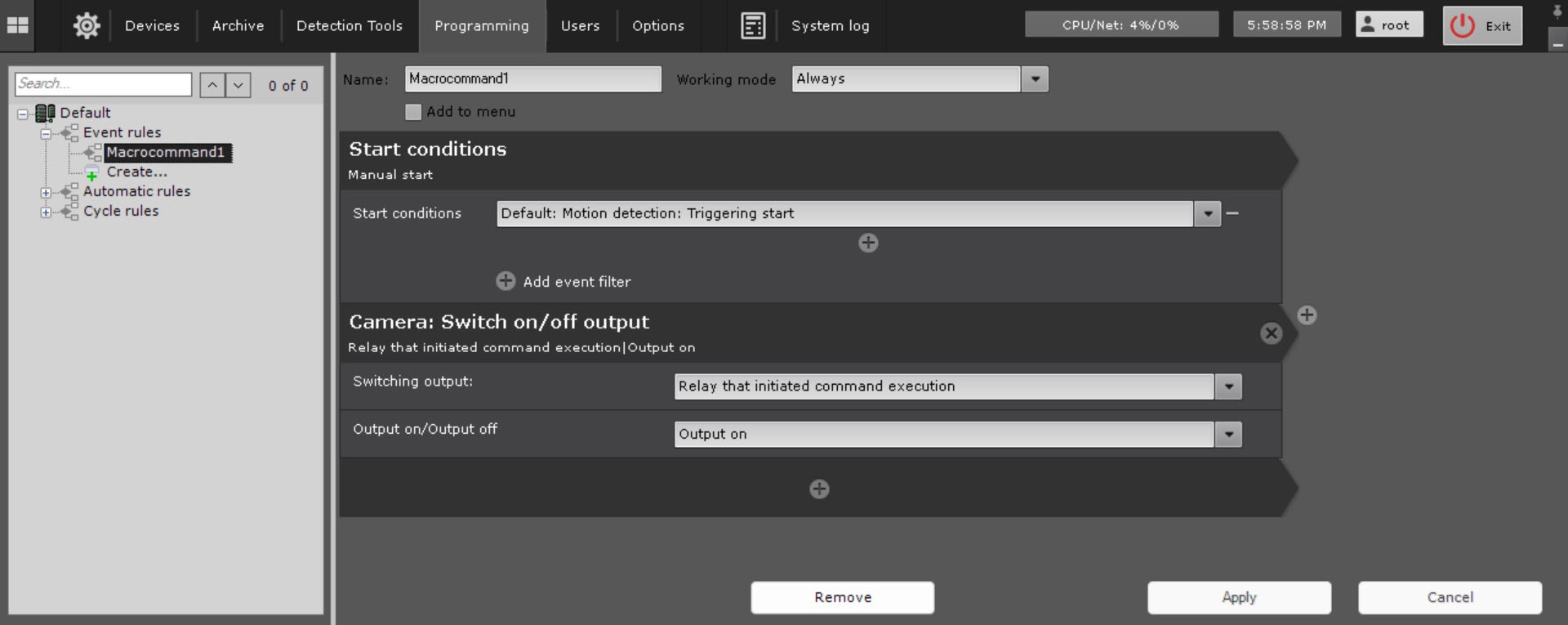
- In the Output on/Output off parameter, select the required operation.
- Click the Apply
 button.
 Outputs switch back after On-time (2), or after Check-in Event-time for any specified events
Configuration of the output switching action is complete.
Overview
Content Tools