
Go to documentation repository


Page History
General information
This action starts the export of a snapshot frame or a video. You must configure the conditions to start a macro beforehand (see Configuring filters for event-driven macros).
To configure, set up the following parameters:
Configuring an action
To configure the action, do the following:
- Go to the Programming tab.
- In the Event rules or Cycle rules list, click Create... (see Configuring macros).
- Select a start condition that triggers a macro (see Configuring start conditions).
- Click the
 button below start conditions.
 - From the drop-down list, select Camera: Start export.
- In the Export agent parameter, select a server Export agent (1)—select the Server
- (formally the Export agent object) to which you want to export the
- a video recording
- (see Configuring Export agent).
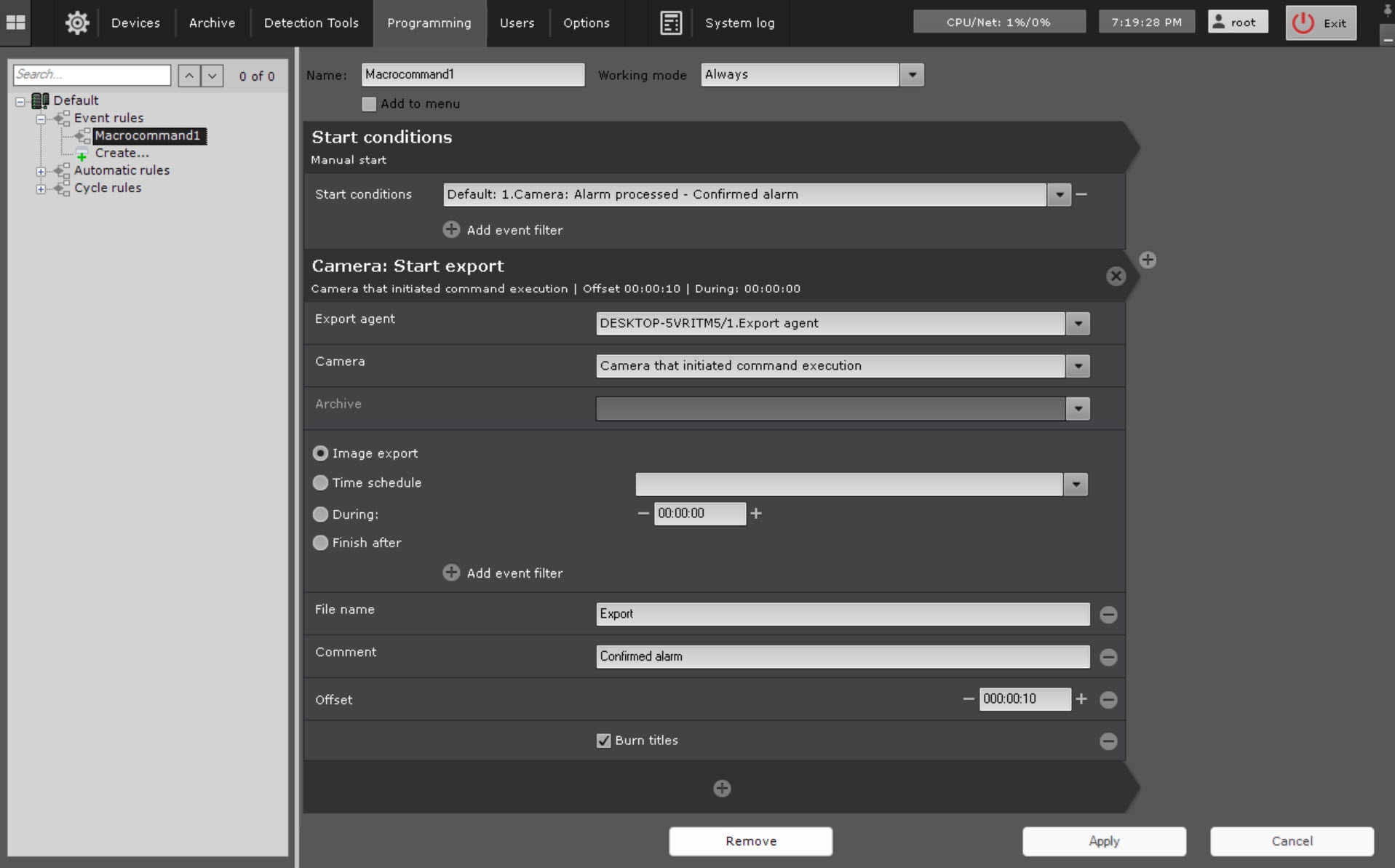
- In the Camera parameter, —
- select a camera for
- , the video from which you want to export. An
- In addition, an implicit camera selection of a video camera is also allowed—
- is allowed—Camera that initiated command execution (see Configuring start conditions).
Note title Attention! If
the start of the macro was triggered by the activation of a macro is initiated by an event from an input or output (see Configuring start conditions
for event-driven macros) that is not connected to any camera, you need to select a specific camera
herefor this action. If you select a group of cameras or a camera that
triggered initiated the
commandmacro, the action
will not doesn't start.
Archive (3)—- In the Archive parameter, select an archive for
- , the video from which you want to export. Set
In the parameter group, specify the export interval
(4). :
Option
Description
Image export
Exports a
snapshot with frame corresponding to the time
stamp identical to the start time of action. when the action was started.
Note title Attention! Image
Important! The image cannot be exported if the
video camera
does not doesn't have an archive
Time schedule
You
need to must select a time schedule.
Exports images from within the time schedule.
Video recording interval Interval of the exported video − [
Beginning beginning of the specified time
slotschedule;
the end of the specified time
slotschedule].
Note title Attention! If you don't specify the offset (see step 10c), the intervals from the time schedule are taken over the last 24 hours
During
You must
You should set the export duration in HH:MM:SS. The starting point of the exported video is the
command action start. End point is defined on the basis of the specified duration
−(
Interval interval [
command action start;
command action start + duration])
Finish after
Select You must select one or more events
that will trigger export stop, after receiving which (any of them) export is stopped. The starting point of the exported video
will be is the
command action start, the end point
− is the moment of receiving any of these events
- You can click the
-
 button to add additional parameters:
File name
(5) —name of the exported file.
Note title Attention! You can use the following templates for file names and text comments (see Text templates in the action settings):
- %startTime% , or [START_TIME], or {startTime}
: the starting - —start time of exported interval.
- %finishTime% , or [FINISH_TIME], or {finishTime}
: the finishing - —finish time of exported interval.
You
- —finish time of exported interval.
may can use the following templates for macros
triggered started by a text message from an event source (see Configuring start conditions
for event-driven macros):
- %startEvent%, or [START_EVENT], or {startEvent}
: an event that triggered exporting- —event that initiated export start.
- %finishEvent% , or [FINISH_EVENT], or {finishEvent}
: an event - —event that stopped the export.
Comments Comment that is superimposed as captions over the exported video
(6).
Offset
(7) is a time period used to roll back the start time of exported video. If you set this this parameter
to non-zero, the time interval of the exported video will be as follows:
[action start − (duration + offset); action start − offset].
If
exported video(s) fall into a specific slot on Time export is performed within a time schedule, this parameter is used to
define the start time for video retrieval. For determine the period in the past before the action started for which the export must be performed. For example, if you set the
Offset (GUI: Buffer) offset to 48 hours, all videos from the given
Time time schedule
slot recorded within 48 hours before the action start
will be exported.
 Camera (2)
During:
button Example: A macro command for automatically exporting video recordings of all alarm events evaluated by operators as "confirmed".
are exported.
- Set the Burn titles checkbox to burn titles on JPEG images and AVI videos.
- Click the Apply
 button.
Configuration of the Start export action is complete.
Overview
Content Tools