
Go to documentation repository


Page History
General information
This action starts a slideshow of specific layouts These actions start and stop a specific layout slideshow (see Selection and Slideshow of Layouts) on the selected operator monitor for the assigned specified role.
Configuring an action
To configure the Start slideshow action, set do the following parameters:
- Go to the Programming tab.
- In the Event rules or Cycle rules list, click Create... (see Configuring macros).
- Select a start condition that triggers a macro (see Configuring start conditions).
- Click the
 button below start conditions.
 - From the drop-down list, select Monitor: Start slideshow.
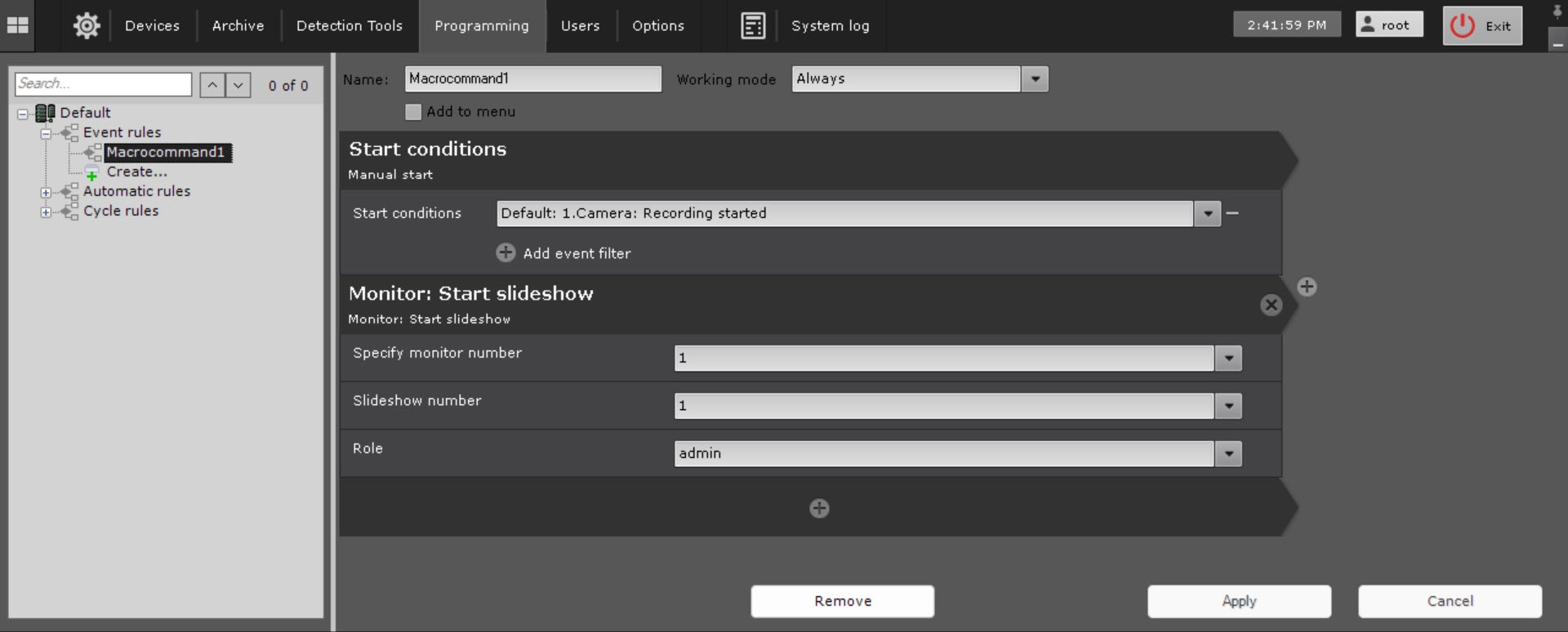
- In the Specify monitor number parameter, select the number of the monitor on which you want to start a slideshow.
- If you select a dash (−) when selecting a monitor, the slideshow will run for
- a slideshow starts on the active monitor.
- In the Slideshow number parameter, select the number of a slideshow. The list starts with a zero. For example, Slideshow #1 in the Layouts interface will have
- has the number 0. Select
- In the Role parameter, select a role for which the macro will function from the Role drop-down list (3).
- be executed. If you leave the Role field empty
- blank, the macro will function
- is executed for all roles that have access to this rule.
Select the monitor number from the Specify monitor number drop-down list (1).
| title | Note |
|---|
Select the number from the Slideshow number drop-down list (2).
| title | Note |
|---|
| title | Note |
|---|
The Stop slideshow action is configured in the same way. The macro stops the slideshow being played.
...
| title | Note |
|---|
...
- Click the Apply
 button.
Configuration of the Start slideshow action is complete.
Overview
Content Tools