
Go to documentation repository


Page History
You can use the Story board (see Story board) for one-click export to simultaneously export all found videos of an event video from multiple cameras' Video Footagearchives of different cameras, having previously collected them on the board.
To do sothis, follow do the steps belowfollowing:
- Click on the thumbnail of interestthe found video fragment.
- Set a time interval on the timeline for export (see Standard video recordings export).
This will add the thumbnail of the selected video clip to the Story board.
Click the + button in the middle of the thumbnail. The video clip will be added to the export batch.
Info title Note To remove it the video from the batch, click the
 button.
- Repeat these steps for all videos of interest.
- Click the
 button to export all selected clipsvideos.
The export window will open, further export steps are identical to the standard export process (see Standard video recordings export).
By default, the video is exported to a single file. To export video from different video cameras to separate files, deselect clear the Export as single file checkbox in the export window (1).
| Info | ||
|---|---|---|
| ||
When you export to one a single file, the streams are written in parallel. To view exported video, use a player that allows playing multiple instances and different streams in each simultaneously (for example, VLСVLC). |
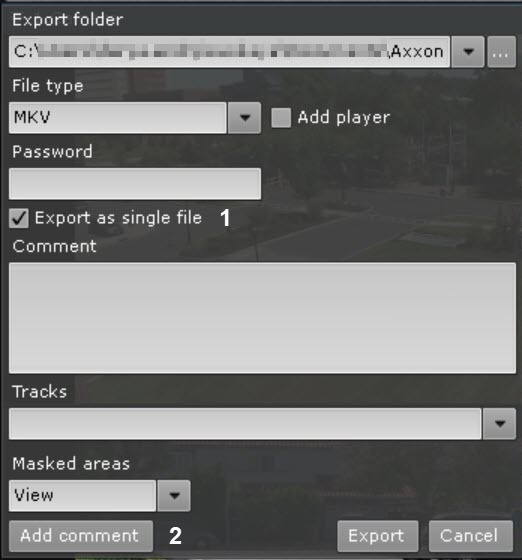
This opens the Export window. Follow the same steps as with the standard export procedure (see Standard video recordings export).
| Info | ||
|---|---|---|
| ||
We recommend you to export to the EXE format. |
...
Overview
Content Tools