
Go to documentation repository


Page History
When you start the Web-Client, the cameras panel opens on the left. It displays the list of all available devices.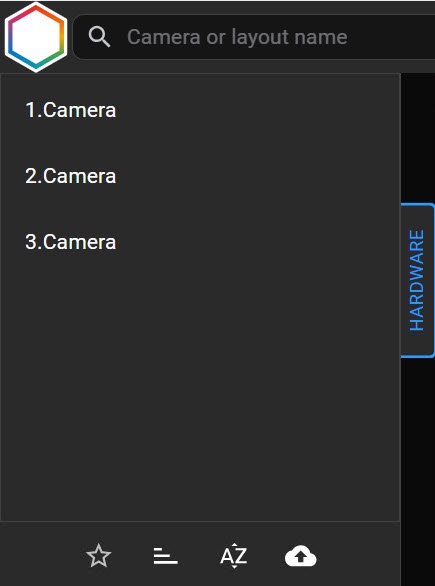
By default, the panel displays all available cameras. You can also create a list of the favorite cameras. To do this, do the following:
...
- Create an Excel file containing two columns: the id column for camera IDs and the name column for camera names.


- Click the
 button and select the file.
...
To search for a camera, enter the full or partial device name in the Camera name field. The cameras panel will display only the devices that meet the search criteria. All matching devices will be highlighted.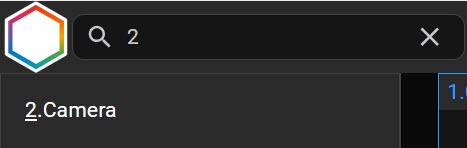
| Info | ||
|---|---|---|
| ||
|
To display a camera group (see Configuring video camera groups), click the Default button button and select the required group.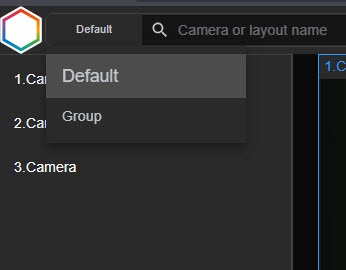
When you select a camera, live video image will be displayed.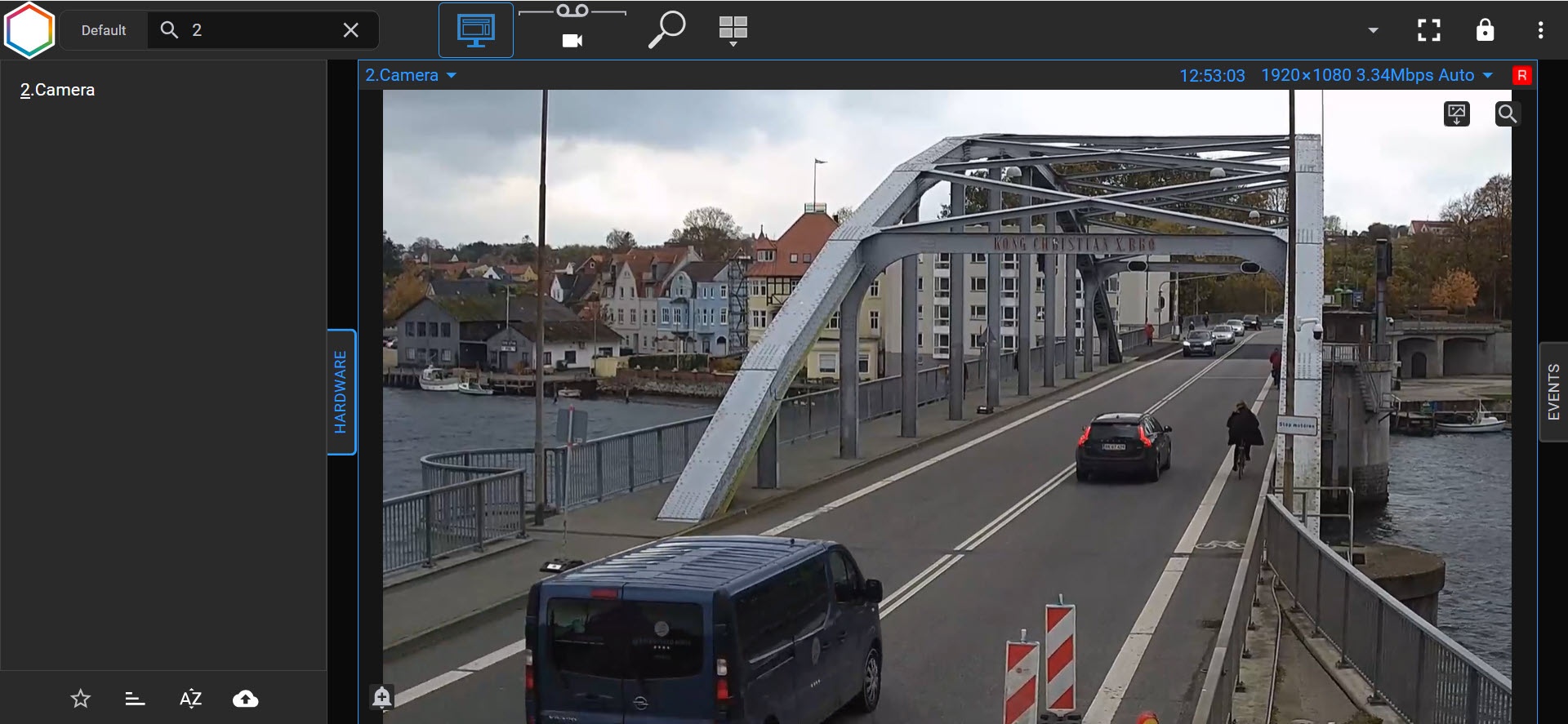
Each surveillance window in the upper right corner contains:
- time display (see Time display in the main Client);
- video stream parameters;
- archive recording indicator.
Overview
Content Tools