
Go to documentation repository


Page History
You can use the Web-Client to monitor view active alarms across the entire Axxon-domain.
To make the Web-Client display active alarms, select any camera or a layout (see Searching for video cameras in the Web-Client, Web-Client 's GUI).
| Info | ||
|---|---|---|
| ||
The alarms that were triggered are initiated before selecting a camera or a layout are only displayed if the user is in the workspace. After you reload the page, go to the open statistics or bookmarks sections, the panel with the current alarms will disappear. |
When an alarm triggersis initiated, the alarm panel appears on top (like in the Client, see Alert panel).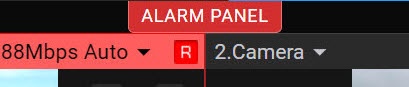
| Info | ||
|---|---|---|
| ||
The browser tab will indicate the number of current alarms in the Web-Client. |
Click the Alarm Panel button ALARM PANEL button to open the panel.
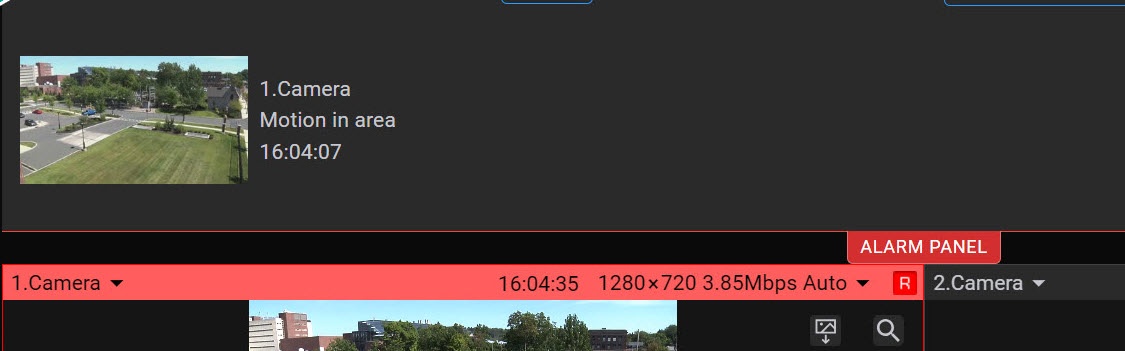
The panel will display the alarm thumbnails with the name of the camera in which the alarm occurred, the initiator of the alarm and the time of the alarm.
If you click the alarm thumbnail on the panel, you will go to the archive mode to view the event.
| Info | ||
|---|---|---|
| ||
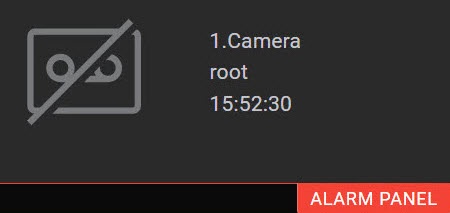
If the first frame of an alarm is not received within 15 seconds, then an icon will be displayed indicating that there is no video recording for this alarm. |
You can change the size of the alarm panel in the Web-Client. To do this, hover the mouse cursor over the panel and expand it with the cursor..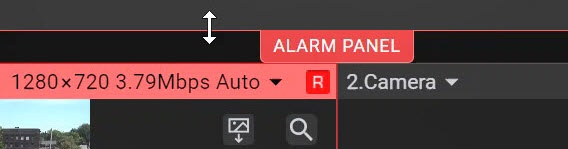
Alarm processing in the Web-Client
In the Web-Client, it is possible to manage and take into processing the active alarms of the entire Axxon-domain.
To go into the Alarm management mode and take the alarm into processing, do the following:
Initiate an alarm by clicking the
 button (like in the Client, see Switching to the Alarm management mode).
Click the
 button to go into the Alarm management mode.
As a result, the archive mode will open, and the panel for managing an alarm event will appear (see Assessing an alarm event).
| Info | ||
|---|---|---|
| ||
Only one operator can take an alarm into processing (like in the Client, see Limitations when working with alarm events in case of multi-user processing). |
If another operator took an alarm into processing, the current operator won’t be able to take the alarm into processing and will see the notification:
Overview
Content Tools