
Go to documentation repository


Page History
| Section | |||||||||||||||||||||
|---|---|---|---|---|---|---|---|---|---|---|---|---|---|---|---|---|---|---|---|---|---|
|
| Tip |
|---|
Installing the Client
| Note | ||
|---|---|---|
| ||
| ||
| Note | ||
| ||
|
To install the Axxon One Client
...
in Linux OS, do the following
...
:
Add the repositories by sequentially running the following commands:
Code Block language bash echo 'deb http://download.axxonsoft.com/debian-repositorystretchbuster main backports/main' | sudo tee -a /etc/apt/sources.list.d/axxonsoft.list echo 'deb http://download.axxonsoft.com/debian-repository
weekly mainstretch backports/main' | sudo tee -a /etc/apt/sources.list.d/axxonsoft.list
wget --quiet -O - "http://download.axxonsoft.com/debian-repository/info@axxonsoft.com.gpg.key" | apt-key --keyring /etc/apt/trusted.gpg.d/axxonsoft.gpg add -
apt-get updateecho 'deb http://download.axxonsoft.com/debian-repositorystretch main backports/astra backports/stable main' | sudo tee -a /etc/apt/sources.list.d/axxonsoft.list wget --quiet -O - "http://download.axxonsoft.com/debian-repository/info@axxonsoft.com.gpg.key" |
apt-keysudo gpg --dearmor -
-keyringo /etc/apt/trusted.gpg.d/axxonsoft.gpg
add -
&& sudo apt-get update
If - If you use Ubuntu 20.04 or
- , Debian 11 or higher, then install the mono-complete from the stretch repository:
Code Block language bash sudo apt-get
purge install
"mono-*"complete
"libmono-*"
sudo apt autoremove
t stretchDownload the Axxon One Client installation package from the AxxonSoft website (the Client line in the Linux 64-bit.deb section).
Install the Axxon One Client by sequentially running the following commands:
Code Block language bash sudo dpkg -i axxon-one-client-bin*.deb || sudo apt-get
updateinstall -f sudo dpkg
apt-get install mono-complete -t stretchi axxon-one-client_*all.deb || sudo apt-get install
axxon-one-clientf- During installation, it will be necessary to
- you must specify the maximum size of the log files in megabytes and the log level.
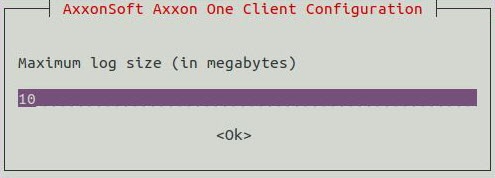
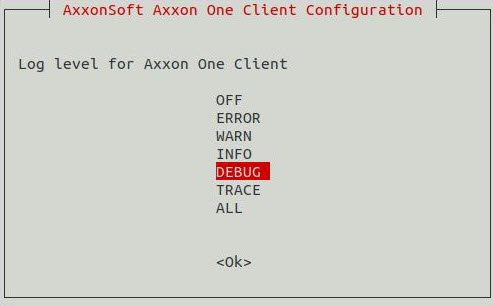
Info title Note The Later you can change the specified value
can be changed (see Configuring the logging parameters of the Axxon One Client
logging parameters on in Linux OS). To do this, run the command:
Code Block language bash sudo dpkg-reconfigure axxon-one-client
| title | Attention! |
|---|
If you install Axxon One on AstraLinux SE 1.6, then instead of the commands from the step 1, you should sequentially run the following commands:
Run the command:
Installation of the Axxon One Client in Linux OS is complete. When the installation is complete, the Client icon will be displayed in the application menu.
Installing the Axxon One Client without Server
In Linux OS, you can install the Axxon One Client without installing the Server. To do this, do the folloiwng:
- Add repositories as described in the Installing the Client section.
- Download the archive with packages to install the Axxon One Client from the AxxonSoft website (the Client line in the Linux 64-bit.deb section).
The archive contains all necessary packages to install the Client:Package name Description axxon-drivers-pack_%version.number%_amd64.deb DriversPack is required for IP devices support in Axxon One
axxon-detector-pack_%version.number%_amd64.deb Basic DetectorPack package includes only Object tracker, Video clarity detector, Signal detector, Noise detector, Audio loss detector, and Motion detector
axxon-one-core_%version.number%_amd64.deb The Client installation packages
axxon-one-client_%version.number%_all.deb axxon-one-client-bin_%version.number%_amd64.deb - Go to the folder with the downloaded archive and unzip it. For the manual installation:
- Go to the downloaded deb-packages folder.
- Install DriverPack and DetectorPack using the following command:
Code Block language bash sudo dpkg -i axxon-d*.deb || sudo apt-get install -f
Install the axxon-one-
client-bincore_
1.9.0.65%version.number%_amd64.deb
package using the following command:
Code Block language bash sudo dpkg -i axxon-one-client_1.9.0_all.deb
Run the following commands:
where 1.9.0.65 is the version and the build number.
...
core*.deb || sudo apt-get install -fInstall the Client packages using the commands described in the Installing the Client section up to the last step.
Installation of the Axxon One Client without Server in Linux OS is complete.
Running the Client
| Note | ||
|---|---|---|
| ||
It is not recommended to
|
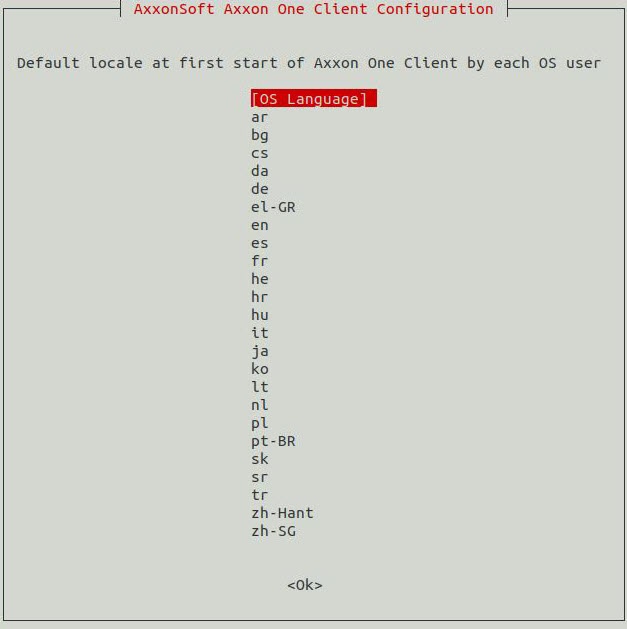
By default, at the first Client start, the OS interface language will be used. To change the language of the Client interface at the first start, do the following:
Run the
following command
.:
Code Block language bash sudo dpkg-reconfigure axxon-one-clientSelect the required language
.:
Note title NoteAttention! - This setting
should be - must configured for each OS user separately.
- On the next launches the interface language can be changed in the Client settings (see Selecting the interface language).
info| title | Attention! |
|---|
Overview
Content Tools