


Page History
You can configure the Camera list in the FEED COLUMNS section. To do For this, do the following:

- Select the type of the camera list display:
- Grid — display grid—display cameras as a grid (default).
- List — display list—display cameras as a list.
- If you want to display only the active cameras in the list, enable the Show only active parameter.
- Select the type of the camera sorting:
- Unsortedunsorted.
- Id — sorting id—sorting by the id ID number.
- Name — sorting name—sorting by the name (default).
- Manual — manual—manual sorting. If you select manual sortingthis type, custom sorting will be become available (see Custom camera sorting in the AxxonNet iOS mobile client).
- If you want to display the cameras id camera IDs at the beginning of their names, enable the Show id parameter.
- If you want to search for the cameras on the Cameras tab, enable the Search parameter.
- Using the
 and
and  buttons, increase or decrease the value of the Landscape and Portrait parameters. The values of these parameters specify the number of camera columns in the corresponding position of the device. The maximum value that can be specified in the parameters indicate the size of the cameras fold display in the Cameras tab. Landscape and Portrait parameters is 10.
Example: with the Portrait: 3 parameter value, the number of the camera columns when the device is vertical will be three.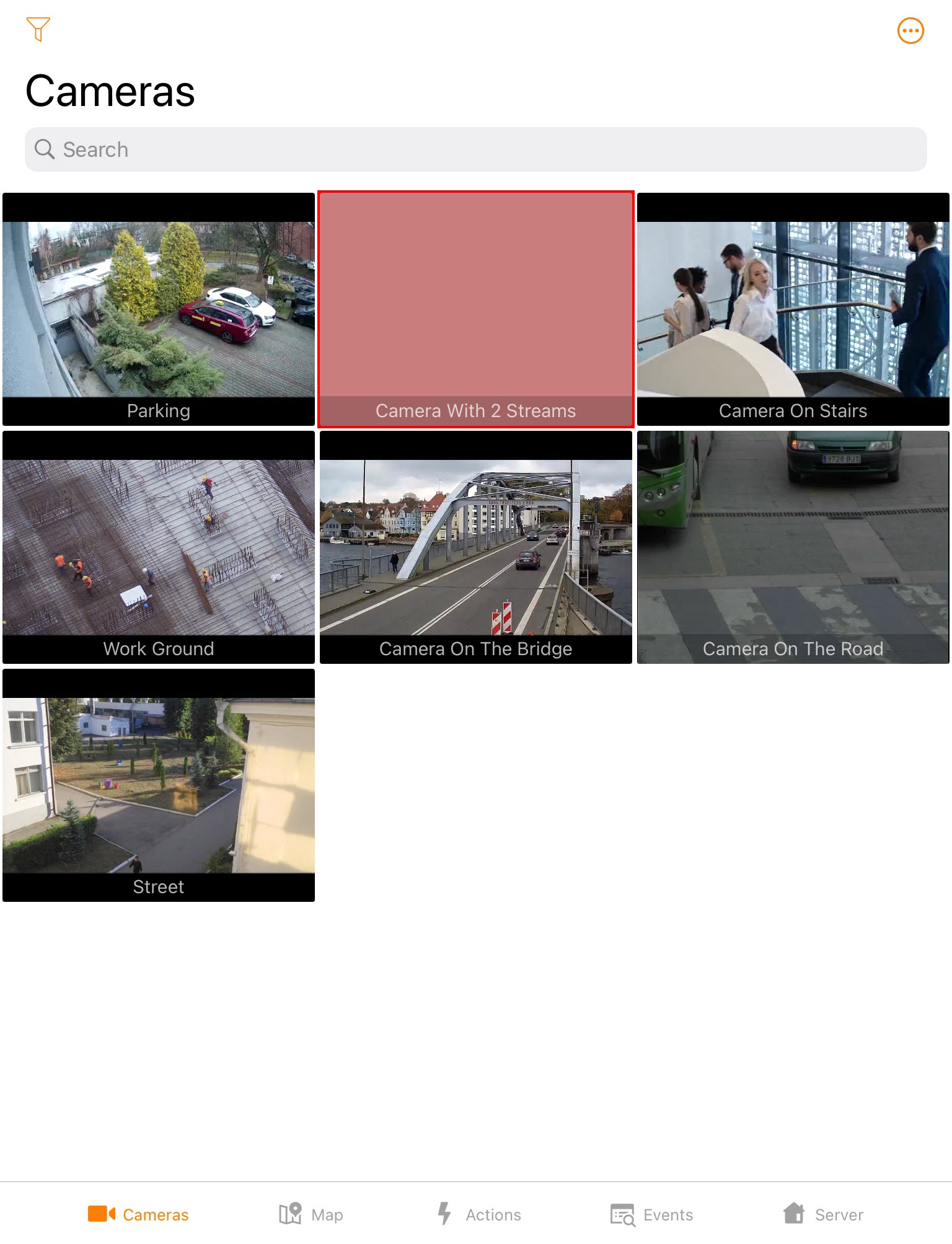
With the Landscape: 4 parameter value, the number of the camera columns when the device is horizontal will be four.
Overview
Content Tools