
Go to documentation repository


Page History
General information
Audio calls are supported between operators in a distributed configuration on the Server of Of Control/Agent of Of Control side. Audio calls are made using the SIP-terminal object. Physical SIP devices are not required.
...
| title | Important! |
|---|
...
.
Configuring audio calls from the Monitoring
...
interface
Configure audio calls from the Monitoring PSIMinterface as follows:
- At the Server of Of Control and Agent of Of Control side:
- Create the Audio card object with the Microphone child object under it (see Audio subsystem configuration).
- Create the Audio playback card object with the Speaker child object under it (see Configuring audio playback).
- At the Server of Of Control side:
- Create a the SIP-terminal object as a SIP-server in Intellect Axxon PSIM (see Configuring SIP-terminal).
- On the basis of the SIP-terminal object, create 2 child two SIP-operator child objects and for each of them specify the corresponding operator identification number (Configuring SIP-operators of on the Intellect's SIP server of Axxon PSIM).
- On the basis of the SIP-terminal object, create the Address book object and select to use the previously created SIP-operators (see Configuring address book of SIP-terminal).
- On the settings panel of each SIP-operator, select a previously created address book for use (see Configuring SIP-operators of on the Intellect's SIP server of Axxon PSIM).
Create
athe SIP-panel 1 interface object on the same
ScreenDisplay 1 object
whereon which the Monitoring
PSIM interfaceinterface object was created (see Configuring the SIP-panel interface object).
Info title Note. Recommended coordinates of the SIP-panel: X = 40, Y = 40, W = 20, H = 21. - On the Basic settings tab of the SIP-panel 1 object, select the SIP-terminal as the terminal (see Basic settings of the SIP-panel interface object).
- On the Advanced settings tab of the SIP-panel 1 object, check set the boxes checkboxes as shown in the figure below (see Advanced settings of the SIP-panel interface object).
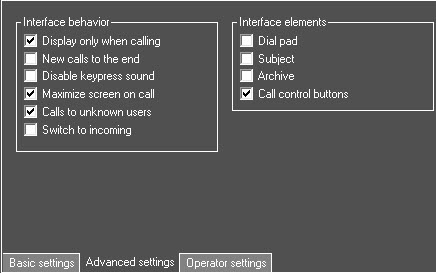
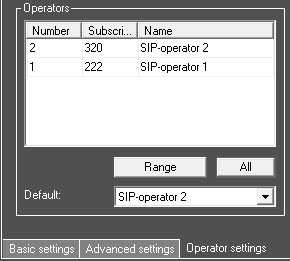
- On the Operator settings tab of the SIP-panel 1 object, configure the list of SIP-operators as shown in the figure below (see Operator settings of the SIP-panel interface object).
- Create the Screen Display 2 object, which will be displayed only on the Agent of Of Control side (see Assigning the displays to the operator workstations).
- Create the SIP-panel 2 child interface object SIP panel 2.
- On the Basic settings tab of the SIP-panel 2 object, select the SIP-terminal as the terminal (see Basic settings of the SIP-panel interface object).
- On the Advanced settings tab of the SIP-panel 2 object check object, set the boxes checkboxes as shown in the figure below (see Advanced settings of the SIP-panel interface object).
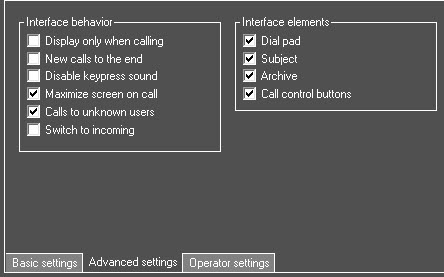
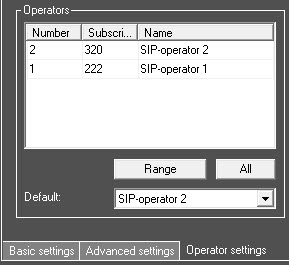
- On the Operator settings tab of the SIP-panel 2 object and , configure the list of SIP-operators as shown in the figure below (see Operator settings of the SIP-panel interface object).
- On the settings panel of the Computer object, select the speaker and microphone of the SIP-operator (see Selecting speaker, microphone and camera for SIP-operator).
Setting up Configuring audio calls from the Monitoring PSIM interface interface is now complete.
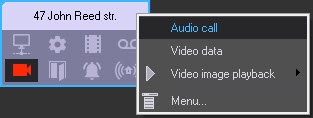
As a result, the Audio call item will appear in the context menu of the object in the Monitoring PSIM interface interface. When you select this menu item, an audio call will be made to the operator who is on the computer with the corresponding object.
Overview
Content Tools