
Go to documentation repository


Page History
To view a video image, you should select either a camera on the panel (see 비디오 이미지를 보려면 패널에서 카메라를 선택하거나 (웹 클라이언트에서 비디오 카메라 검색), or one of the available layouts (see 참고) 사용 가능한 레이아웃 중 하나를 선택해야 합니다 (웹 클라이언트 GUI 참고).
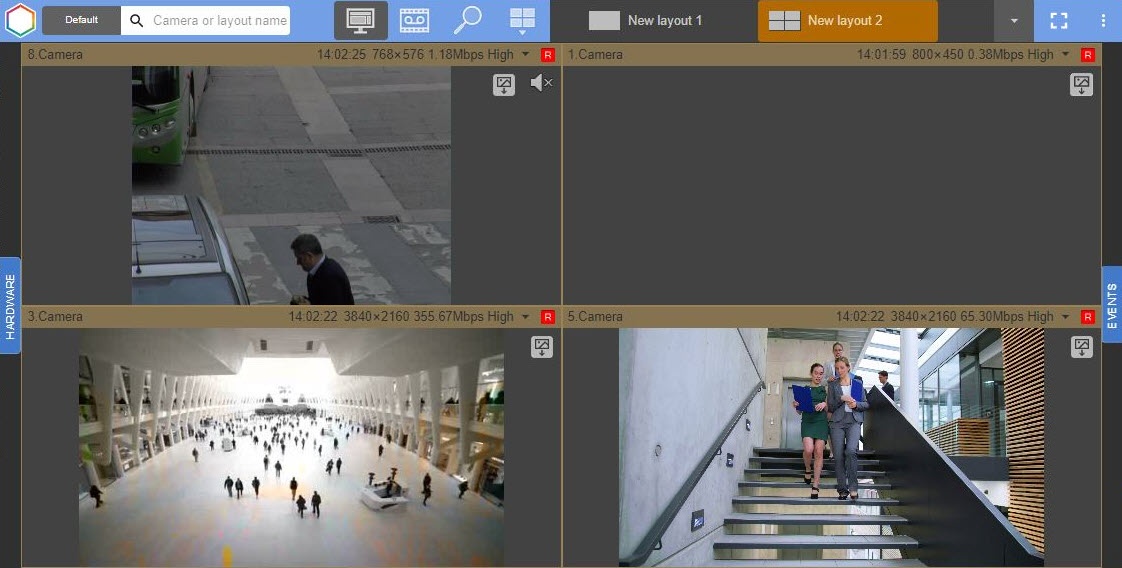
The Web-Client supports video playback in the following video formats웹 클라이언트는 다음 비디오 포맷에서 비디오 재생을 지원합니다: MJPEG, H.264, H.265. All other formats are trans-coded to MJPEG on the Server. 다른 모든 포맷은 서버에서 MJPEG로 트랜스코딩 됩니다.
| Note | ||
|---|---|---|
| ||
H.265 video playback is possible in the following browsers비디오 재생은 다음 브라우저에서 가능합니다: Safari, Microsoft Edge with HEVC video extension installed이 설치된 Microsoft Edge, Google Chrome version 107 and higher, if: 버전 107 이상(해당하는 경우):
|
웹 클라이언트에서 JPEG와 MP4라는 두 가지 플레이어로 비디오를 재생할 수 있습니다. 브라우저가 MP4 형식을 지원하는 경우 MP4 플레이어가 사용됩니다. 그렇지 않으면 비디오가 JPEG 플레이어로 재생됩니다You can playback a video in the Web-Client with two players: JPEG and MP4. If your browser supports the MP4 format, the MP4 player is used. Otherwise, your videos will be played back with the JPEG player.
| Note | ||
|---|---|---|
| ||
|
The Web-Client supports displaying panoramic views for fisheye video cameras. To enable such a display, select Yes for Activate parameter in Panomorph parameters group in the video camera settings in a common Client (see Configuring fisheye cameras).
To select a displayed stream in the Web-Сlient manually (see The Camera object), do the following:
|
웹 클라이언트는 어안 렌즈 비디오 카메라에 대한 파노라마 뷰 표시를 지원합니다. 이러한 표시를 활성화하려면 공통 클라이언트의 비디오 카메라 설정에서 Panomorph 매개변수 그룹의 활성화 매개변수에 대해 예를 선택합니다 (Configuring fisheye cameras 참고).
웹 클라이언트에서 표시된 스트림을 수동으로 선택하려면 (카메라 객체 참고) 다음을 수행합니다.
- 현재 스트림의 매개변수를 클릭하세요.

표시할 스트림을 선택하세요.
- Click the parameters of the current stream.
Select a stream to be displayed:
Menu item
Description
Auto (GreenStream, default)
If a stream was selected based on the maximum bitrate, then another stream will be selected only if its bitrate is more than 5% higher than the current one (in order to eliminate frequent switching if the indicators are approximately equal) (see The Camera object).
When you enlarge the surveillance window, the video stream switches to a high quality video stream
High quality
A high quality video stream is used in the video surveillance window (see The Camera object)
Low quality
A low-quality video stream is used in the video surveillance window (see The Camera object).
| Info | ||
|---|---|---|
| ||
A selected video stream is saved when switching between the layouts, but after the page reloads, the video stream that was specified when creating the layout will be automatically selected. |
Click the  button to open the window in full screen. To exit the full screen mode, click the
  button again, or press the Esc key.
To open a temporary layout from a certain camera on the layout, double right-click the camera video image. To return to the layout, double-click the video image again.
레이아웃을 전환할 때 선택한 비디오 스트림은 저장되지만 페이지를 다시 로드한 후에는 레이아웃을 생성할 때 지정한 비디오 스트림이 자동으로 선택됩니다. |
버튼을 클릭하여 전체 화면으로 창을 엽니다. 전체 화면 모드를 종료하려면 버튼을 다시 누르거나 Esc 키를 누르세요.
레이아웃에서 특정 카메라의 임시 레이아웃을 열려면 카메라 비디오 이미지를 두 번 마우스 오른쪽 버튼으로 클릭합니다. 레이아웃으로 돌아가려면 비디오 이미지를 다시 두 번 클릭합니다.
비디오 카메라 보기 창에서 자막 표시를 활성화할 수 있습니다. 이렇게 하려면 카메라 이름을 클릭하고 자막 표시 확인란을 설정합니다You can enable the display of captions in the video camera viewing window. To do this, click on the name of the camera and set the Show subtitles checkbox.

Overview
Content Tools