
Go to documentation repository


Page History
...
- Double-click the icon
 in the tray.
 - In the Update agent window that opens, click the
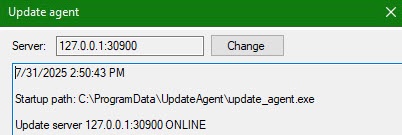 Change .
 - As a result, the Server field becomes editable. Enter the IP address and port of the update server separated by a colon in this field:
 .
. - Click SetClick the Set button.
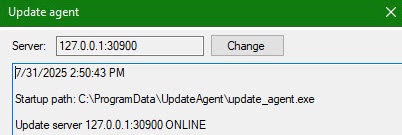
As a result, the window displays information about the connected update server and its status—ONLINE or OFFLINE:
General update procedure on the client
| Note | ||
|---|---|---|
| ||
The update parameters (time, Axxon PSIM start, and so on) depend on the selected settings in the Update update manager(see Configuring the update server (distributor) in the Update manager). |
- The client receives the update task from the Update update manager.
- The client requests from the server the installation package with the required version in ZIP format, downloads it, and unzips it.
- Then the update runs in the quiet mode:
- If Axxon PSIM is running at this time, the client stops it;.
- The client runs the update;.
- After a successful update, if it was specified during configuration that Axxon PSIM must be restarted, the client restarts it. It is also possible to You can restart the computer if this was specified.
- After the update, the client deletes the installation package.
...
The bottom part of the Update agent window displays information about the client (update agent):

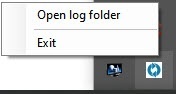
If you right-click the tray icon , a dialog window opens:

If you click Exit, the update agent stops. If you click Open log folder, a folder with the logs of the update agent opens.
To restart the update agent, go to its installation folder and run the update_agent.exe file.
| Info | ||
|---|---|---|
| ||
After you install the Automatic Update Service and restart a computer, the update agent runs as administrator. |
Click  Click
Click  to hide the Update agent window without stopping it.
...
Overview
Content Tools