
Go to documentation repository


Page History
| Section | |||||||||||||||||||||
|---|---|---|---|---|---|---|---|---|---|---|---|---|---|---|---|---|---|---|---|---|---|
|
Licenses
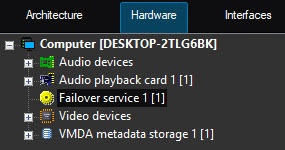
The Failover failover mode is configured using the the Failover service objects created on the basis of the Computer objects corresponding to backup servers in the Hardware tab of the System settings dialog boxwindow.

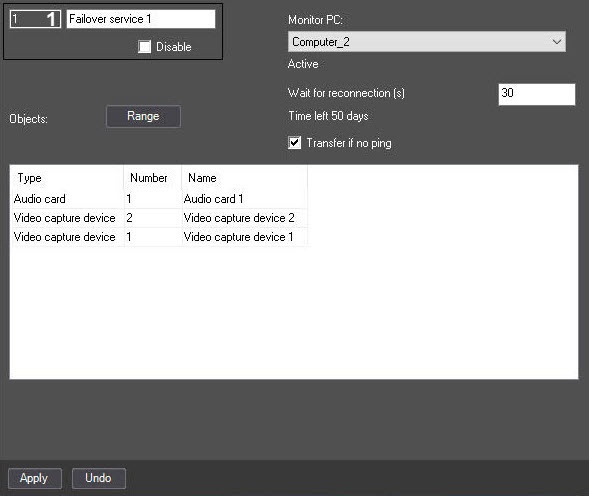
If the quantity of cameras is bound to specific Servers servers in the security key, then the license becomes invalid when cameras are moved to the backup Serverserver. In this case the system gives 50 days to restore the failed Server in order to main server, move the cameras back, and make the license to become valid again. Otherwise, Axxon PSIM will unload on the backup Server because server due to exceeding the hardware limit is exceeded (see see Specifics of the Axxon PSIM operation when the object limit is exceeded). The time (in days) remaining for restoring the main Server is displayed on
On the settings panel of the Failover Failover service object, the Time left string is automatically filled in depending on the remaining time: if there is less than one day left before reconnection, the number of hours is displayed (for example, Time left 5 hours). If less than one hour—number of minutes (for example, Time left 5 minutes). If less than one minute—number of seconds (for example, Time left 0 seconds).
Limitation on the number of simultaneously running
...
failover services
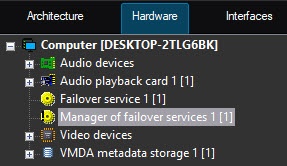
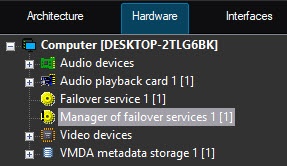
The You can limit the number of failover services running on each computer simultaneously can be limited. The at a time. To do this, use the Manager of failover services object is used for this. It is created on the basis of the Computer object that is not the Client (see Role-assignment isn't the client (see Assigning role to computer in distributed system).
If the number of failed Servers servers exceeds the specified limit, the configuration from the new newly failed Servers servers will be transferred to the corresponding backup Server server as the previously failed Servers servers become operational.
Transferring vertical solution objects
| Tip |
|---|
General information about product releases and versions compatibility You can find the links to documentation for vertical solutions on the the AxxonSoft Documentation page. |
The table shows the versions of vertical solutions compatible with Axxon PSIM 2.0. The availability of the object transfer for of the Auto PSIM and Face PSIM vertical solutions depends on the module used and the availability of a license for it.
| Vertical solution | Availability of module license key | Module | How the Failover failover service works |
|---|---|---|---|
| Face PSIM | No | VA SDK 2023080420240702_r1r3 | Objects are transferred correctly, face recognition continues. Images of recognized faces are sent to the "FaceDB" (default) folder |
| Yes | VisionLabs LUNASDK 5.1017.0 | Objects are transferred correctly, face recognition stops. Images of recognized faces are sent to the "FaceDB" (default) folder | |
| Auto PSIM | No | RR | Objects are transferred correctly, vehicle recognition continues. Images of recognized vehicles are sent to the "LprDB" (default) folder |
| Yes | AUTO-Uragan module | Objects are transferred correctly, vehicle recognition stops | |
| Yes | VT | Objects are transferred correctly, vehicle recognition stops | |
| POS PSIM | —NA | Objects are transferred correctly, receipt and title databases are not aren't transferred | |
| DetectorPack PSIM | —NA | Objects are transferred correctly, detection tools detectors continue to work after transfer (they generate events when triggered) | |
...
Overview
Content Tools