
Go to documentation repository


Page History
...
- Open the Links →Add link with layeritem in the main menu of the Map editor utility.

The Link to layer panel opens, using which you can select the adjacent layer.
There is another way to open the panel for adding the layer. In the Map editor utility, right-click any area of the graphic image plan to open the context menu of layer editing. Select the Add link with layer item from this list.
In the Link to layer window:
If you want to switch to another map layer, select the required Map object from the Link to: drop-down list (1). If you want to switch to the layer of the same map to which the configured layer belongs, select an empty value in the drop-down list.
Info title Note The layer of another map is opened in the window of this map and not in the window where there is the layer from which the switch is performed.
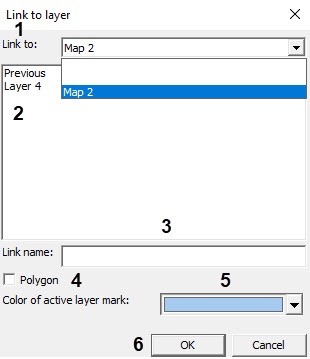
- Select the layer to which you want to switch (2). If you use the link to switch to the previous layer that is displayed in the map window, select Previous. The link with the previous layer is valid only within the map range, that is, when you switch from the layer of one map to the layer of another, then you can switch to the previous layer only when the second map layer opens.
- After you create a layer, you must specify the name for this link in the Link name field (3). If you don't specify the name, then the default one corresponding to the layer name is set.
If you want to display the link on the map as a polygon, set the Polygon checkbox (4).
Info title Note You can set the color and shape of a polygon after adding it to the layer. By default, the link is represented by a green hexagon.
- If the selected layer to which the switch is performed is on another map, then from the Color of active layer mark drop-down list, select the color by which the link is marked when this layer is active on its own map (5).
- Click the OK button to create the new link (6).
...
- Add apex—add a new apex to the polygon. If you select this item, the new apex appears, after which you must set its location by left-clicking the map.
- Properties—displays the properties panel of the icon on the right part of the Map editor window. Using this panel, you can set the color and opacity of the normal and alarm states of the layer icon, as well as configure the frame hiding that limits the polygon.

By default, when an alarm is detected on the link layer, the link icon of this layer starts blinking. If you need an additional indication, you can configure the alarm link icon with a layer. To do this, place the link_alarm.bmp file containing any image characterizing the alarm on the layer to the <Axxon PSIM installation directory>/Bmp file folder. If such a file is in the Bmp folder, then when an alarm occurs on the link layer, the link icon changes to the image from the link_alarm.bmp file and starts blinking.
...
Overview
Content Tools