


Page History
To run a macro:, do the following:
- Click
 in the quad mode (see Displaying and searching for cameras in Android Mobile Client) or in the video playback mode (see Viewing live video in the Android mobile client), and select Action item from the menu.
Call the macro menu by clicking the
 button.
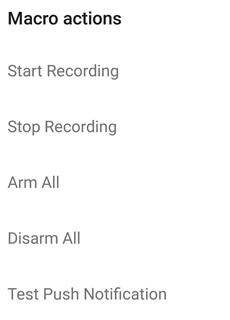
Select the necessary macro
infrom the Macro actions list
.
.
Info title Note The Macro actions list is sorted alphabetically as follows:
1) Special symbols;
1) Numbers;
2) Large Latin letters;
3) Small Latin letters;
4) Large Cyrillic letters;
5) Small Cyrillic letters.
The message about the successful execution of the macro running action is displayed from belowdisplayed.


| Info | ||
|---|---|---|
| ||
Macros can be executed only when there is connection to Intellect Server. |
...
You can also run macros from the Intellect map (see Working with Intellect maps). |
Overview
Content Tools