


Page History
To run execute a macro, go to the Actions tab and select the required action. 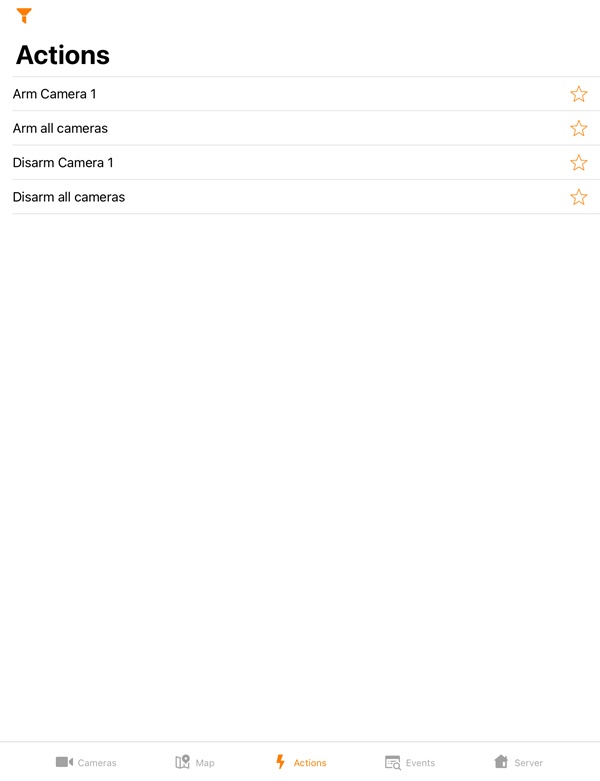 macro from the list.
| Info | ||
|---|---|---|
| ||
The available list of available macros depends on the macros on the Server macros to which the mobile client Mobile Client is connected connected (for Intellect, see Creating and configuring Macro events, for AxxonNext Axxon Next, see Configuring Macros). |
The macros in the list are sorted alphabetically as follows:
- Special symbols;
- Numbers;
- Capital Latin letters;
- Small Latin letters;
- Capital Cyrillic letters;
- Small Cyrillic letters.
To open the macros filter, click the  button in the upper left corner and select the filter:
- All - display all the available macros.
- User defined - display only custom macros.
The macros in the list can be filtered using the  button. By default, only the macros created by the current user on the Server are displayed. Frequently used macros can be placed at the top of the list, or you can create a separate list with favorite macros. Use the
  button to mark the macros as favorite. To filter the macros, click the button and select the appropriate filter type:
- All - all macros available on the Server are displayed. Favorite macros will be displayed at the top of the list;
- Favorites - only favorite macros are displayed.
| Info | ||
|---|---|---|
| ||
You can also run macros from the Intellect map (see Using macros on map in AxxonNet iOS mobile client). |
...