


Page History
...
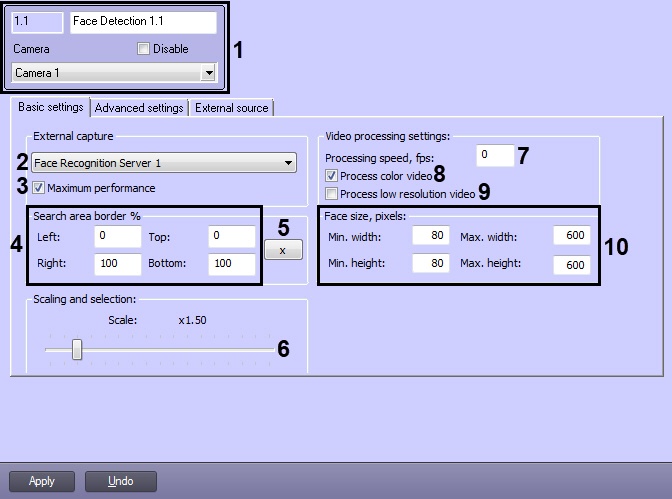
The following table provides descriptions of the parameters for configuring.
№ | Parameter | Method for entering the parameter value | Parameter description | Symbols used | Default value | Value range |
|---|---|---|---|---|---|---|
| Settings group | ||||||
1 | Number field | Automatic | Identification number of the Face Detection object in the system | Sequence of numbers | - | Depends on the number of Face Detection objects in the system |
Name field | Enter the value into the field | Name of the Face Detection object in the system | Latin, Cyrillic and service characters | Face Detection | A line containing a sequence of any symbols (letters, digits, service characters), regardless of the register | |
Disable checkbox | ||||||
Set the checkbox | Sets the status (on or off) of the Face Detection object in the system | Boolean type | No | Yes – the Face Detection object is disconnected and is not in use |
Camera drop-down list | Select the value from the list | Assigns the parent Camera object to a particular Face Detection object | Name of the Camera objects registered in the system | Name of parent camera | Depends on the number of Camera objects in the system | |
| External capture group | ||||||
2 | External | |||||
capture drop-down list | Select the value from the list | Selects the Face recognition server object | Name of the Face recognition server objects registered in the system | No | Depends on the number of Face recognition server objects in the system |
| 3 | Maximum performance checkbox |
| Set the checkbox | Enables maximum performance mode | Boolean type | Yes | Yes – the maximum quality of face capture and recognition is provided by using all available processor cores and increasing the consumed RAM. No – normal resources consumption, faces can be missed while capturing. | ||
| Search area border % group | ||||||
| 4 | Left, Right, | |||||
| Top and |
| Bottom fields | Enter the value into the field | Sets the face search area border on the video image by specifying the required values in percent of the corresponding frame sides Note. Setting the face search area border is |
available only if |
VA or VideoIntellect 1.1 face recognition module is used. | The percentage of the left, right, top and bottom sides of the frame | Left = 0 Right = 100 |
Top = 0 |
Bottom =100 | 0 to 100 |
| 5 |
Video processing settings group
6
| X button | Click the button | Sets the face search area border on the video image using the interactive interface | - | - | - | |
Scaling and selection group | ||||||
| 6 | Scaling and selection slider | |||||
| Move slider bar to position | Sets the scale of the captured face |
| in the frame for recording and highlighting the face with a dynamic frame | - | 1.5 |
1 to 5 1 |
- only the captured face |
is recorded 5 |
- the whole frame is recorded | ||||||
| Video processing settings group | ||||||
| 7 | Processing speed, fps field | Enter the value into the field | Enters the number of frames per second processed by the Face Detection module. This parameter is used to decrease the server load | Frames/sec | - | From 1 to the frequency of frames allocated for processing the video signal of each specific video camera |
| 8 | ||||||
Frame color if face size more than, %
Enter the value into the field
Sets the captured face size at which the face requires a dynamic border
% of the video surveillance camera window area
-
From 1 to 100
| Process color video checkbox | Set the checkbox | Designed to enable/disable the conversion of color video to black and white for generating vectors from black and white frames | Boolean type | Yes | Yes - vectors will be generated based on color frames No - color video will be converted to black and white to generate vectors from black and white frames |
| 9 | Process low resolution video checkbox | Set the checkbox |
| Activates the option to have the Face Detection module process video images in the 320x240 pixel resolution. | Boolean type | No | Yes – video image is processed in the 320x240 pixel resolution No – video image is processed in the resolution set by the parent Camera object | |||
| Face size, pixels group | ||||||
| 10 | Min.width, Min.height, Max.width and Max.height fields | Enter the value into the field | Sets the minimum and maximum width and height of the face on the video image in pixels | Natural number series with zero included | Min.width =80 Min.height =80 Max.width = 600 Max.height =600 | From 0 and more |
The Advanced settings tab.
...
The following table provides descriptions of the parameters for configuring.
№ | Parameter | Method for entering the parameter value | Parameter description | Symbols used | Default value | Value range |
|---|---|---|---|---|---|---|
| Face capture area pixelization group | ||||||
1 | Pixelize area checkbox | |||||
Set the checkbox | Enables the pixelation function for the area of video image in which the face was recognized | Boolean type | No | Yes – face capture area is pixelated. |
2 |
Grain size slider | Move slider bar to position | Sets the grain size of face capture area pixelation | Sequence of numbers | 5 | From 5 to 15 |
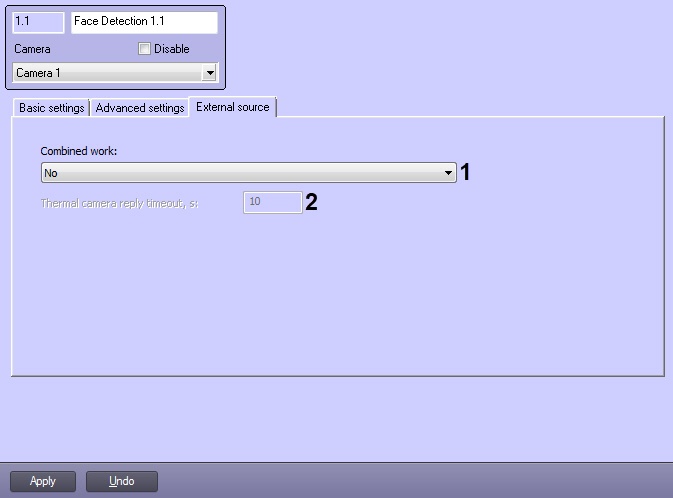
The following table provides descriptions of the parameters for configuring.
№ | Parameter | Method for entering the parameter value | Parameter description | Symbols used | Default value | Value range |
|---|---|---|---|---|---|---|
| 1 | Combined work drop-down list | Select the value from the list | Sets the combined operation mode with a thermal camera or an external system | List | No | No - combined operation mode is not used. Combine with thermal camera temperature - receiving the temperature and coordinates of a captured face frame from the thermal camera. A photograph of a captured face will be obtained from the capturing camera. Get photo from thermal camera - receiving the temperature and photos of a captured face from the thermal camera. Get photo and metadata from external system - receiving the temperature and photos of a captured face from a thermal camera or Axxon Next. |
| 2 | Thermal camera reply timeout, s field | Enter the value into the field | Sets the timeout for receiving data from the thermal camera Note. This setting is available only if the Combine with thermal camera temperature mode is selected | Time in seconds | 10 | >=0 |