


Page History
| Section | |||||||||||||||||||||
|---|---|---|---|---|---|---|---|---|---|---|---|---|---|---|---|---|---|---|---|---|---|
|
Registration
To register with AxxonNet, do as follows Axxon Datacenter:
- On the AxxonNet
- home page of Axxon Datacenter, click Register
- the Sign up button.
- Fill in the Email, Password and Confirm Password fields.
 Click Register
 - Enter your Email and Password twice.

- Click the Sign up button.
A confirmation email will be sent to the specified e-mail address - email address.
Info title Note If you try to register the user who already exists in the system, the warning message Invalid login is displayed.
- Confirm registration.
To log into AxxonNet, enter your registration data and click Log in. You can also log in with your Google account.
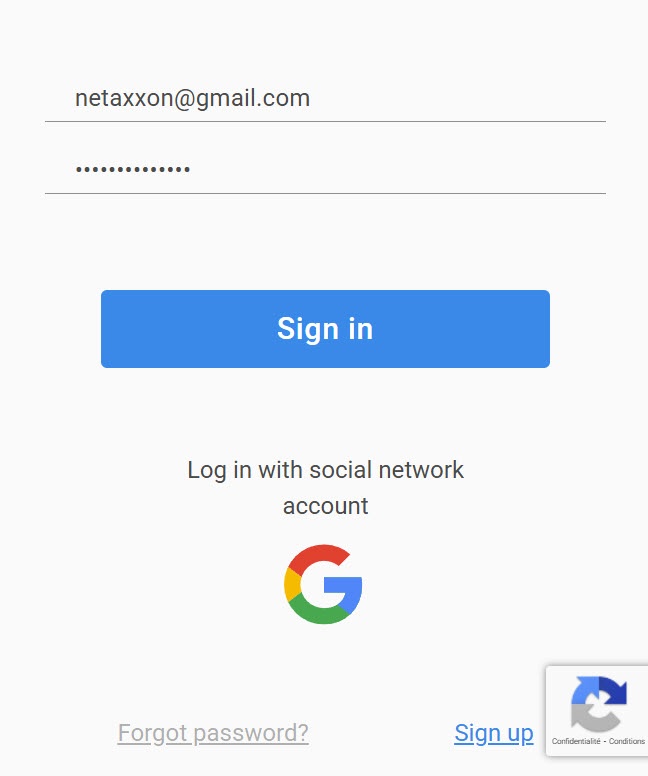
If you authenticate via a Google account, you have to enter your password.
Registration is complete.
Authorization
To authorize in Axxon Datacenter, you must register. On the home page of Axxon Datacenter, enter your Username or email and Password, and click the Sign in button.
| Info | ||
|---|---|---|
| ||
If you enter incorrect Username or email or Password, the warning message Invalid login or password is displayed. |
If you configured two-factor authentication in the account (see Two-factor authentication of the Axxon Datacenter user account):
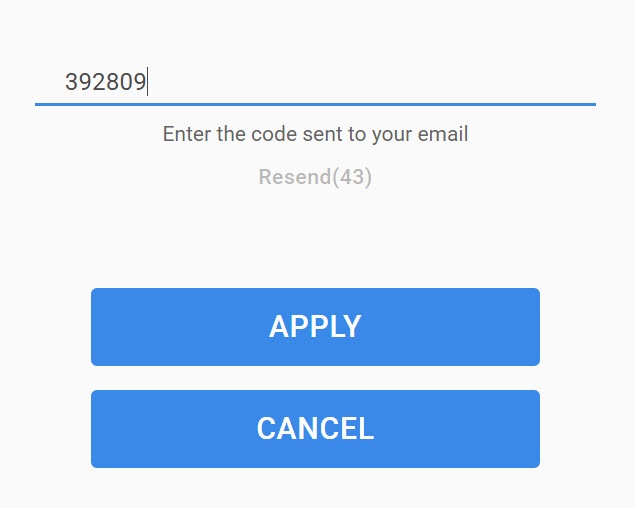
- receive OTP code via email: a confirmation code is sent to the registered email. In the Confirmation code field, enter the confirmation code within 60 seconds and click the APPLY button. Click the Resend link to resend the confirmation code.
- receive OTP code via Microsoft Authenticator app: in the Confirmation code field, enter the one-time password from the Microsoft Authenticator app and click the APPLY button.

| Info | ||
|---|---|---|
| ||
|
Password recovery
To recover your password, click the Forgot password? link and do the following:
- Enter your Email and click the Restore button.

An email with further instructions is sent to the specified Email.
- In the received email letter, click the Change password button.
- Enter your new password twice and click the Update password button.
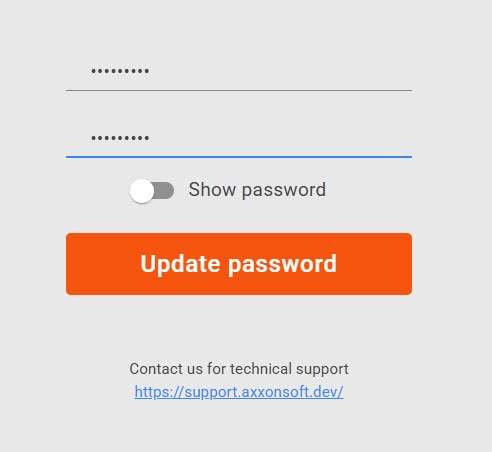
Password updated successfully. Use it next time you sign in.
Password change
To change your password:
- Register and sign in to Axxon Datacenter.
- On the Domains tab in the upper right corner, click the
 button.
 - In the window that opens, click the
 button.
- In the window that opens, click the Change password link.
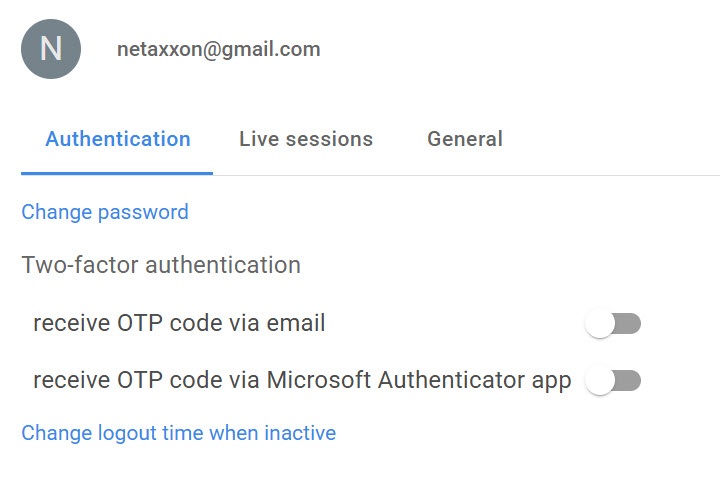
Enter Current password, and New password twice.
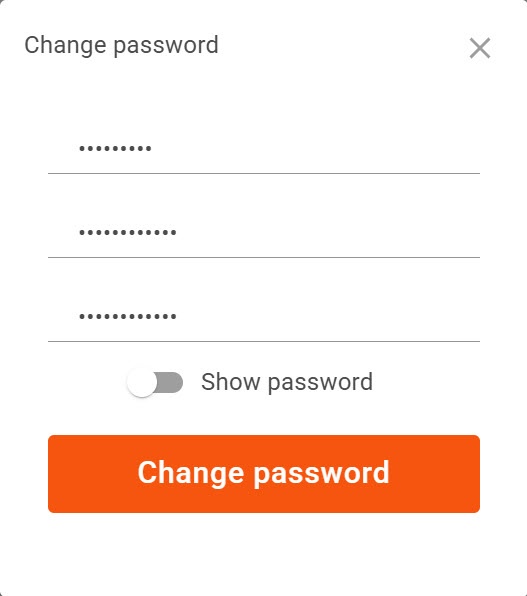
- Click the Change password button.
Info title Note - If you enter your current password incorrectly, the warning message Current password is incorrect is displayed.
- If you enter your current password correctly and your new password twice, the message Password has been updated is displayed.
Password changed successfully. Use it next time you sign in.
...