
Go to documentation repository


Page History
To export a frame, click the  button when viewing the video image.
| Info | ||
|---|---|---|
| ||
Users without export access rights won't have the access to the |
To export video image, do the following:
- Switch to the archive mode (see Viewing video archives through the Web-Client).
On the timeline, set the timeline indicator to the location that matches the beginning of the export interval. Click the
 button. Set the indicator to the location that matches the end of the export interval. Click the
  button.
Click the
 button.
Info title Note To delete the export interval, click the
 button.
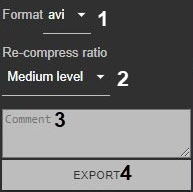
Select the video export format (1). If necessary, add comments to the export (3). You can export videos to the AVI, MKV, MP4 and EXE formats. The comments will be displayed as captions when the exported video is played back.
Info title Note In macOS, you can export to the AVI, MKV, MP4 formats. Files with the .exe extension are not supported in this OS.
If you are exporting to the AVI format, select the compression level (2). Low level—minimum compression, maximum file size; High level—maximum compression, minimum file size.
- Click the EXPORT button (4).
...
Overview
Content Tools