
Go to documentation repository


Page History
...
| Info | ||
|---|---|---|
| ||
This setting is only available in the extended mode of if the Export box. Click >> window is expanded. If the setting is not displayed, click the >> button in the bottom right corner of the utility window to display it. |
By default, when you set the Add captions checkbox is set checked , only the captions stored in the captions database overlay the exported video with the default display parameters. These parameters can be changed and captions specifying camera time You can change these parameters, and the captions specifying the timestamp and/or camera name can be added to the video. For To do this, click the Configure… Configure... button next to the Add captions checkbox.

The Edit captions box will appear Configure captions window opens:
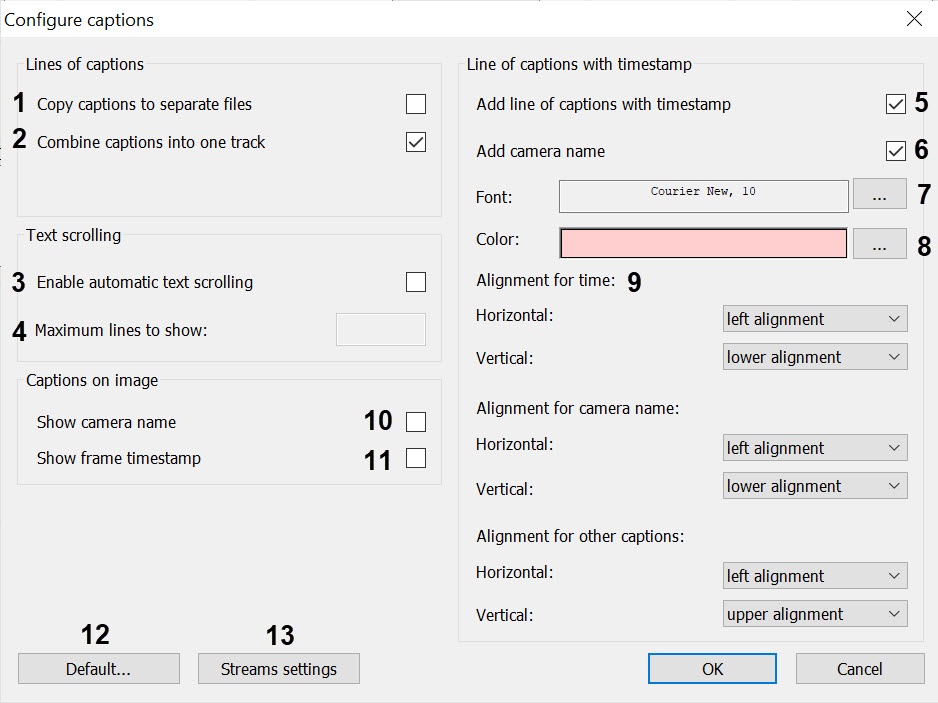
The You can set the following parameters can be set in this boxwindow:
- Caption line export parametersExport parameters of the line of captions:
- The Copy captions to separate files checkbox (1) enables saving the exported captions as an individual a separate file with the .srt extension (1). The file with captions has the .srt extension and is saved to the specified folder for recording. Captions are exported as an individual a separate line.
The Combine captions into one track checkbox (2) enables saving captions of all kinds into one track (or one .srt file) (2). If the checkbox is set uncheckedclear, then the time timestamp and camera name captions are exported separately from the captions from the captions database.
Info title Note Set both the Copy captions to separate files and the Combine captions into one track checkboxes in order to view all captions in Windows Media Player (WMP). This is due to the WMP feature: it does not allow selecting or switching the caption tracks (only enabling or disabling them).
To ensure that the caption streams combined into one track don't overlap on the video during playback, configure one of the options to display them:
- set left alignment for each stream;
- set different values of caption position for each stream using the X and Y coordinates;
- set different alignment options for each stream.
See Configuring caption streams. If you don't configure the display, captions can overlap during playback because their display areas overlap.
- Text scroll parameters:
- The Enable automatic text scrolling checkbox checkbox (3) is used to limit the number of lines in captions overlaying the exported video (3).
- The maximum number of caption lines that can overlay the video is set in the Maximum lines to show field (4). If there are more lines in the captions that are to must be displayed on in the video, then the lines will be are displayed partially with 1 in parts with a one-second interval between the parts.
- The captions may with timestamp and date can be added as a track or built in over the video.embedded over the video.
Info title Note Captions with timestamps can be added to videos as a separate track in all modes except the following: without data conversion, with video compression (recompression) enabled. See Selecting the format and recompression for the exported file.
- Parameters of line of captions with timestamp and camera name
- Parameters for time and name caption track:
- The Add line of captions with timestamp checkbox (5) enables overlaying camera time a line of captions with the camera timestamp and date captions track on the exported video (5).
- The Add camera name checkbox checkbox (6) enables overlaying a line of captions with the camera name captions track on the exported video (6).
Info title Note - The Font button button (7) opens the standard Windows box to specify font parameters for captions (7)OS window for setting the parameters of the caption fonts.
- The Color button button (8) opens the standard Windows box to select the color of captions (8)OS window for selecting the caption color.
- The Horizontal alignment and Vertical alignment dropdown lists drop-down lists (9) allow positioning of timethe timestamp, camera name, and other captions on the video (9).
- Parameters for built in captionof the embedded captions:
- The Show camera name checkbox enables built-in (10) enables the embedded captions with the camera name (10). These captions are always located in the bottom left corner on the exported video.
The Show frame timestamp checkbox enables built-in (11) enables the embedded captions with the frame timestamp (11). These captions are always located in the bottom right corner on the video.
Info title Note Use FontCamNameHeight, FontCamTimeHeight, ExportFontAdaptive registry keys to adjust the built in captions set the embedded caption size (see Registry keys reference guide).
Info title Note The Line of captions with timestamp group sets the standard format for all captions, including POS captions. These settings are applied if you don't set individual parameters for a specific line using the Configuring caption stream window.
If it is necessary to set return to the default settings, click the Default... button (12).
| Anchor | ||||
|---|---|---|---|---|
|
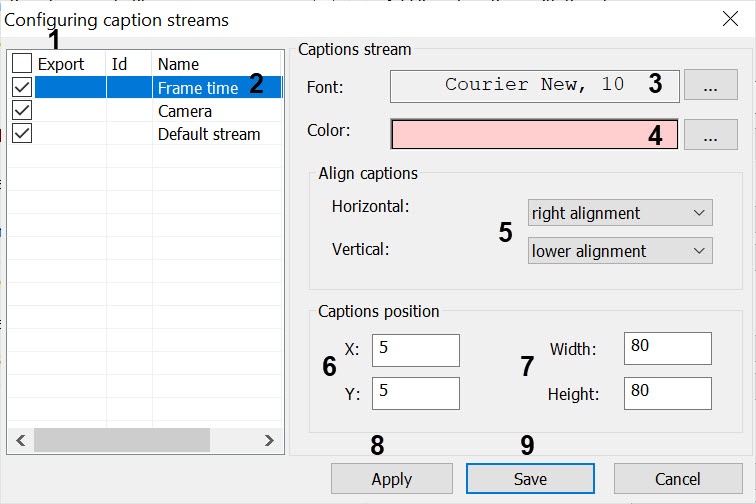
In this window, you You can set the following parameters in this window:
- Set the check boxes checkboxes in the Export column column (1) for those caption streams that should must be displayed in the exported video file (1).
- Set Configure the settings for of the displayed stream:
- Left-click the required stream to select it (2).
- To configure the font, click the
 button next to the Font field (3). The button opens a standard Windows OS window for setting the parameters of the caption font.
 - To adjust configure the color, click the the button next to the Color field (4). The button opens a standard Windows OS window for selecting the caption color.
- In the Horizontal and Vertical drop-down lists (5), select the caption alignment method (5)option.
- Set the coordinates of the upper left corner of the caption captions display area: the X (horizontal offset indent from the left screen border) and the Y (vertical offset indent from the upper screen border) fields (6).
- Set the dimensions of the caption captions display area: the Width (caption captions display area width) and the Height (caption captions display area height) fields (7).
- Click the Apply button button (8) to save the specified settings (8).
- Configure settings for other streams by repeating the sub-steps from paragraph step 2.
- Click the Save button (9).
| Info | ||
|---|---|---|
| ||
For software captions, the .srt format is used with advanced features (text positioning). Consider that not all players correctly process such captions—compatibility depends on the specific device. The Axxon Player fully supports the caption format. When captions are burnt in, the text format is also fully applicable. |
Parameters of caption export are configured.
Overview
Content Tools