
Go to documentation repository


Page History
The settings panel of the Camera system object is shown in the figures.

The Basic settings
...

The Advanced settings tab.

The Streams settings tab.

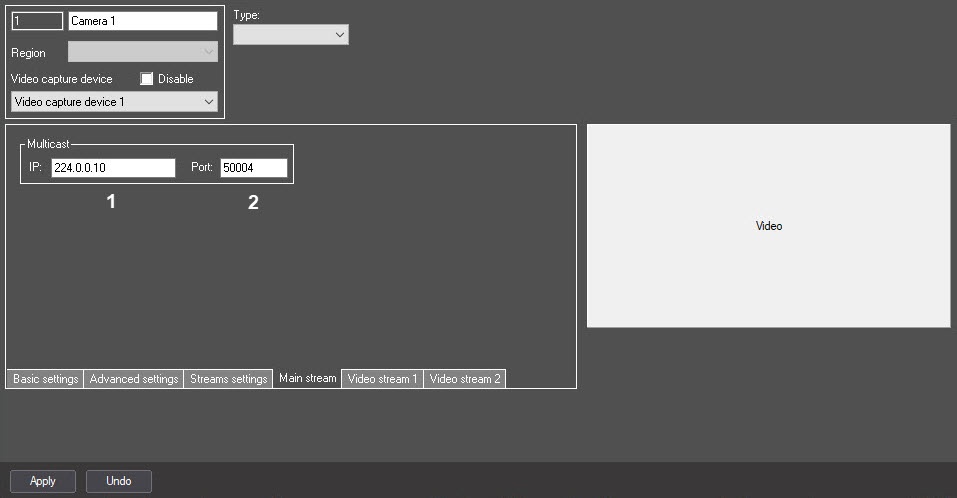
The Main stream tab.

The Video stream tab.
tab
Table describes the settings parameters of the Camera object.
№ | Parameter | Method for setting the parameter value |
Parameter description |
Representation | Default value |
Value range | |
1 | The Identification number |
* | Automatically |
Displays the identification number of the Camera system object |
Sequence of numbers |
NA | From 1 to | |
FaceCamOffset value is set with the help of the registry key of the same name (see Registry keys reference guide).
2147483647 | |
2 | The Name* |
Enter the value in the field |
Sets the name of the Camera object |
Latin alphabet, Cyrillic |
, digits and service characters | Camera | A line | |
containing a sequence of any |
characters (letters, digits, service characters |
except > and < |
characters), |
case- |
insensitive. Number of |
characters—from 1 to 60 |
3 | The Region |
Select the value from the list |
Sets the |
Region structural element |
to which the given Camera object |
belongs |
Names of |
the Region objects registered in the system |
Region | Depends on the number of | |
the Region objects registered in the system |
4 | The Disable |
checkbox | Set the |
checkbox | Disables the Camera object in the system |
Boolean type |
No
Clear | Set—the Camera object is disabled and | |
isn't used Clear—the |
Camera object is enabled and |
used | |
5 | The Video |
capture device |
Select the value from the list |
Sets the Video capture device parent |
object for the given Camera object |
Names of the Video |
capture device objects registered in the system |
Name of the Video capture device parent |
object |
Depends on the number of the Video | ||
capture device objects in the system |
6 | The |
Type |
drop- |
Displays video with settings.
A webpage of Web server of IP device appears in default browser when pressing and holding Shift (not available in Internet Explorer).
Video
-
-
down list | Select the value from the list | Sets the type of the used camera. This setting affects the set of icons used to display a camera on the map | List of available camera types | NA |
| ||
7 | The Video video image window | Left-click | Displays video image with the specified settings. When you click on it while pressing the Shift key on the keyboard:
| Video image | NA | NA | |
| The Basic settings tab | |||||||
8 | The Channel number | Select the value from the list | Sets the number of the channel | Sequence of numbers | 1 | From 1 to 64 | |
9 | The Resolution | Select the value from the list | Sets the resolution of the video frame | List of resolutions of the video frame | Standard |
Specific values and their application depend on the camera model. If you want to use video streams with the exact resolution, it is better to use the streams configuring setting (see below) | |
10 | The Discwrite quality (analog camera) | Set the slider in the position | Sets | ||||
The Basic settings tab
7
The Channel number drop-down list
Is selected from the list
Defines the number of the channel used to connect a video camera to the video capture card. Corresponds to the BNC-adapter number.
Sequence of numbers
1
Depends on the type of the video capture card. Maximum 16 channels.
8
The Resolution drop-down list
Is selected from the list
Set the resolution of the frame.
List of available resolutions of the frames.
Standard
Standard.
High.
Full.
Particular values depend on the camera model.
9
The Recording quality slider
The slider is set in the required position
the quality of the recorded frame. |
The value |
is inverse to the |
video signal compression level. |
-
Note. This parameter is applicable only for analog cameras | NA | Above average | Min | |
—maximum compression level and the |
minimum video signal quality |
Max |
—minimum compression level and the |
maximum video signal quality |
11 | The Color |
Set the checkbox | Set the type of the video image received from |
a camera (color or black and white) | Boolean type |
Yes
Yes – the video will be color.
Set | Set—the image from a camera is in color Clear—the image from a camera is | |
black and white |
12 | The YUV 4:2:2 |
Set the checkbox |
Sets the format of the color representation of the video signal |
Boolean type |
No
| Clear | Set—the video signal is represented | |
in the YUV 4:2:2 format |
Clear—the video signal |
is represented in the YUV 4:2:0 format |
13 | The Color |
Set the slider |
in the |
position |
Sets the color saturation of the |
color video image |
From the maximum color saturation to |
the black and white video |
image | Average | Max | |
—corresponds to the maximum color saturation of the video |
image Min |
—corresponds to the black and white video |
image | |||||||
| The Brightness –Contrast group | |||||||
14 | The Brightness | ||||||
–Contrast |
Set the checkbox |
Sets the mode for |
adjusting brightness and contrast of the video image | Types of modes for |
adjusting brightness and contrast of the video image | Automatic |
| |
 ) - brightness and contrast
|

|
 ) - brightness and contrast
|

|
 ) - brightness andcontrast
|

|
15 | The Brightness |
Set the slider |
in the |
position |
Sets the brightness of the video |
image | From the maximum brightness (white video image) to the minimum brightness (black video image) | Average | Max | |
—corresponds to the maximum brightness of the video |
image Min |
—corresponds to the minimum brightness of the video |
image |
16 | The Contrast |
Set the slider |
in the |
position | Set the contrast of the video |
image |
NA | Average | Max | |
—corresponds to the maximum contrast of the video |
image Min |
—corresponds to the minimum contrast of the video |
image | |||||||
| The Sensitivity group | |||||||
17 | |||||||
The Size |
Set the slider |
in the |
position |
Sets the minimum |
size of an object at which the main motion detector |
generates an event | % |
of the screen |
height | Average |
Min—0% of the video surveillance |
window size |
Max—100% of the video surveillance |
window size |
18 | The Contrast |
Set the slider |
in the |
position | Set the |
minimum contrast of |
an object |
at which the |
motion detector generatees an event |
NA | Less than average | Max | ||
—correspond to |
maximum contrast of the object Min |
—corresponds to the |
minimum contrast of the object | |||||||
| Out of the group | |||||||
19 | The Record alarms |
Set the checkbox | Starts automatic video signal recording on the |
alarms from |
a camera | Boolean type |
Yes
Set | Set—automatic video signal | |
recording on the alarm from |
a camera is |
enabled Clear—automatic video signal recording on the alarm from |
a camera is |
disabled | |
20 | |
The |
21
Pre-alarm record | Enter the value in the field | Set the time period that precedes the alarm registration during which the prehistory of the event is recorded | Time in seconds (s) | NA | Recommended time from 0 to 20 | ||
21 | The Post-alarm record | Enter the value in the field | Sets the time period, during which the video is recorded after an alarm is registered | Time in seconds (s) | NA | Recommended time from 0 to 20 | |
22 | The "Hot record" time | ||||||
field | Enter the value in the field |
Sets the |
time period |
from the moment when the alarm is registered or recording begins, during which |
the video is recorded at the frame rate set in the "Hot record" rate field | Time in seconds (s) | NA |
Time (in sec)
Recommended time | ||
from 0 to |
30 |
23 | The |
"Hot record" rate field of allowable values | Enter the value in the field |
Set the time period for video recording after alarm registration.
Time (in sec)
-
/ Select the value from the list | Sets the frame rate of the alarm hot recording | FPS | NA | Depends on the capabilities of the used camera. | |
from 0 to 20 |
24 | The |
Recording frame rate | Enter the value in the field/ |
Select the |
value from the list | Sets the frame rate of |
the video signal recording | FPS | NA | Depends on the capabilities of the used camera. Recommended value from 1 to 25 for PAL; from 1 to 30 for NTSC | ||||
| The Recording audio group | |||||||
| 25 | The Number column | Select the value from the list | Sets the number of the microphone, the audio from which must be recorded simultaneously with the video signal from a camera | Numbers of the Microphone objects registered in the system | NA | Depends on the number of the Microphone objects registered in the system | |
| 26 | The Microphone column | Select the value from the list | Sets the name of the microphone, the audio from which must be recorded simultaneously with the video signal from a camera | Names of the Microphone objects registered in the system | NA | Depends on the number of the Microphone objects registered in the system | |
The Advanced settings tab
№ | Parameter | Method for setting the parameter value | Parameter description | Representation | Default value | Value range | |
1 | The Decompressor drop-down list | Select the value from the list | Sets | ||||
Time (in sec)
-
Recommended time – from 0 to 30
24
The Hot-record rate field
Enter the value in the field / select from the list
Set the frame rate of alarm’s hot recording
fps
-
Depends on the capabilities of the camera.
Recommended time – from 0 to 20
25
The Recording frame rate field
Enter the value in the field/ select from the list
Set the frame rate for video recording
fps
-
Depends on the capabilities of the camera
Recommended time – from 1 to 25 for PAL
From 1 to 30 for NTSC
The Advanced settings tab
26
the technology using which the compressed video stream |
is decompressed |
when displaying the video signal on the |
video surveillance monior. Note. By default the parameter is not available for editing. To change the value of this parameter, set the |
1 value for the EnableCodecSettings |
registry key (see Registry keys reference guide) |
| List of available decompressors | No |
| |
2 | The Compressor |
| Select the value from the list |
Sets the algorithm of the video stream |
compression. Note. By default the parameter |
isn't available for editing. To change the value of this parameter, set the |
1 value for the EnableCodecSettings |
registry key (see Registry keys reference guide) |
List of available algorithms | No | Depends on the camera model | |
3 | The Estimate motion | Enter the value in the field |
Determines the threshold of |
the camera sensitivity to motion depending on the change of |
the object brightness. |
The delta frame of the video signal is |
formed according to this criterion |
Sequence of numbers | 7 | From 2 to 255 | ||
4 | The Key frames interval | Enter the value in the field |
Sets the rate of the key frames |
Sequence of numbers | 8 | Depends on the capabilities of the used camera | ||
Out of the group |
| 5 | The |
| Additional info field | Enter the value in the field | Sets the information displayed on the video surveillance monitor above the camera name. This information is added to the name of the export file and when the frame is printed. Also it is displayed in the event viewer when an event is received from a camera | Line not longer than 100 characters | Blank line | Many Latin and Cyrillic letters, digits | ||
6 | The Rotation mode | Set the checkbox | Enables the rotation of the video image displayed on the video surveillance monitor | Boolean type | Clear | Set—rotation is enabled Clear—rotation is disabled | |
| 7 | The Rotate on* | Select the value from the list | Sets the angle of the video image rotation when the rotation mode is enabled | Sequence of numbers | 0 | 0, 90, 180, 270 | |
| The Priority group | |||||||
| 8 | The Processing priority | Set the slider in the position | Sets the priority of the video signals processing by ADC from a camera | Order of video signals processing | Normal | Normal—normal video signals processing order; 1/3—1/3 processing order; 1/2—1/2 processing order | |
| 9 | The Recording priority | Set the slider in the position | Set the priority of video signals processing by ADC in the recording mode | Order of video signals processing in the recording mode | Normal | Real time—all ADC resources are used for video signals recording Normal—normal video recording order; 1/3—1/3 processing order; 1/2—1/2 processing order; | |
| The Store no less than group | |||||||
10 | The Store no less than | Enter the value in the field | Sets the time period for keeping the video archive and audio archive from a camera (in case of synchronous recording) on the server. The parameter allows storing the large archive for the selected camera using the archive of other cameras. Note. We recommend setting the Store no less than parameter for no more than 30% of cameras in the system, as this setting is only ADVISORY. If there isn't enough space for the archive recording, the setting is ignored and the recording doesn't stop anyway. If you create more than 10 cameras in the system, then when you attempt to set this parameter for more than 30% of the cameras in the system, after you click the Apply button, a corresponding warning message appears. You can disable it using the NotifyAbout_arch_days registry key (see Registry keys reference guide) | Day or hour, depending on the value selected in the drop-down list | NA | More than 1 | |
| 11 | The Store no less than drop-down list | Select the value from the list | Sets the units for the time period specified in the Store no less than field | List of available time units | Days | Days Hours | |
| The Store no more than group | |||||||
| 12 | The Store no more than field | Enter the value in the field | Sets the time period for storing the camera archive, after which the camera archive must be deleted. Note. The archive can be deleted before the specified time if it is required for the loop recording | Day or hour, depending on the value selected in the drop-down list | NA | More than 1 | |
| 13 | The Store no more than drop-down list | Select the value from the list | Sets the units for the time period specified in the Store no more than field | List of available time units | Days | Days Hours | |
| The Fisheye group | |||||||
| 14 | The Lens type drop-down list | Select the value from the list | Sets the used lens type | Supported lens types | No |
| |
| 15 | The Camera position drop-down list | Select the value from the list | Sets the position of a camera | Supported camera position options | Ceiling |
| |
| 16 | The Visible part field | Enter the value in the field | Determines which part of the frame is visible on the video surveillance monitor after conversion | Percentage | 75% for the Ceiling position 66% for the Wall position Note. The default value may not appear in the field | From 0 to 100% | |
The Streams settings tab

№ | Parameter | Method for setting the parameter value | Parameter description | Representation | Default value | Value range | |
1 | The Streams configuring | Set the checkbox | Enables the video signal multistream option | Boolean type | Clear | Set—video signal multistreaming is enabled; different streams can be used for analytics, archiving, and display Clear—video signal multistreaming is disabled; a single stream is used for analytics, archiving, and display | |
| The Streams configuring group* | |||||||
| 2 | The # field | Automatically | Sets the number of the stream | Integer number | NA | From 1 to 10 | |
| 3 | The Enabled* column | Set the checkbox | Sets the used camera streams | Boolean type | Clear | Set—the stream is used Clear—the stream isn't used | |
4 | The Default | Set the checkbox | Sets the video stream that is used in the following cases:
| List of available streams | Clear | Set—the stream is used by default Clear—the stream isn't used by default
| |
5 | The Video analytics | Set the checkbox | Sets the video stream used for video analytics. This stream is used by the standard motion detector, zone detectors, tracking detectors, face detectors (if an external recognizer isn't used). The Video Analytics stream is used for the LPR server, face detectors (if an external recognizer is used), and detectors that are part of the Detector Pack subsystem. You can select the Default stream using the VMDA.ignoreAnaliticStream registry key (see Axxon PSIM base version). The Archive/Archive (alarms) stream is used for the backup archive | List of available streams | Clear | Set—the stream is used for video analytics Clear—the stream isn't used for video analytics | |
| 6 | The Archive | Set the checkbox | Sets the video stream that is recorded to the archive not upon alarm, but, for example, at continuous recording | List of available streams | Clear | Set—the stream is used for archive recording Clear—the stream isn't used for archive recording | |
| 7 | The Archive (alarms) column | Set the checkbox | Sets the video stream recorded to the archive upon alarm | List of available streams | Clear | Set—the stream is used for archive recording upon alarm Clear—the stream isn't used for archive recording upon alarm | |
*Name of the element isn't displayed in the settings panel of the given object
The Main stream tab
Set the time period for keeping the video archive from the camera and also audio archive(with the synchro records) on the Server. Parameter allows saving the large archive for selected camera due to size of other cameras archive.
Note. It is better to set the Store at least parameter not for more than 30% of cameras as this setting is a RECOMMENDED one. If there is not enough space for recording the archive, the setting is ignored and recording is not stopped anyway.
If more than 10 cameras are created in the system, then while attempting to set this parameter for more than 30% of cameras in the system, the corresponding warning appears after the Apply button is pressed. It can be disabled using the NotifyAbout_arch_days registry key (see Registry keys reference guide).
Day
-
More than 1
Days
HoursSets the time period for storing the archive – when it is expired, the archive is removed.
Note. The archive can be removed before the specified time if it is required for loop recording.Days
Hours35
The Type drop-down list
Is selected from the list
Set the type of the camera. The setting affects the type of the icons used to represent the camera on the map
The list of available camera types
-
Fisheye
PTZ
Standard
36
The Processing priority slider
The slider is set in the required position
Set the priority of video processing
The order of video processing
Normal
Normal – normal video procession order
1/3 – 1/3 procession order
1/2 – 1/2 procession order
37
The Recording priority slider
The slider is set in the required position
Set the priority of video processing in the recording mode
The order of video processing in the recording mode
Normal
Normal – normal video record order
1/3 – 1/3 procession order
1/2 – 1/2 procession order
All resources – all ADC resourses are in use for video recording
38
Rotation mode checkbox
Setting checkbox
Enables a function of rotation the video image displayed on the Video surveillance monitor
Boolean type
No
Yes - rotation mode is enabled
No - rotation mode is disabled
39
Rotate on drop-down list
Select value from the list
Specifies an angle of video image rotation when the rotation mode is enabled
Numbers
0
0, 90, 180, 270
Select value in the list
No – select if there are no fisheye or anamorphic lenses on the camera.
Standard fisheye lens – select if there is a fisheye lens on the camera.
Autocalibration – select if there is a fisheye lens on the camera and auto detection of video conversion parameters in order to eliminate artifacts is to be performed.
A0*V, A1UST, A8TRT, B0QQV, B4QQV, B5SST, B6SST – types of panomorph lens.Select value in the list
Ceiling
Wall
Floor
75% for Ceiling position
66% for Wall position
Note. The default value may be not displayed.
43
Streams configuring checkbox
Checking the box
Enables the multistream feature
Boolean
No
True – multistreaming is enabled; different streams can be used for analytics, archiving, and display.
False – multistreaming is disabled; a single stream is used for analytics, archiving, and display.
# field
Yes – the stream is in use
No – the stream is not in use
46
Default checkbox
Checking the box
Assigns the video stream to be displayed both as locally and on remote clients
List of available streams
No
Yes – the stream is in use by default
No – the stream is not in use by default
47
Video analytics checkbox
Checking the box
Assigns the video stream used for video analytics (including main motion detection tool). This stream is used by all Axxon PSIM detection tools (except embedded video camera detection tools) – including tracking detection tools, motion detection tool, face detection tool, facial recognition tools and detection tools that are the part of Detector Pack.
List of available streams
No
Yes – the stream is in use for video analytics
No – the stream is not in use for video analytics
48
Archive checkbox
Checking the box
Sets video stream recorded to the archive not upon alarm – the continuous recording is performed.
List of available streams
No
Yes – the stream is in use for archive recording
No – the stream is not in use for archive recording
Yes – the stream is in use for archive recording by alarm
No – the stream is not in use for archive recording by alarm
№ | Parameter | Method for setting the parameter value | Parameter description | Representation | Default value | Value range | |
| 1 | The | ||||||
| IP field | Enter the value in the field | Sets the IP address from which the client |
| receives the video data from the ONVIF |
| server in the Multicast mode |
| IP address | 224.0.0.10 | 224.0.0. | ||
| 0—239.255.255.255 |
| 2 | The Port field | Enter the value in the field | Sets the port for |
| transferring the video data in the Multicast mode |
| Sequence of numbers | Depends on the number of cameras and streams in the system | Any valid | |
unused port numbers. The number of ports is determined by the system administrator |
The Video stream tab

№ | Parameter | Method for setting the parameter value | Parameter description | Representation | Default value | Value range | |
1 | The Purpose | NA | Provides an information about the use of the video stream | ||||
52
Purpose field
-
String | Depends on the video stream's |
selected purpose |
Many Latin and |
53
Resolution dropdown list**
Selected from a list
Assigns the video stream's resolution
List of supported video resolutions
Standard
Standard
High
Full
Particular values depend on the camera model.
54
Speed spinbox**
Typed into a field
Assigns the frame rate of the video stream
Frame rate (fps)
25
Depends on the capabilities of the camera
55
Codec dropdown list**
Selected from a list
Cyrillic characters, digits | |||||||
2 | The Resolution** | Select the value from the list | Sets the video frame resolution | List of the video frame resolutions | Standard |
Specific values depend on the camera model | |
| 3 | The Rate** | Enter the value in the field | Sets the frame rate of the video stream | Frame rate in FPS | 8 | Depends on the capabilities of the used camera | |
| 4 | The Lock disabling streams not in use checkbox | Set the checkbox | Locks disabing the unused streams Note. Sets the checkbox if the purpose isn't specified for the configured stream, but it is used for recording by a macro or a script | Boolean type | Clear | Set—if you don't specify the stream purpose, the stream is in the "sleep" mode, and you cannot use it for recording by a macro or a script Clear—if you don't specify the stream purpose, you can use it for recording by a macro or a script | |
| The Codec group | |||||||
| 5 | The Codec** | Select the value from the list | Sets the technology | ||||
used to encode and decode the video stream | List of supported codecs | Depends on the camera |
Depends on the camera model.
56
Key frame rate spinbox**
Typed into a field
Assigns the key frames rate.
Set of natural numbers
model | Depends on | |
the camera model |
57
Video quality slider**
Moving it to a position
Assigns the frame quality
-
Maximum
Min – maximum compression and minimum video quality
Max – minimum compression and maximum video quality
This checkbox is to be set checked if the purpose is not specified for the configured stream but is is in use for recording on command or script.
Yes – if the stream value is not selected, then the stream is in the sleep mode and it cannot be in use for recording on command or script.
No – if the stream purpose is not selected, then it can be in use for recording on command or script.6 | The Key frame rate** | Enter the value in the field | Sets the key frame rate | Sequence of numbers | 8 | Depends on the capabilities of the used camera | |
7 | The Video quality** | Set the slider in the position | Sets the frame quality | NA | More than average | Min—maximum compression level and minimum video signal quality Max—minimum compression level and maximum video signal quality | |
| The Multicast group | |||||||
| 8 | The IP field | ||||||
| Enter the value in the field | Sets the IP address from which the client |
| receives the video data from the ONVIF Server in the Multicast mode |
| IP address | 224.0.0.10 | 224.0.0.0 | ||
| —239.255.255.255 |
| 9 | The Port |
| field | Enter the value in the field | Sets the port for transmitting the video data in the Multicast mode |
| Sequence of numbers | Depends on the number of cameras and streams in the system | Any valid unused port numbers. The number of ports is determined by the system administrator | |
*Name of the interface element is not shown on the setting panel**Equivalent settings * Similar settings on the Basic Settingssettings and the Advanced settings tabs, as well as on the settings panel of the Video Capture Devicecapture device object, are ignored.
Overview
Content Tools