...
The settings panel of the Operator protocol interface object is shown in the figures. The tables Tables below them describe the setting parameters of the settings corresponding to the elements of the settings panel of the of the Operator protocol object.
The Filters tab

The table describes the parameters of the settings corresponding to the elements of the settings panel of the Operator protocol.
No. | specifying setting the parameter value | Parameter description |
SymbolsThe Filters tab |
Representation | Default value |
Range of values | 1 | The Identification number* field |
*Shows Displays the identification number of the Operator protocol object in the system |
Sequence of numbers | Digits, letters, periods, hyphen, dash, and underscore | NA |
- | Depends on the number of the Operator protocol objects in the system |
2 | The Name* field |
*Type-in Enter the value in the field |
Assigns to of the Operator protocol object |
.in the system | Latin alphabet, Cyrillic, digits, and service characters | Operator protocol | A line containing a sequence of any |
symbols characters (letters, digits, service |
, apart from symbols non sensitive symbols – .Checkbox is set | Shows the status (enabled or disabled) of the Operator protocol Set the checkbox | Disables the Operator protocol object in the system
| Boolean type |
NoYes – Set—the Operator protocol object is disabled and |
is not in use.isn't used Clear—the Operator protocol |
No – the Operator protocol is in use. dropdown Is selected in Select the value from the list |
Assigns Display , to which for the given Operator protocol object |
refers.Name Names of the Display objects registered in the system |
. | Name of the Display parent |
Display object | Depends on the number of the Display objects in the system |
. filedType-in Enter the value in the field | Sets the X coordinate in the |
X horizontal axis for the upper left corner of the |
Operator protocol interface object on the screen Operator protocol window | % of the screen width |
-50 | From 0 to M*100, where M |
is is the number of the installed monitors |
installed.Type-in the Enter the value in the field | Sets the Y coordinate in the |
Y vertical axis for the upper left corner of the |
Operator protocol interface object on the screen Operator protocol window | % of the screen height |
-| 50 | From 0 to M*100, where M is the number of the installed monitors |
installed. filedType-in Enter the value in the field | Sets the |
window width of the Operator protocol |
interface object window | % of the screen width |
-| 50 | From 0 to M*100, where M is the number of the installed monitors |
installed.Type-in Enter the value in the field | Sets the |
window height of the Operator protocol |
interface object height-| 50 | From 0 to M*100, where M is the number of the installed monitors |
installed. |
7 | The Allow moving checkbox |
Checkbox is set hand shifting of Operator protocol interface box Operator protocol window using the mouse | Boolean type |
No | Clear | Set—allow moving the Operator protocol window using the mouse Clear—disable moving the Operator protocol window using the mouse |
Yes – hand shifting is allowed.
No – hand shifting is prohibited. X  Image Added button Image Added button | Click the button | Opens |
a template box size and the position of the Operator protocol |
interface --- dropdown in Sets system ID | number of the monitor in the system for which the coordinates are |
setIDs | Numbers of the monitors in |
the | OS | 1 | From 1 to 16 |
| The Filters tab |
|
| 10 | The Add |
event| events button | Click the button | Opens the window for bulk adding the events |
of | from an object of the selected type |
---| NA |
| The Objectstable |
11 | The Type drop-down list | Select |
in the value from the list | Sets the type of objects |
which are to , the events from which must be displayed in the Operator protocol |
interface box window
| Available object types |
-NA | Depends on the objects registered |
objects in the system. Only the objects for which the "INFORMATION" or "ALARM" value is selected in the Messages processing column on the Events tab in the ddi.exe utility are available for selection (see The Events tab |
section. |
12 | The Number drop-down list | Select |
in the value from the list | Sets the number of the object |
on the are to must be displayed in the Operator protocol |
interface box window | Sequence of numbers |
-NA | Depends on the number of |
registered the objects of the specified type registered in the system |
13 | The Name |
drop-down listfield | Automatically | Sets the name of the object |
on the are to must be displayed in the Operator protocol |
interface box objects the objects registered in the system |
- registered registered in the system |
14 | The Event type drop-down list | Select |
in the value from the list | Sets the events displayed in the Operator protocol |
interface boxAvailable events -| NA | Depends on the object type |
15 | The Request password drop-down list | Select |
in Defines Determines the necessity of a password to process the event | Boolean type |
- | | NA | Set—password confirmation |
Yes – confirmation of the password is required to process the event |
;No – confirmation of the password is not Clear—password confirmation isn't required to process the event |
. |
16 | The Region drop-down list | Select |
in Specifies Sets the Region object corresponding to the monitored object | List of |
created the Region objects created in the system |
-| NA | Depends on the number of |
created the Region objects created in the system |
17 | The Parameter field |
Type-in Enter the value in the field | Sets the parameter of the monitored object |
. | Depends on the event type |
-| NA | Depends on the event type |
.Type-in | Enter the value in the field | Sets the parameter value |
of . | Depends on the event type |
-| NA | Depends on the event type |
| 19 |
The fieldType-in | Enter the value in the field | Sets the full path to |
the text pdf doc docx, txt or other format which | DOCX, TXT which contains the |
helping event processing.| event processing | File address in the file system |
.- | Depends on the . |
| 20 | The Priority drop-down list | Select |
in | the value from the list | Sets the event priority |
for | when sorting by importance |
Non-negative integer | - | | Sequence of numbers | NA | From 1 to 10. The lower |
1 – 10
The higher the value, the higher the priority |
| The Parameters table |
| 21 | The Parameter field |
Type-in | Enter the value in the field | Sets the name of the parameter, the value of which |
is to must be displayed in the Operator protocol |
interface object window | Latin alphabet, Cyrillic, digits, and service characters |
-| NA | Depends on the parameters sent |
with | by the event |
22 | The Description field |
Type-in Enter the value in the field |
Type-in the Enters a short description of the specified parameter | Latin alphabet, Cyrillic, digits, and service characters |
--The | The Checklist table |
| 23 | The Description field |
Type-in | Enter the value in the field | Sets the description of the action that the operator must perform before assigning |
the an . | Latin alphabet, Cyrillic, digits, and service characters |
--Outside groups| group |
| 24 | The Chief interfaces |
dropdown listCheckbox is set | Sets the Operator protocol object, to which the events |
are to must be sent after the time specified |
in by the Wait for operator response for |
field available | the available Operator protocol objects in the system |
-| NA | Depends on the number of |
created objects | objects created in the system |
. dropdown in | the value from the list | Sets |
the interface object | object used to display the monitored object | List of |
available objects -| NA | Depends on the number of the Map objects created in the system |
| 26 |
The dropdown in | the value from the list | Sets the method of the archive and live video |
displaying from the operator’s protocol.| display by the event in the operator protocol | Available display |
List of available displaying - archive and live video will open —archive opens in a separate window |
. - and live video on Video Surveillance Monitor.video surveillance monitor |
| 27 | The Wait for operator response |
for fieldType-in | the value in the field | Sets the time after which the event |
type becomes Notis assigned the Non-processed event type or the event is escalated | Min | 2.5 | From 0 |
-to 10000. Fractional values can be specified; integer and fractional parts are point-separated. |
instanceexample, to set 2 minutes 30 seconds time period |
specify .TheThe Store ____ events
field |
Type-in | Enter the value in the field |
Specifies Enters the maximum number of events that can be displayed |
simultaneously in simultaneously in the list of the current events |
Sequence of Integer that is more than | Any integer starting from 0 |
| 29 | The Delay decision making for ____ minutes field |
Type-in | Enter the value in the field | Sets the time for which the operator can delay the event processing | Min |
-- is not 0 – can not - cannot delay the event processing
|
. 0 – - 0—the parameter sets the time for which the operator can delay the event processing
|
.It is possible to specify fractional values, the separator of the - ;
- Fractional values can be specified; integer and fractional
|
part is a point- parts are point-separated. For example, to set
|
a period of and - 30 seconds time period, enter 2.5
|
should be specified. |
| 30 | The Sort by priority
checkbox
|
Checkbox is set| Set the checkbox | Enables the sorting of events by priority. The |
descending sorting is performed in this order: descending sorting: - Escalated,
- Alarm,
- Information
|
and ( latest event parameters can be set in the DDI file |
- see ). YesYes – Set—sorting by priority is enabled |
.No – time order the events are received is enabled |
. |
| 31 | The New events at the end checkbox |
Checkbox is set| Set the checkbox | Places new events at the end of the current events list | Boolean type |
No | Yes – a to No – a to at the beginning of the list |
| 32 | The Close elsewhere checkbox |
Checkbox is set | Decides whether to delete | Set the checkbox | Deletes the event from other |
Operator | operator protocols when it is processed in one of the |
Operator protocol| operator protocols | Boolean type |
NoYes – Set—when the event is processed in one of the |
Operator protocol operator protocols, it is deleted from other |
Operator No – when the Clear—after the event is processed |
in one of the Operator protocol, it stays unprocessed in other |
Operator operator protocols |
| 33 | The Password for closing checkbox |
Checkbox is set | | Set the checkbox | Determines |
Defines the necessity to enter the password to process the event
| Boolean type |
No | Yes – | Clear | Set—the event processing |
is to must be confirmed with a password |
;No – password is not Clear—password isn't required for event processing |
. |
34 | The Autoswitch checkbox |
Checkbox is set auto switch autoswitch to the Current events tab |
in of the Operator protocol window when a new event occurs |
.No | Yes – auto switch No – auto switch Clear—autoswitch is disabled |
| 35 |
The | The Autoactivation of last event |
checkboxCheckbox is set | Enables the automatic cell activation of the last received event |
tile.No | Yes – tile is automatically activated |
;No – new tile Operator . |
| 36 | The Hide buttons for groups checkbox |
Checkbox is set | Enables hiding handling selecting | a group of events is selected | Boolean type |
No | | Clear | Set—the event processing buttons |
Yes – event handling buttons are displayed when a group of events is selected |
No – event handling buttons Clear—the event processing buttons are hidden when a group of events is selected |
| 37 |
The checkboxCheckbox is set | | checkbox | Set the checkbox | Clears |
Enables clearing | after the event is processed by the |
OperatorNoYes – Set—the comment field is automatically cleared after the event is |
processed by ;No – the Operatorcomment text remains in the comment field after the event is |
processed by Operator.The checkboxCheckbox is set enlarging the alarm tile to fit the entire | resizing of the cell according to the Operator protocol window |
sizeNoYes - the alarm tile Set—the cell size is set equal to the size of the Operator |
Protocol which is not , that isn't occupied by the event control panel |
;No - tile cell size is set according to the content size |
.The checkboxCheckbox is set | Disables the Apply to all button | Boolean type |
NoYes - Set—the Apply to all button is |
hidden the Protocol Operator is not able to operator cannot process all |
alarms ;No - Clear—the Apply to all button is |
available in the Operator Protocol window.available |
| 40 | The Over all windows checkbox |
Checkbox is set| Set the checkbox | Enables the Operator protocol to be displayed |
always on top.| over all windows | Boolean type |
NoYes – Set—the Operator protocol window is |
always above other .No – Clear—the Operator protocol window is displayed |
normally.in the standard mode |
| 41 | The Comment required checkbox |
Checkbox is set| Set the checkbox | Prevents event processing without entering a comment | Boolean type |
NoYes – Set—the buttons for classifying the events ( |
Alarm Suspicious False do not don't appear until the Comment field is filled |
.No – Clear—the operator can classify (process) the event without entering a comment |
. |
| 42 | The Single selection
checkbox
|
Checkbox is set | | | Set the checkbox | Prevents the operator |
Prohibits the Operator from selecting multiple events using the Shift and Ctrl keys | Boolean type |
NoYes – the ability to Set—the operator cannot select multiple events using the Shift and Ctrl keys |
is disabled.No – the ability to select multiple events using the Shift and Ctrl keys |
is enabled.The DB tab
Image Removed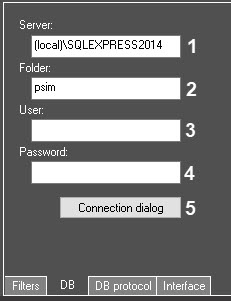 Image Added
No. specifying | setting the parameter value | Parameter description |
Symbols| Representation | Default value |
Range of values| Value range |
1 | The Server field |
Type-in Enter the value in the field | Sets the name of |
DB the database server, in which the required database is stored | Latin alphabet, Cyrillic, digits, and service characters | Name of |
Server the server used by the system |
-Depends on the number of servers in the system |
2 | The |
Folder Type-in Enter the value in the field | Sets the name of the database, in which the events |
are to must be stored | Latin alphabet, Cyrillic, digits, and service characters | Name of the main database used by the system |
-Depends on the number of databases used by the system |
3 | The User field |
Type-in Enter the value in the field | Sets the |
user name username for authorization in the database server | Latin alphabet, Cyrillic, digits, and service characters |
--Type-in Enter the value in the field | Sets the password for authorization in the database server | Latin alphabet, Cyrillic, digits, and service characters |
--| NA |
5 | The Connection dialog
button | Click the button | Opens the |
dialog box window of the database server connection |
--- TheDB protocol tab
Image Removed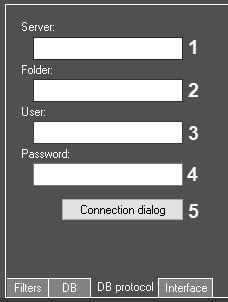 Image Added
No. specifying | setting the parameter value | Parameter description |
Symbols| Representation | Default value |
Range of values| Value range |
1 | The Server field |
Type-in Enter the value in the field | Sets the name of |
DB the database server, in which the required |
Event Protocol event viewer database is stored (if it is extracted to a separate DB) | Latin alphabet, Cyrillic, digits, and service characters | Name of |
Server Event Protocol the event viewer database (if it is extracted to a separate DB) |
-Depends on the number of servers in the system |
2 | The |
Folder Type-in Enter the value in the field | Sets the name of the |
Event Protocol event viewer database (if it is extracted to a separate DB), in which the events |
are to must be stored | Latin alphabet, Cyrillic, digits, and service characters | Name |
of Event Protocol of the event viewer database (if it is extracted to a separate DB) used by the system |
- | Depends on the number of the event viewer databases used by the system |
3 | The User field |
Type-in Enter the value in the field | Sets the |
user name username for authorization in the |
Event Protocol database event viewer database server (if it is extracted to a separate DB) |
server | Latin alphabet, Cyrillic, digits, and service characters |
--Type-in Enter the value in the field | Sets the password for authorization in the |
Event Protocol database event viewer database server (if it is extracted to a separate DB) |
server | Latin alphabet, Cyrillic, digits, and service characters |
--| NA |
5 | The Connection dialog
button | Click the button | Opens the |
dialog box of Event Protocol database (if window of event viewer database server connection (if it is extracted to a separate DB) |
server connection--- The Interface
...
tab
Image Removed Image Added
No. specifying | setting the parameter value | Parameter description |
Symbols| Representation | Default value |
Range of valuesThe | The Frame drop-down list | Select |
in | the value from the list | Sets the frame color of the active |
event tile| cell | Color palette | Black | RGB color |
2 | The Name text field * | |
| The Situation buttons group |
| 2 | The Alarm field | Enter the value in the field | Sets the name for the alarm assessing button | Latin alphabet, Cyrillic, digits, and service characters | NA | From 0 to 255 characters |
The Suspicious
field
| Enter the value in the field | Sets the name for the suspicious assessing button | Latin alphabet, Cyrillic, digits, and service characters | NA | From 0 to 255 characters |
The False
field
| Enter |
Type-in | the value in the field | Sets the |
custom names alarm processing buttons| false assessing button | Latin alphabet, Cyrillic, digits, and service characters |
No-| to 255 characters |
| 3 | The Keyboard shortcut |
text *
| Press the key combination | Sets the |
hot keys alarm processing| assessment | Keyboard combinations | None |
No | It is allowed to - None,
- You can combine the Ctrl, Alt and Shift keys with any other keys on the keyboard. For example, the Ctrl+Shift+Alt+A or the Ctrl+
|
A shortcuts - A shortcuts are allowed, but the D+A or D+Ins
|
shortcuts are not allowed, etc.- shortcuts aren't allowed, and so on
|
| Out of the group |
| 4 | The |
in | the value from the list | Sets |
a way | the option of displaying events on the Current events tab | Available display options |
OperatorOperator- operator: the operator can
|
choose - select a full or a simple view
|
.Full: - on its own;
- full: the events are displayed as cells with
|
screenshots.Simple: - a screenshot;
- simple—the events are displayed as
|
strings - lines without screenshots
|
. in | the value from the list | Sets |
a way | the option of grouping events on the Current events tab | Available grouping options |
OperatorOperator- operator: the operator can
|
choose - elect the grouping options
|
.Default: the - on its own;
- default: event grouping is disabled
|
.Object- object: the events are grouped by object
|
.Event- event: the events are grouped by event
|
type.Region- region: the events are grouped by
|
region. * The field names marked with the asterisk * are not displayed on Name of the element isn't displayed in the settings panel .of the given object


