
Go to documentation repository


Page History
When Axxon PSIM is connectied connected to the camera with edge storage, then the video server performs recording of the video archive from the camera. If the connection is lost, then recording is performed to the edge storage only. It is possible to import the video archive (for the time period when the connection was lost) from edge storages to the Axxon PSIM PSIM file system when the connection is restored. The archive is imported as follows:
- Import to the Main
- main video server archive. Video
- The video server always records to the main archive. When connecting
- you connect a camera, the main video server archive requires
- archive requests an archive from the edge storage for the archive over
- the period when the camera was disconnected from the server.
Import to the
Backup backup archive. The archive can be recorded onto several disks/partitions. When
connecting you connect a camera and
activating activate the
Backup backup archive,
it requires the backup archive requests an archive from the edge storage for the
archive over the period when the camera was disconnected from the server.
To configure import to the
Backup backup archive, select and configure cameras for copying to the
Backup archive – see thebackup archive—see Selecting and configuring the cameras for the Backup archive
section, as well as set the schedule for archive copying when the connection is
lost - see lost—see Configuring the schedule of the video archive copying.
Note title ImportantAttention! Create a specific You must create a separate Backup archive object to import from edge storage and
backup copying of for backing up the video server archive.
Thus, the video archive is always divided into two parts: the archive
over for the period when the connection was lost
periods is
in the specific Backup archive located in a separate backup archive, and the archive
over for periods when there is a connection is located in the
Main main and/or
Backup backup archive of the video server.
| Note | ||
|---|---|---|
| ||
In both cases, only the videos recorded when the Server was disconnected are imported in order to avoid video duplication.that were recorded during the period of disconnection from the server are imported to avoid duplication of videos. If the import isn't completed for any reason, you can use Use a script to force import if it was not performed automatically the import (see IPSTORAGE Edge storage). |
The time from which the synchronization should must start is set by the SyncedTime parameter in the Settings.xml file – see file—see XML - file parameters reference guide. Also, the maximum possible synchronization period is set by the IpStorageSyncDepthHours key (see Registry keys reference guide). The time in the SyncedTime parameter can be changed when a new fragment appears in the archive provided that the synchronization is successful and forced by the UPDATE_TIME command (see IPSTORAGE Edge storage).
| Note | ||
|---|---|---|
| ||
It is not recommended to view We don't recommend viewing the archive in the edge storage until the synchronization is completed in order complete to avoid video import. You can enable the additional logging of the edge storage synchronization using the parameter of the LogFullIpStorageSyncInfo key of the registry section HKEY_LOCAL_MACHINE\SOFTWARE\AxxonSoft\PSIM\Video (see Registy keys reference guide. For information on how to work with the registry, see Working with Windows OS registry). |
To enable import from edge storages, do the followingImport from edge storages is enabled as follows:
- Go to the settings panel of the Edge storage object.
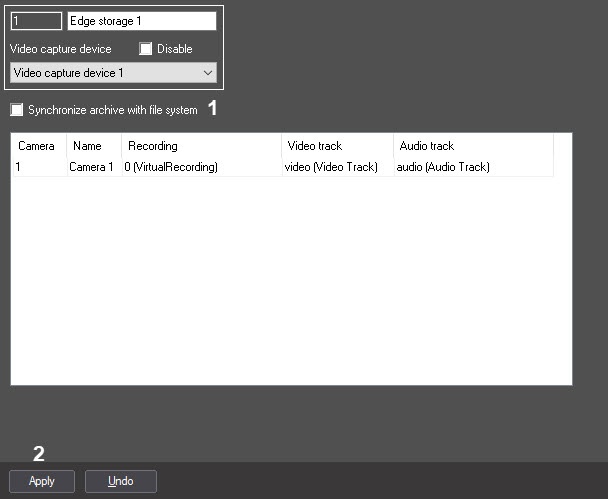
- Set the Synchronize archive with file system checkbox checked
- (1).
- Click the Apply button to save changes (2).
Import from edge storages is now enabled.
Overview
Content Tools