
Go to documentation repository
| Info | ||
|---|---|---|
| ||
We don't recommend creating more than four It is not recommended to create more than 4 Train detection objects on the server for the correct operation of the Train detection program module. |
The You can configure the Train detection module can be configured program module on the settings panel of the the Train detection object object that is created on the basis of the Camera object on the Hardware tab of the System settings dialog window.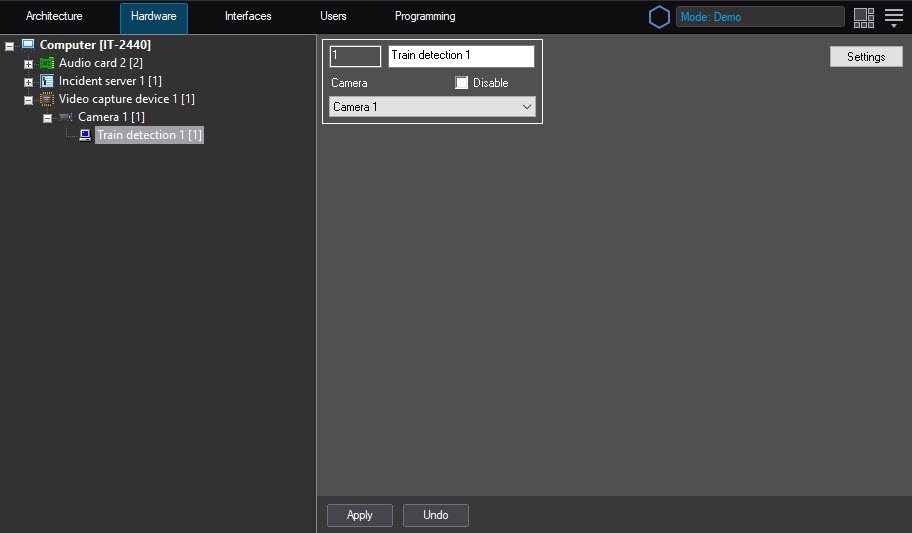 The Train detection module is configured as follows
To configure the Train detection program module, do the following:
Go to
the settings panel of the Train detection
object.


On the captured video image frame (3), sequentially specify nodal set the anchor points of the area to be analyzed by clicking using the left mouse button (4). It is possible to , the situation of which you want to analyze (1). You can add only one area. While attempting When you try to add the second area, the first one will be is deleted. After you add the area specifying , the remaining part of the video image will be is darkened.
| Info | ||
|---|---|---|
| ||
To remove the area, click the | ||
| Info | ||
| ||
The surveillance territory is to be specified Specify the surveillance area in such a way as to be no any motion in it except of the train motionthat there is no other movement except for the train movement. |
| Note | ||
|---|---|---|
| ||
Setting the the Area of interest is a mandatory requirement the mandatory condition for the detection module detector's operation. |
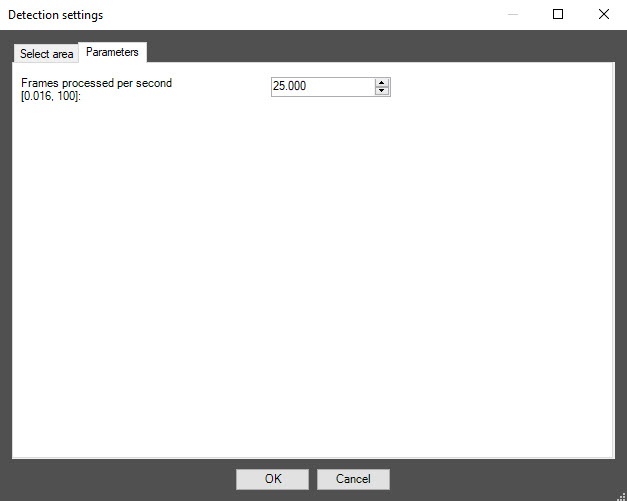
Click the OK button to save to save the changes and return to the control settings panel of the the Train detection (7)object.
| Info | ||
|---|---|---|
| ||
To return to the control settings panel of the Train detectionobject without saving the changes, click the Cancel button. |
Configuring the Train detection detection program module is complete.


