| Note |
|---|
|
For proper working of the Traffic lights detection module traffic light is to be always observed for camera and it is not to be covered by some items or other the correct operation of the detector, the traffic light must always be in the camera FOV and not be blocked by any objects or vehicles. |
To setup configure the Traffic lights detection program module, do the following:
- Go to the settings panel of the Traffic lights detection object settings panel, which object that is created on the basis of the Camera object.
 Image Modified
 - Click the Settings button (1). The Detection settings window will openopens.
 Image Removed
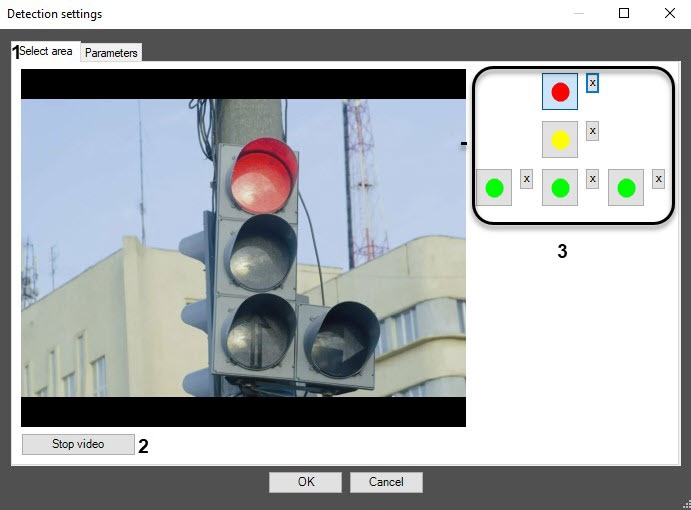 Image Added
 - On the Select area tab (1), specify Specify the area of traffic light signals:
Click the Stop video button to capture the frame of the video frame image (12).
Do the following actions for each traffic light the required signal:
click Click the button with this signal (23);.
specify Specify the area of this the given traffic signal on the captured video frame. Click To do this, click the left mouse button on the video frame, and while holding it, move the cursor holding it.
 Image RemovedImage Added
| Info |
|---|
|
To remove the area click  Image Removed opposite , click the Image Added button next to the corresponding button. Image Removed opposite , click the Image Added button next to the corresponding button. |
- Specify the software parameters of the program module parameters:
- Go to the Parameters tab.
- Specify In the Detection sensitivity [0, 255] field, specify the detection sensitivity in conventional units in a the range from 0 to 255 in the corresponding field (1). The default value is 215.
 Image RemovedImage Added
 - In the Periodicity of events occurrence , (s) field (2), enter the time period ( in seconds ) between creating messages about the states of traffic light signalsignals.
- From the Event type drop-down list, select the type of the created messages: By state change, By period, By period and state change.
- Set the Reduce large resolution checkbox if you want to recognize the state states of the traffic light signal is to be recognized on the frame (3).
- Click the OK button to save the changes and
to - return to the settings panel of the Traffic
light - lights detection object
(4)- .
.Click Cancel to return to |
To return to the settings panel of the Traffic |
light lights detection object without saving |
changes (5)the changes, click the Cancel button. |
- Click the Apply button.
Setting up Configuring the Traffic light lights detection software program module is completedcomplete.


