
Go to documentation repository


Page History
| Tip |
|---|
To configure a VMD:
...
Video stream and scene requirements for the Motion detector and its sub-detectors Image requirements for the Motion detector and its sub-detectors |
To configure the Motion detector, do the following:
- Go to the Detectors tab.
Below the required camera, click Create… → Category: Trackers → Motion detector.
The Motion detector is based on detecting differences between the current frame and the static background, and it generates an event when there is a movement in the camera FOV.
You can set a number of parameters for all sub-detectors of the Motion detector at the same time.
If necessary, you can change the detector parameters. The list of parameters is given in the table:
| Parameter | Value | Description | |||||
|---|---|---|---|---|---|---|---|
| Object features | |||||||
| Record mask to archive | Yes | By default, mask is recorded to the archive. To disable the parameter, select the No value | |||||
| No | |||||||
| Record objects tracking | Yes | By default, object tracks are recorded to the database. To disable the parameter, select the No value.
| |||||
| No | |||||||
| Video stream | Main stream | If the camera supports multistreaming, select | |||||
...
the stream for which detection is needed |
...
. Selecting a low |
...
quality video stream |
...
reduces the load on the |
...
server. |
...
In the Alarm end delay field, set a value in seconds for the time interval within which the detection tool remains triggered after motion stops (4). If motion is re-detected within this interval, no new event will be created.
...
| |||||
| Other | |||||
| Enable | Yes | By default, the detector is enabled. To disable, select the No value | |||
| No | |||||
| Name | Motion detector | Enter the detector name or leave the default name | |||
| Decode key frames | Yes | By default, the parameter is disabled. This parameter reduces the load on the server, but at the same time the detection quality decreases. If you want to decode key frames only, select the Yes value. We recommend enabling this parameter for "blind" (without video image display) servers, on which you want to perform detection. For the MJPEG codec, decoding isn’t relevant, as each frame is considered a key frame.
| |||
...
This setting applies to all codecs. If a codec has keyframes and p-frames, the keyframe is decoded no more often than every 500 milliseconds. For the MJPEG codec, each frame is considered to be I-frame.
This feature reduces the Server load but, as can be expected, negatively impacts the quality of detection.
| |||
| No | |||
| Decoder mode | Auto |
...
| Select a processing resource for decoding video streams |
...
| . When you select a GPU, a stand-alone graphics card takes priority (when decoding with |
...
| Nvidia NVDEC chips). If there |
...
| is no appropriate GPU, the decoding will use the Intel Quick Sync Video technology. Otherwise, CPU resources will be used for decoding |
...
| CPU | ||
| GPU | ||
| HuaweiNPU | ||
| Type | Motion detector | Name of the detector type (non-editable field) |
| Advanced settings | ||
| Alarm end delay | 10 | Enter the time in seconds during which the generation of an event won't stop after the motion stops. If motion is detected again within the specified time, it will be considered as one event |
| Camera position | Wall | To eliminate false events from the detector when using a fisheye camera (see Configuring fisheye cameras), select the correct device location |
| Ceiling | ||
| Motion mask | Yes | By default, motion mask is enabled.
To disable the parameter, select the No value. |
| No | ||
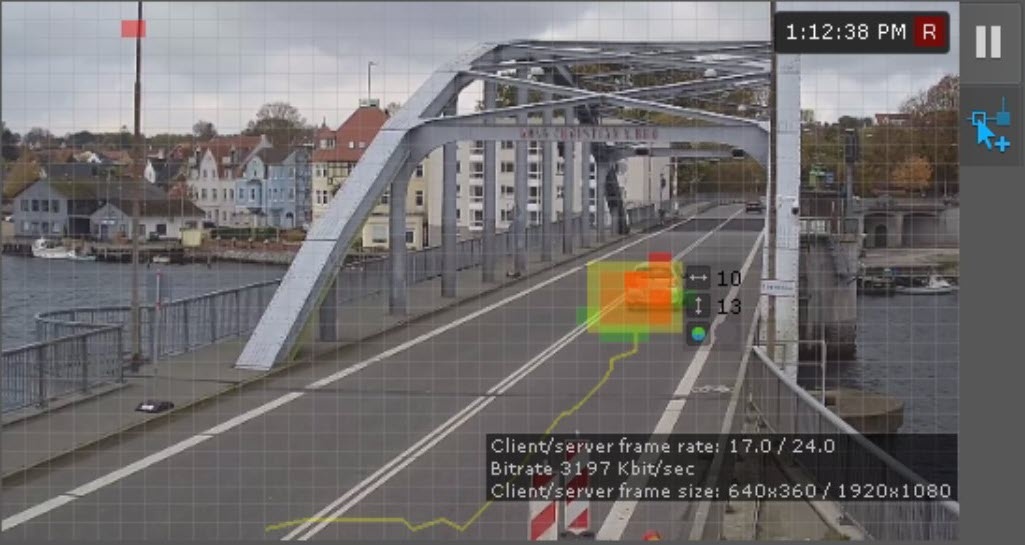
| Object tracking | Yes | By default, the parameter is disabled. Select the Yes value to operate the sub-detectors and to display tracks and parameters (width and height as a percentage of the frame width or height and color) of tracking objects in the preview window:
|
| No | ||
| Track lifespan (starting with Detector Pack 3.14) | Yes | By default, the parameter is disabled. If you want to display the track lifespan for an object in seconds, select the Yes value
|
| No | ||
| Basic settings | ||
| Sensitivity: Contrast | 12 | Specify the values of sensitivity to contrast and object size depending on the scene in the frame:
|
...
|
...
|
...
By default, the values of medium sensitivity are used. These values are recommended for most scenes:
If objects are far away and small in size, the maximum sensitivity is required. Recommended values:
If a camera is located indoors with a distance to objects of about four meters, the minimum sensitivity is required. Recommended values:
| |
Sensitivity: Size | 9 |
By default, the entire frame is a detection area. If necessary, in the preview window, set:
- one or more detection areas (see Configuring a detection area),
- one or more ignore areas (see Configuring the ignore area).
| Info | ||
|---|---|---|
| ||
For convenience of configuration, you can "freeze" the frame. Click the The detection area is displayed by default. To hide it, click the |


To save the parameters of the detector, click the Apply  button. To cancel the changes, click the Cancel
  button.
Configuration of the Motion detector is complete. If necessary, you can create and configure the necessary sub-detectors on the basis of the Motion detector (see Standard sub-detectors).
...
The VMD analyzes differences between the current frame and the static background (11, 12). Depending on a particular scene, we recommend the following sensitivity values for contrast and size:
Maximum sensitivity (street scenes where target objects are smaller):
Sensitivity: contrast = 16.
Sensitivity: size = 10.
Medium sensitivity (default values for generic scenes):
Sensitivity: contrast = 12.
Sensitivity: size = 9.
Low sensitivity (indoor cameras with an average distance to object of ca. 4m):
Sensitivity: contrast = 8.
Sensitivity: size = 8.
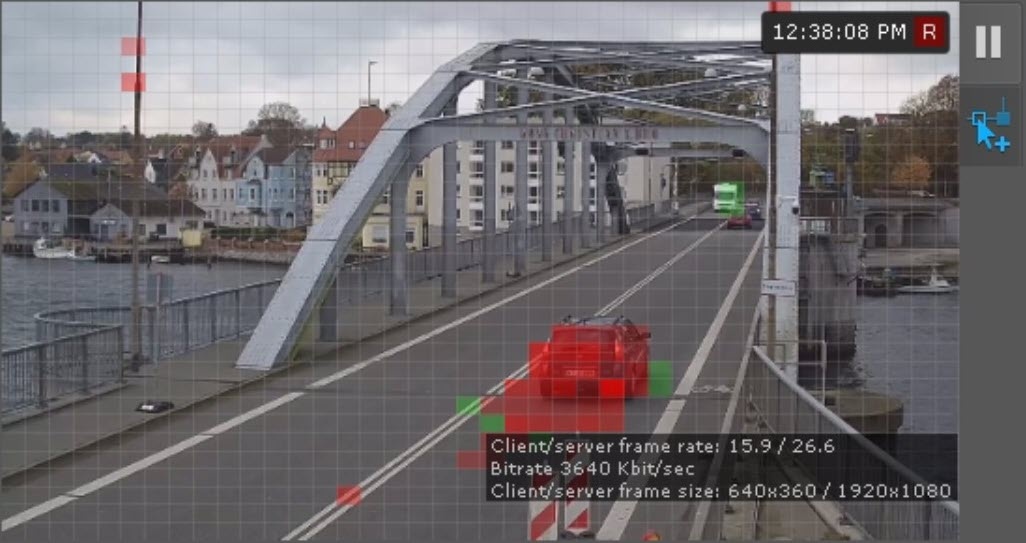
For your convenience with setting sensitivity value, in the preview window you can see the Motion mask. To disable it, select No in the Motion mask (9) field.
If there is motion, but it does not exceed the threshold value (because of the detection sensitivity), the mask cells are colored green. If motion triggers VMD, the cells turn red.
...
To get tracked objects and their parameters (percentage of the FoV width/height, color) displayed in the Preview window, select Yes in the Object tracking field (10).
...
Click Apply.
VMD configuration is now complete.
...
Overview
Content Tools