
Go to documentation repository


Page History
...
- Create a new logic: click the + button (2), and in the window that opens, enter the name for the new logic (8).
- Create a copy of the existing logic: select a logic in the list (4) and click the Create copy button (1). The name of the new logic consists of the name of the original logic and the copy number in brackets. For example, for the Logic 1 object, the first copy will be is named Logic 1(1), the second copy will be is named Logic 1(2).

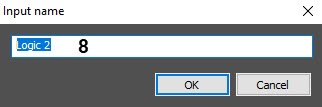
As a result, the new logic appears in the list (4).
...
- In the list of logics (4), select the logic you want to configure.
- Add the required number of elements to the logic (5). To add a row to the table, select the last row and press the ↓ key on the keyboard. To delete rows from the table, use the Ctrl + Del key combination.
- In the Element ID column, enter the name of each element.
- In the Multitasking column, set the ability to switch to processing other events while processing one event, being on the selected logic element:
Select Deny so that when this element appears, the operator cannot switch to processing another event until the operator moves to the element with the Allow value or completes processing an event (default value);.
Select Allow so that when this element appears, the operator can proceed to processing another event.
- In the Edit column, set the ability to step back when processing an event, being on the selected logic element:
- Select Deny so that the operator cannot step back when processing an event.
- Select Allow so that the operator can step back when processing an event.
Select the element that will be is displayed first for the operator when processing an event. To do this:
- Select an element in the table.
- Click the Edit button (6).
- In the Starting element drop-down list, select the Yes value.

Click the OK button.
As a result, the checkbox will be is displayed next to the selected element in the Starting column of the element table.Info title Note If you don't select the starting element, then it will be is the first element in the list.
- Configure each element of the logic and their connection (see Configuring the elements).
- Click the Apply button (7).
...
As a result, the current event processing with this logic will be is reset for operators, and you can start the event processing again with the updated logic.
Example of applying the reset option: the administrator has created a two-step logic, in which the second step is the button without the set Finish parameter and disabled multitasking for this button (see Configuring the button). You cannot complete the event processing with such logic. In this case, the administrator can allow multitasking for the button by setting the Apply to processed events checkbox and clicking Apply. As a result, the events processed with this logic will be are reset to the Waiting for handling status, and operators can restart the event processing with the updated logic (see Events control and processing Control and handling of events using the Incident incident manager).
Removing logic
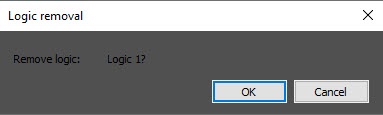
To remove a logic, select it in the list of logics (4) and click the - button (3). In the window that opens, confirm the removal.
| Info | ||
|---|---|---|
| ||
The logic of event processing is applied to an event at the moment when the event gets into theincident handler and is displayed in the incident manager. Accordingly, if you change the logic, the changed logic will be is applied to the events that occurred after it was changed. If the group event processing is enabled, the updated logic will be is applied to the new group of events after the existing group is closed. |
...
Overview
Content Tools