
Go to documentation repository


Page History
...
- Select Create object -> Microphone in the context menu of the Audio card object.
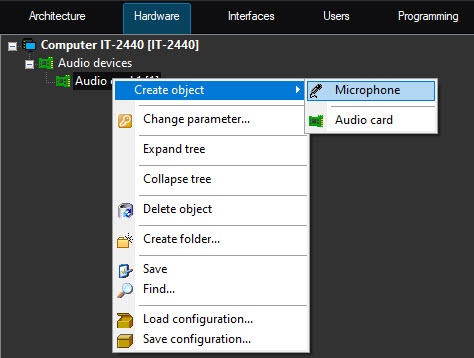
As a result, the main object settings panel opens.
Info title Note Main settings are set automatically. If necessary, you can change an ID, the object name, and the parent object.

- To create the object, click the Apply button.
- Select the created Microphone object inthe object tree (1).
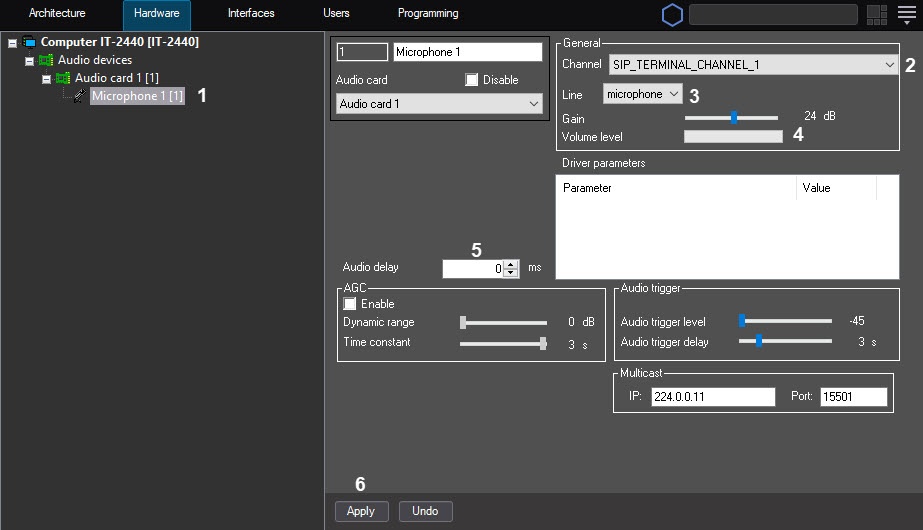
- Configure the created object.
From the Channel list (2), select the channel to which the audio device is connected (see the Features of audio subsystem configuration section).
From the Line list (3), select the device type (microphone, by default).
Configure the level of volume using the Gain slider. In the Volumelevel graphic scale (4), you can determine the sound availability on the specific microphone and the set gain value.
- In the Audio delay (5) field, set the delay in milliseconds between the moment of receiving an audio signal from the audio input device and the moment of its output to the speaker or the archive recording synchronously with the video signal. This parameter is used if the video image comes delayed or advanced, and the sound goes ahead of or behind it. You can set the value range from -10000 to 10000.
Click the Apply (6) button to save the settings.
...
Overview
Content Tools