
Go to documentation repository


Page History
The AxxonOne Manager You can use the NGP manager hardware object is used to set up integration with Axxon One. Only one AxxonOne Manager can be created per You can create only one NGP manager object per one Axxon PSIM server, so if you need integration with multiple several Axxon One domains, you will need to must use multiple several Axxon PSIM servers.
| Section | ||||||||||||||||||||
|---|---|---|---|---|---|---|---|---|---|---|---|---|---|---|---|---|---|---|---|---|
|
...
Create the NGP manager object
- Go to the Hardware tab in the system settings.
- Right-click on the the Computer object, and in the context menu that appearsopens, select Create object → AxxonOne Manager.
 NGP manager.
Info title Note The Computer object should must correspond to the Axxon PSIM Server which server that is selected for integration.
- The Number and Name fields will be filled in automatically, but you can edit them if needed.
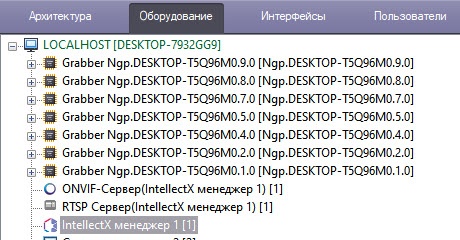
 number and name are entered into the fields automatically. If necessary, you can change them.
 - Click the Apply buttonClick Apply.
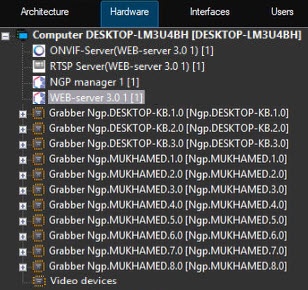
As a result, three objects will be created: AxxonOne Manager, along with ONVIF Server and RTSP Server associated with it.The ONVIF Server (AxxonOne Managerthe NGP manager object is created. For the correct operation, you also need to create the Web server 3.0 object. The ONVIF Server (Web server 3.0) and RTSP Server (AxxonOne Manager) objects Web server 3.0) objects associated with the Web server 3.0 object are automatically created in the hardware tree. These objects are used to set up integration using the Axxon One Web Server and are created by default. There is no web server. You don't need to delete or configure them; they should must remain as they are.
...
Configure the NGP manager object
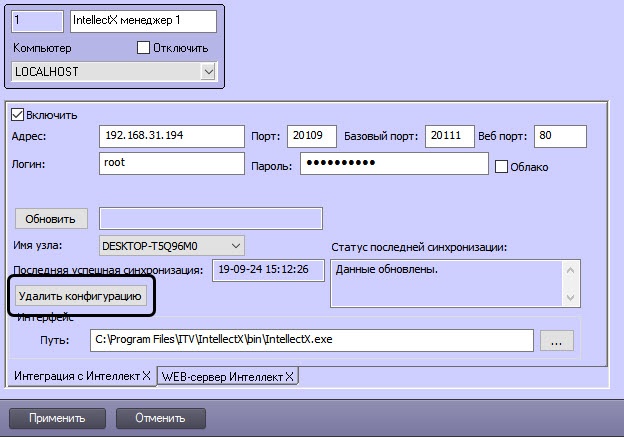
- Select the created AxxonOne Manager NGP manager object in the hardware tree (1), go to the Integration with Axxon One tab (2), and set the Enable checkbox (3).
- Enter the information of the Axxon One instance you are connecting to (4):If you use a cloud connection is used for authorization in in Axxon One, set the Cloud checkbox.
Field Description Default value Address IP - address 127.0.0.1 Port Port for communication with Client the client (NativeBL port) 20109 Base port Port for operations within a domain 20111 Web port Web Server server port (HTTP port for failover server) 80 Login Axxon One username root Password Axxon One password root Info title Note The connection ports depend on the type of Axxon One installation (failover or not) and its settings. For more information, see the Axxon One documentation:
- Click the Update button (5) to Refresh button to synchronize with Axxon One. This button initiates reading and updating the of the Axxon One configuration to retrieve information and send it to Axxon PSIM:

Note title Attention! Specifics of synchronization with Axxon One using the Update button Refresh button:
- After clicking you click the button, you must wait for the process to complete without taking any further actions. This ensures that the states of Axxon One objects are correctly transferred.
- If the configuration of a running Axxon One Server server was previously retrieved and during the next synchronization the server status is "off," the equipment hardware state in Axxon PSIM will remain remains unchanged. This is done to prevent accidental configuration clearing, for example, if the Axxon One server is rebooting during synchronization.
- If you enter data of a new Axxon One domain for synchronization, the data from of the previously synchronized domain will be are deleted. If synchronization is done with a server from the same domain, the data will remain.
- The equipment hardware list, which was already retrieved, will be is synchronized between Axxon PSIM and Axxon One " on the fly. " However, to obtain information about new equipment hardware or changes in the Axxon One configuration, you should must click the Update Refresh button again.
- If you delete in Axxon PSIM devices delete devices and macros received from Axxon One (and they remain in Axxon One) in Axxon PSIM, they will be are recreated in Axxon PSIM during the next synchronization.
- Equipment Hardware objects retrieved from Axxon One are created in Axxon PSIM without configuration settings panels, as they can only be configured in Axxon One.
- Macros are created without predefined conditions, but they you can be configured configure them if needed. For more information, see Working with macros and events received from Axxon One.
The result of the synchronization will be is displayed in the information fields fields Last successful synchronization and Last synchronization state (6). If the synchronization was is successful, the equipment hardware received from Axxon One will appear appears in the equipment hardware list, and the received macros will appear in the the Macros list on the Programming tab.:
 In the Node name
 - If you connect to the Axxon One failover server, set the Failover server checkbox and select from the drop-down list on the right, select the Axxon One server , the cameras from which will be whose cameras are displayed in the Axxon One Monitor interface (7).In the Path field, specify NGP monitor window. If you connect to a regular server, not the Axxon One failover server, you can skip this step.
- If you have the Axxon One client preinstalled, then when you create an integration object, the Path field will automatically contain the path to the previously installed
- Axxon One Client
- root folder (see Pre-configuration
- Preconfiguration of Axxon One) , which will be
- . This path is used to launch the Axxon One Monitor interface object (8). The default path is: C:\Program Files\AxxonSoft\AxxonOne\bin\AxxonOne.exe
- NGP monitor interface object. If you don't have Axxon One installed, the field remains empty. In this case, you need to install Axxon One and enter manually either the path to the Axxon One root folder or the gui_safe_mode.exe path if you are using an older version of OpenGL (see Create and configure the NGP monitor object).
Note title Attention! Note that this path must be the same on all computers where you want to run the Axxon One
Client ( client AxxonOne.exe
) is to be run. This means that
the the Axxon One
Client client must be pre-installed in the same folder on all computers.
- Click the Apply button.
Integration with Axxon One is complete.
...
Delete the Axxon One configuration
To completely remove delete the integration with Axxon One configured as described above, do the following:
- Make sure that the last synchronization with Axxon One was successful (check the Last successful synchronization and Last synchronization state fields). If necessary, click Update to click Refresh to synchronize.
- On the AxxonOne Manager the settings panel of NGP manager, click the Delete configuration button.
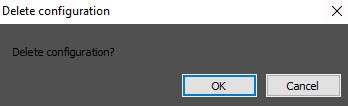
- A The Delete configuration window will openopens. Click OK to confirm.
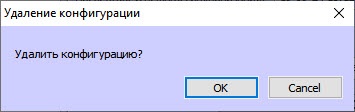
As a result, all equipment hardware and macro lists associated with this integration will be deleted. If an Axxon One Monitor you configured the NGP monitor interface object was configured, its camera list will also be cleared accordingly.
Overview
Content Tools