
Go to documentation repository


Page History
...
- Create a layout beforehand and add the necessary cameras to it.
- Create a map on this layout (see Adding a new map).
- Add the required cameras to the map (see Adding cameras).
- Calibrate cameras in immersion mode (see Configuring a camera in immersion mode):
- Set calibration points.
- Attach the image from the cameras to the map.
- Save the changes to the layout by clicking the Save button at the top of the screen.
- Go to Configuration management → Detectors.
- Create neural trackers for the required cameras and change the following parameters of the detector (see Configuring the Neural tracker):
- Similitude search—select Yes.
- Time of processing similitude track (s)—4 seconds (you must select the value can varyrequired value empirically. We recommend specifying the value of at least 4).
- Minimum number of detection triggers—4 (you must select the value can vary)required value empirically. We recommend specifying the value of at least 4).
Info title Note Values of at least 4 in both cases generally provide stable results. However, values can vary depending on the use case.
- Save the changes in the settings of the neural trackers.
- In the device tree, on the Detectors tab, click Create… → Multi-camera tracker.
- In the tracker settings:
- In the Enable field, select Yes.
- In the Map list field, click the
 button and set the checkboxes next to the required maps.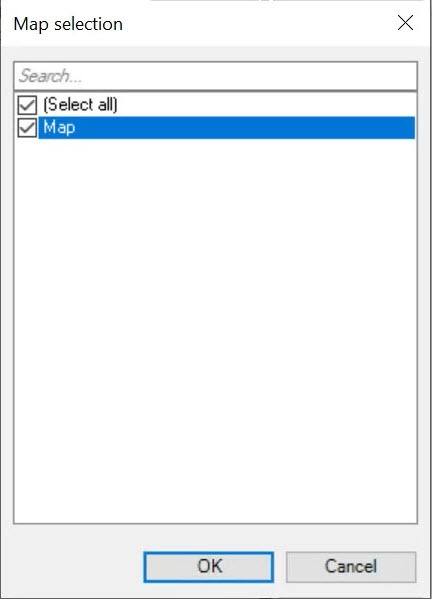
- Click the OK button.
- In the Multi-camera tracker detectors panel, set the checkboxes next to the cameras whose tracks need to be displayed on the map. Make sure that the status of the selected cameras is Connected.
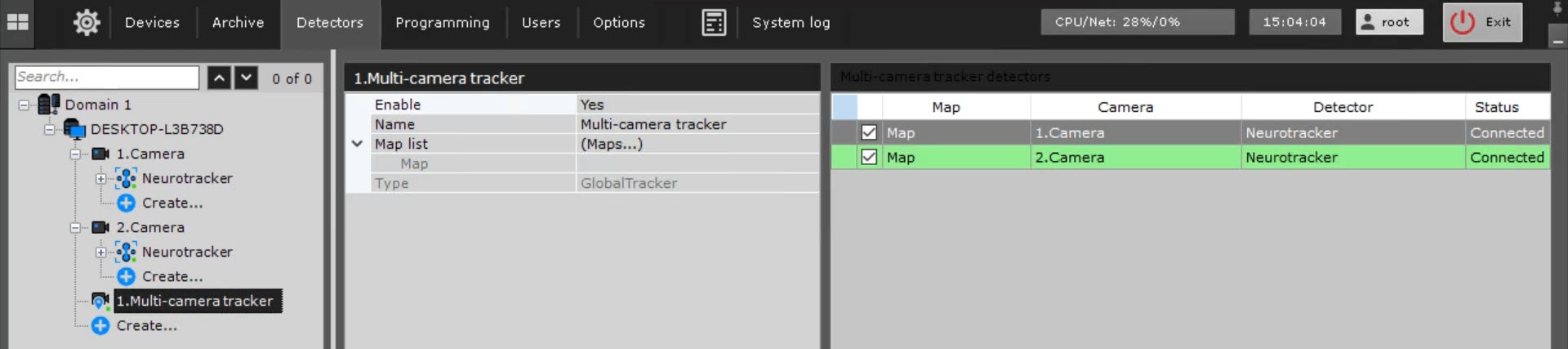
- Save the changes by clicking the Apply
 button.
...
Overview
Content Tools