
Go to documentation repository


Page History
To configure the operator reaction, do the following:
...
- Go to the settings panel of the
- Operator reaction object, which is created on the basis of the Event manager object on the
...
- Interfaces tab of the System settings dialog window.

...
To configure the operator reaction, do the following:
- Go to the settings panel of the Operator reaction object.
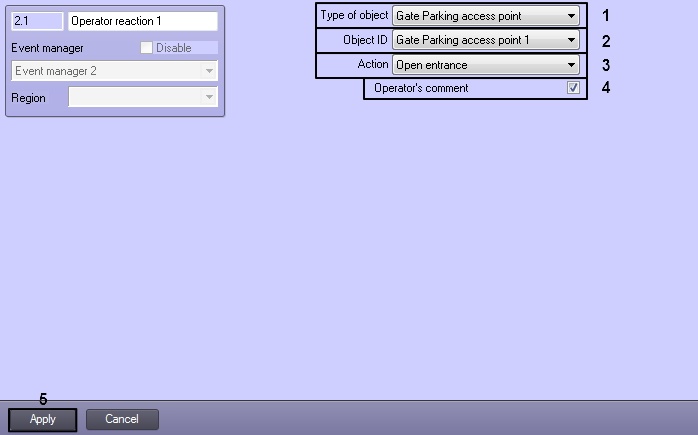
- From the Type of object drop-down list (1), select type of object on which reaction will be sent by clicking the program button (1).
- From the Object ID drop-down list (2) select the identical number of object in the Intellect system (2).
- From the Action drop-down list list (3) select reaction which will be sent to the object by clicking the program button (3).
Check the Operator's comment box (4) to enable a mandatory comment popup to appear on clicking the program button (4).
Info title Note Comments entered by the operator when making a decision are stored in the database and automatically displayed in the protocol report when the Operator reaction event is selected.
For more information, see Creating a Protocol report section in the Intellect Web Report System. User Guide).

- To save changes click the Apply button (5).
Configuring the operator reaction is completed.
Overview
Content Tools