


Page History
General information
The Files tab is designed to display the actions generated as a result of executing macros in Axxon One.
To display actions on the Files tab, you must first complete the following steps:
- In AxxonNet, create a list of faces or a list of license plates (see Creating, editing and deleting lists of faces, Creating, editing and deleting a list of LPs).
- Synchronize the created lists with the corresponding domain (see Synchronizing a list of faces with the domain, Synchronizing a list of LPs with the domain and exporting).
- Additionally, you must configure in Axxon One:
- Email notifier to generate notifications (see Email notifier).
- Export agent to transfer data to the cloud solution (see Configuration of the export agent).
- A macro using the selected lists of faces or lists of license plates (see Configuring macros when working with lists of faces, Configuring macros when working with lists of license plates) and add an action to send an email notification (see Send email).
The resulting macro actions are displayed on the Files tab as records containing information about the recorded event.
| Note | ||
|---|---|---|
| ||
By default, each user can upload up to 1 GB of images/videos per day and up to 30 GB per month. The quota is regulated by the system administrator. When the limit is reached, a corresponding message is displayed. |
View exported files
To view exported files:
- You must have access to the required
If email notifications were configured via AxxonNet (see The Email notifier object) and contain a frame or video attached, you can use AxxonNet interface to view exported files.
...
| title | Note |
|---|
...
- domain (see Configuring users and roles in AxxonNet).
...
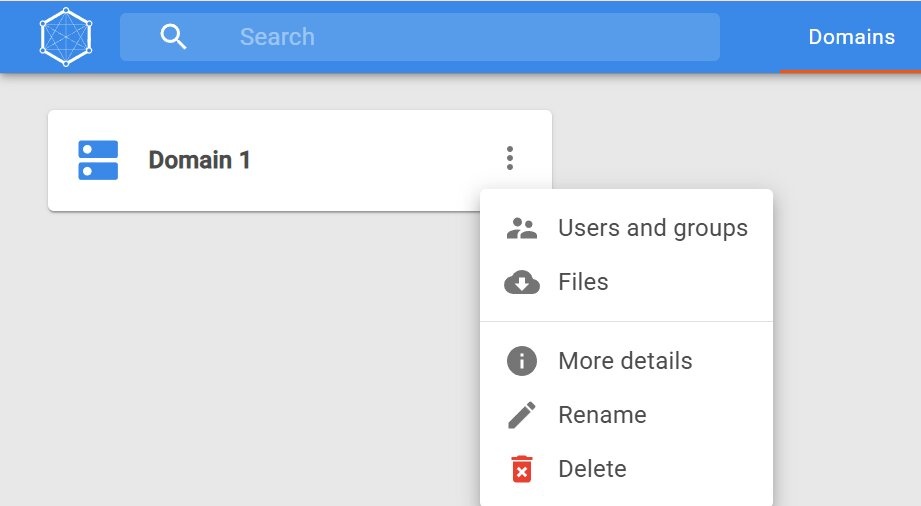
On the Domains tab, click
...

...
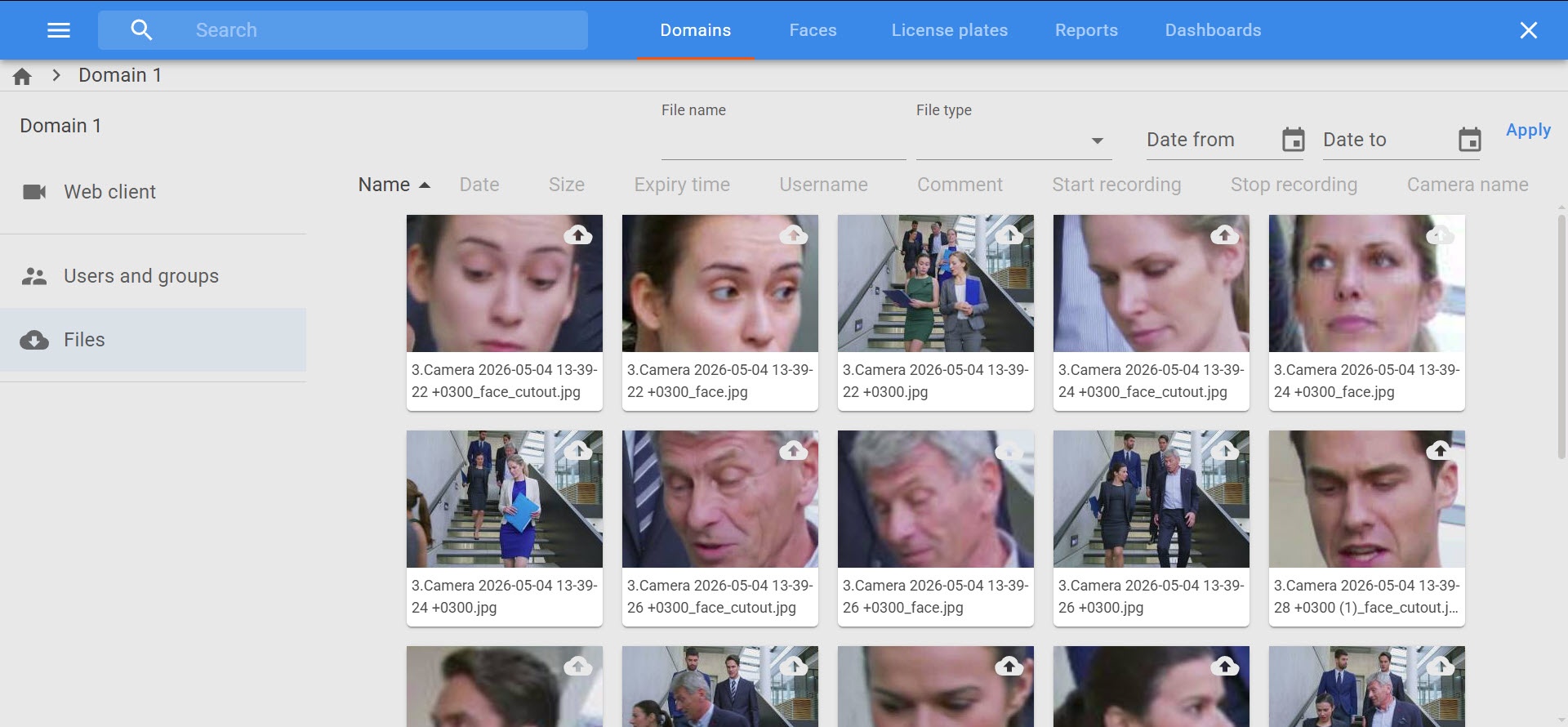
The list of exported filed pops up.
A single click on a file opens its information pane on the right.
| Info | ||
|---|---|---|
| ||
Click |
To view an exported video, click on the image.
| Note | ||
|---|---|---|
| ||
You can view videos in .mp4 format only. To view videos in other formats, you will be offered to download a file. |

A double click makes the file displayed in full screen mode.
Exported files list can be filtered by name, type and date. To do so, specify required filters and click the Apply button.
next to the required domain.
- Select Files in the menu.
The Files tab opens with a list of exported files:
On the Files tab, you can:
- Filter exported files by name, type, and specific dates. To do this, set the required filters and click the Apply button.
- Sort exported files by name or export date by clicking the Name or Date columns.
- Open details about the exported file by clicking it. The information appears on the right side of the screen.
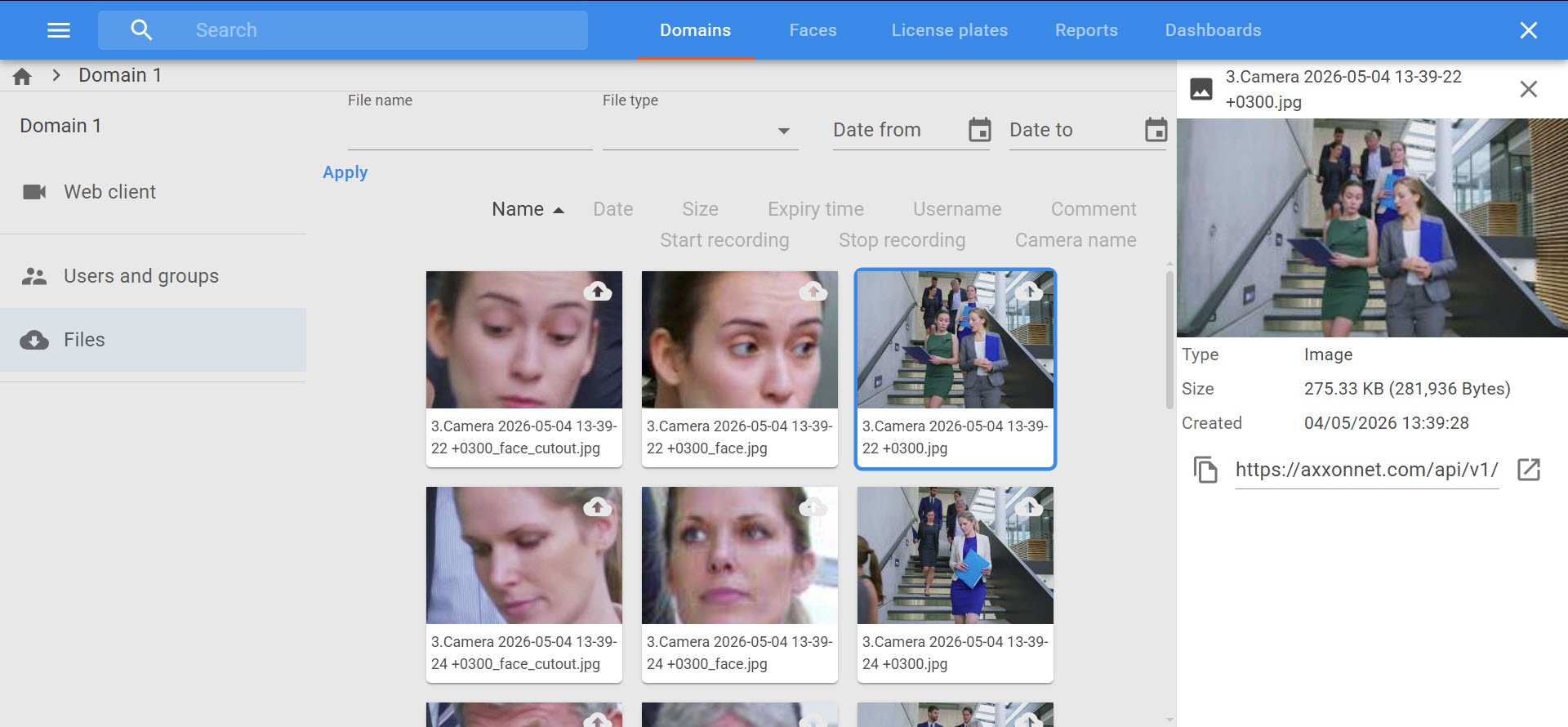
- View the exported file by double-clicking it on the Files tab, or open the file details and click the image. The file opens in full screen.
Note title Attention! You can view exported files in MP4, JPG, and PDF formats only in the AxxonNet interface. For MKV and AVI files, a download link is provided.
Copy a direct link to the exported file. To do this, open the file details and click the
 button in the lower left corner. The link is copied to the clipboard.
Open the exported file in a new tab. To do this, open the file details and click the
 button in the lower right corner. MP4, JPG, and PDF files open in a new tab. MKV and AVI files are downloaded.
Delete the exported file:
- Hover the mouse cursor over the file and click the
 button in the lower right corner.
 - In the window that opens, click the Yes button. To cancel deletion, click the No button.

The file is deleted from AxxonNet.
- Hover the mouse cursor over the file and click the
- Delete several exported files at once.
- Set the
 checkbox in the upper left corner of the exported file windows. To deselect a file, clear the checkbox.
Click the
button in the lower right corner. To deselect files, click the  button in the lower left corner.
- In the window that opens, click the Yes button. To cancel deletion, click the No button.

The selected files are deleted from AxxonNet.
- Set the
...