


Page History
The video image is configured in the PLAYER section in the following way:

Select the Mode (1) parameter to proceed to the sub-menu to playback format:
H264—less resource-intensive than mjpeg and supports the H.264 and H.265 codecs, the video is transmitted via the RTSP protocol.
Note title Attention! To ensure the operation of this playback format, it is necessary to configure the RTSP Server (for Intellect see Configuring RTSP Server module, for Axxon Next see Configuring an RTSP Server).
MJPEG—the frame-by-frame compression method. Its main feature is the compression of every separate video stream frame by means of the JPEG image compression algorithm.
In the Stream parameter, select the video stream quality:
- First—the first camera stream.
- Light (lowest bitrate)—the stream with the lowest bitrate.
- Best quality—the stream with maximum quality (maximum bitrate).
In the Mode parameter, select the playback format:
MP4 - less resource-intensive than mjpeg and supports the H.264 and H.265 codecs, the video is transmitted via the RTSP protocol.

Note title Attention! To ensure the operation of this playback format, it is necessary to configure the RTSP Server (for Intellect see Configuring RTSP Server module, for Axxon Next see Configuring an RTSP Server).
Info title Note If the MP4 playback format is selected and the camera uses the H.265 stream, it is recommended not to disable the Hardware Decoding (see Configuring the VLC in the AxxonNet iOS mobile client).
- MJPEG - the frame-by-frame compression method. Its main feature is the compression of every separate video stream frame by means of the JPEG image compression algorithm.
Select In the Stream (2) parameter to proceed to the sub-menu to parameter, select the video stream quality:
- First - is the first camera stream.

- Light (lowest bitrate) - is the stream with the lowest bitrate.
- Best quality - is the stream with maximum quality (maximum bitrate).
- First - is the first camera stream.
- Select In the Video Resolution (3) parameter to proceed to sub-menu to parameter, select the image resolution:
- Max - is the original image resolution.
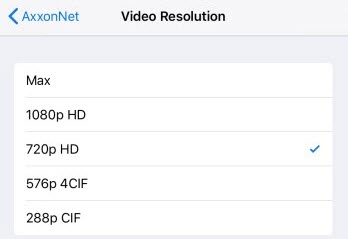
- 1080p HD.
- 720p HD.
- 576p 4CIF.
288p CIF..
- Max - is the original image resolution.
- Enable the Preview as live stream parameter if it is necessary to display live video in the multicam, and not video frames captured at the moment of the last multicam update.
- Enable the RTSP live stream (Intellect) if it is necessary to receive audio from the Intellect Server. Works in conjunction with the MP4 playback format.
In the Preview Resolution parameter, Select the Preview Resolution (5) parameter to proceed to the sub-menu to select the cameras preview resolution:
- Max - is the original image resolution.

- 576p 4CIF.
- 288p CIF.
- Max - is the original image resolution.
- Select In the FPS (6) parameter to proceed to the sub-menu to parameter, select the maximum fps of the video playback.
- Max - is the original fps.

- 12 - 12 fps.
- 6 - 6 fps
3 - 3 fps.
Info title Note This configuration is applied only when connected to the Intellect Server.
- Max - is the original fps.
...
.